Administrator
CommunicationSchool-wide posts and announcements
Create posts that appear on Today and send targeted announcements.
Last updated Oct 1, 2026
Posts
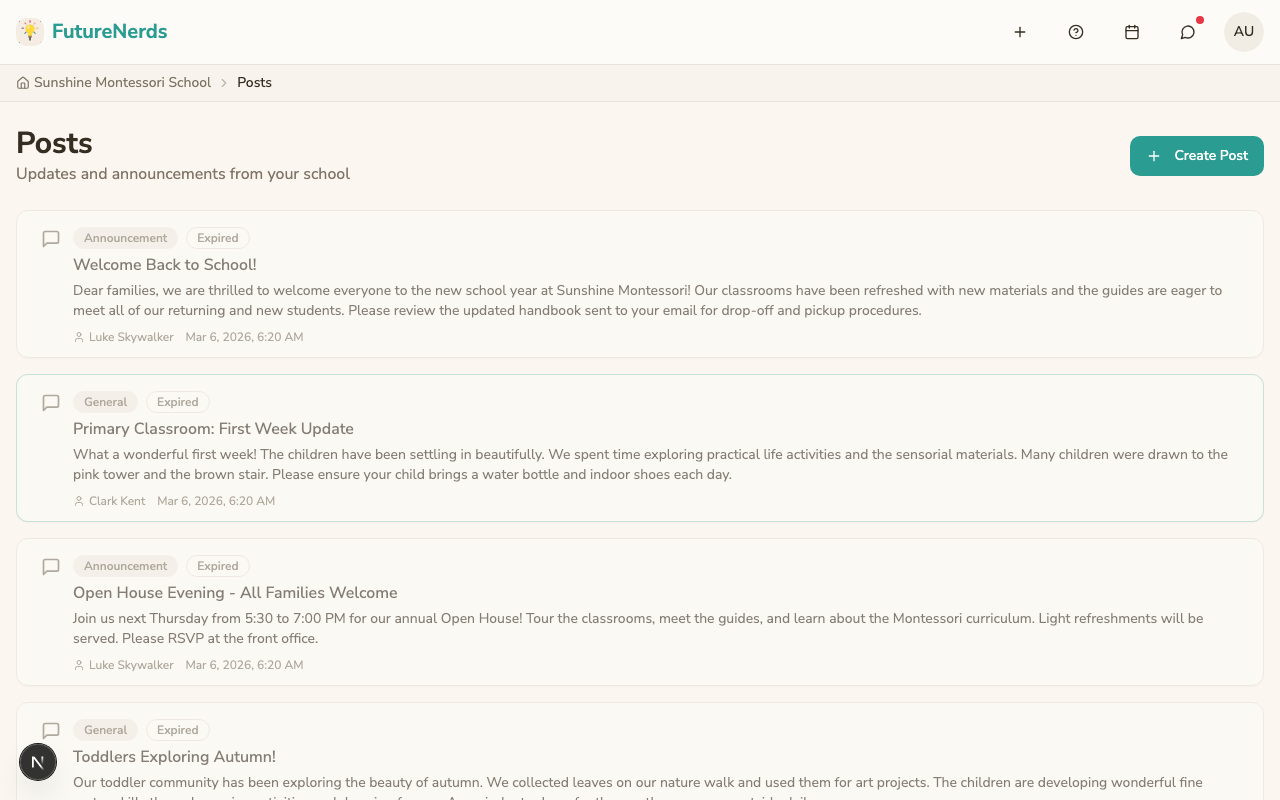
Posts are the primary way to communicate with your school community. They appear on Posts (from Today under Manage) and as banners at the top of Today for active posts.
Creating a post
- On Today, under Manage, open Posts.
- Click Create Post.
- Fill in the post dialog:
- Title -- an optional headline for the post.
- Message -- the body text (required).
- Category -- choose from: General, Announcement, Alert, Reminder, or Celebration.
- Expiration -- how long the post stays active: 6 hours, 12 hours, 24 hours, 3 days, or No expiration.
- Visibility -- School (everyone sees it) or Classroom (only one classroom).
- Click Publish Post. You can also start from Use template. There is a No checklist option if you do not want a checklist attached.
How posts appear
- Today banners -- up to 3 active (non-expired) posts appear as dismissible colored banners at the top of Today for all roles.
- Posts -- all posts appear in a scrollable feed. Staff see all posts including expired ones (shown dimmed). Parents see only active posts.
Managing posts
Click on any post to open it in edit mode. You can:
- Edit the title, message, category, or expiration.
- Delete the post from everyone's feed.
Tips
- Use the Alert category for urgent information that needs immediate attention.
- Set an expiration so old posts do not clutter Today.
- Use posts instead of messages when the information is relevant to the entire community.
Was This Helpful?