Meals and the cafeteria menu
Turn on the meals program, set offerings and prices per classroom, upload the menu, and read the meals report.
Last updated Oct 1, 2026
The meals program
The meals program lets you offer snacks and meals to families, set prices, publish a weekly menu, and track who is signed up. Open School Settings from your avatar menu, then open Meals.
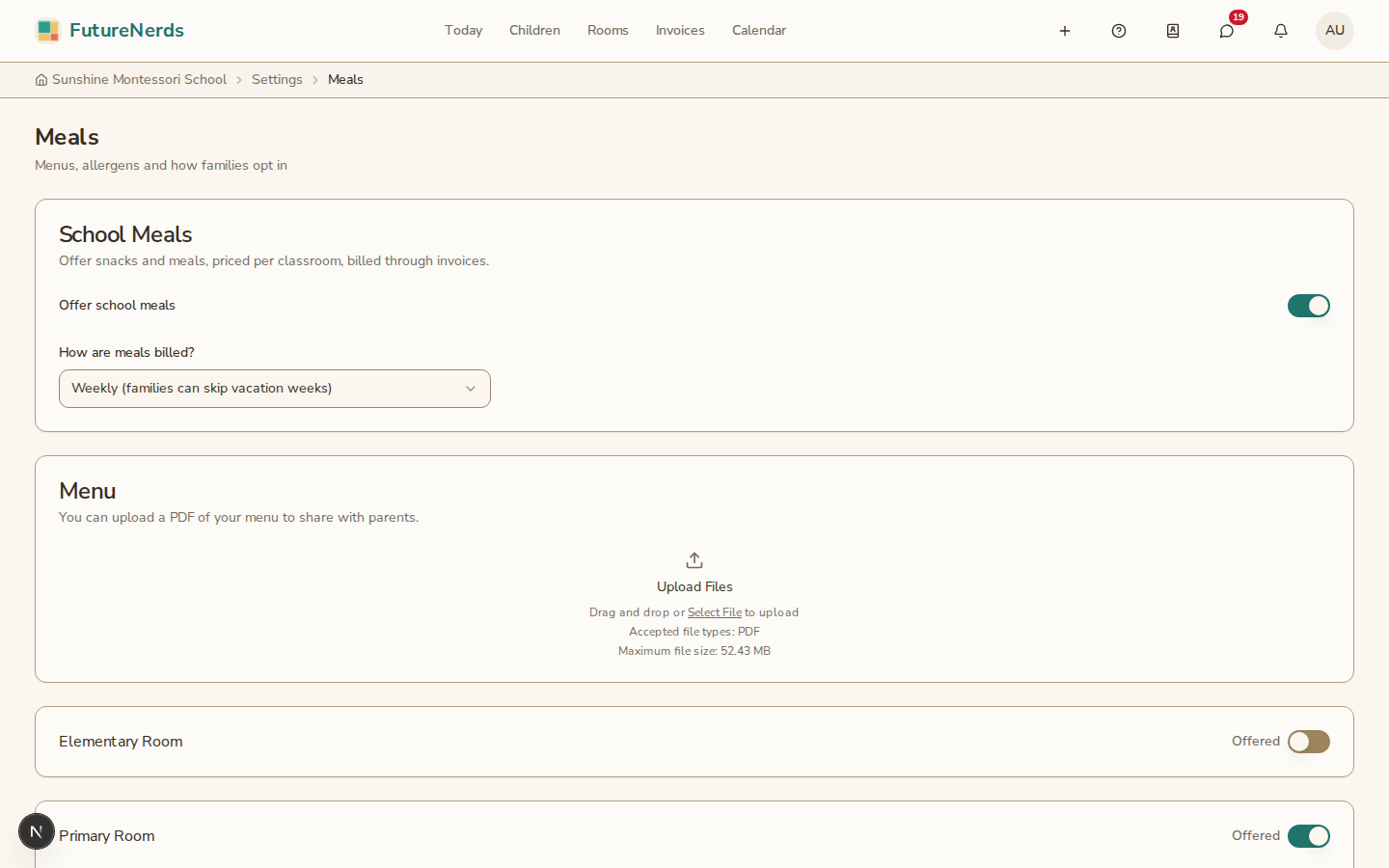
Turning meals on
- Open Meals.
- Turn Offer school meals on. Under How are meals billed?, pick the billing rhythm (for example Weekly (families can skip vacation weeks)).
When the program is off, families do not see meals anywhere. When it is on, the offerings you configure become available.
Setting offerings and prices
Snack and meal offerings are configured per classroom, so different rooms can offer different things at different prices.
- On Meals, choose a classroom.
- Add the snack and meal offerings for that classroom.
- Set the price for each offering.
Repeat for each classroom that takes part in the program.
Uploading the weekly menu
Upload the weekly menu so families can see what is being served.
- On Meals, find Menu.
- Drag a PDF in, or click Select File.
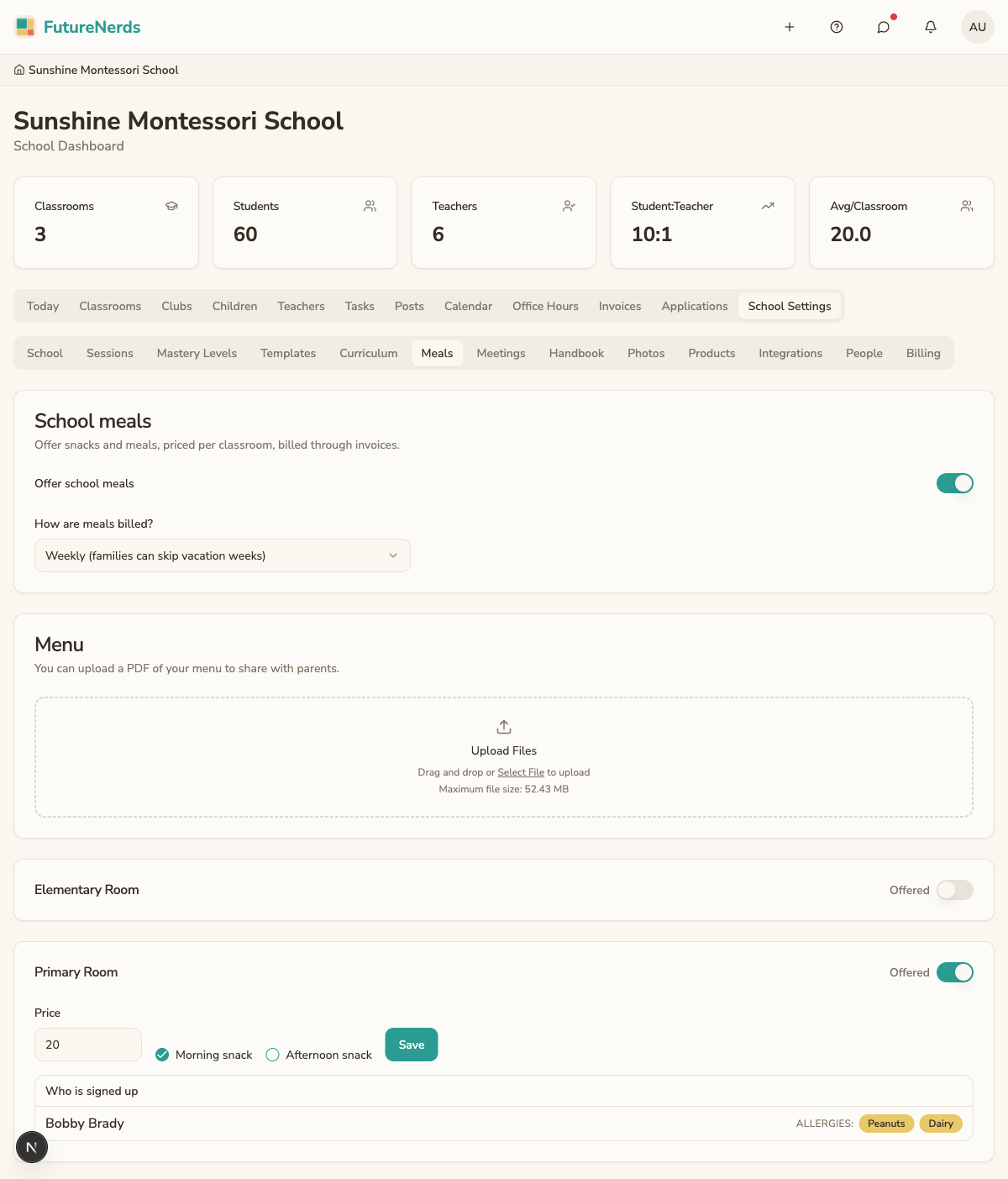
Families can view the current menu once it is uploaded. Replace it each week to keep it current.
The meals report
Meals includes a report so you can see meal activity across the school: who is signed up and what is being served. Use it to plan quantities and to reconcile charges.
Tips
- Set prices per classroom so age-appropriate portions can carry different costs.
- Upload the new menu before the week starts so families can plan.
- Turn the program off if you pause meals, rather than deleting the offerings you have set up.
Was This Helpful?