Exporting school data
Download one zip file of every record your school keeps in FutureNerds.
Exporting school data
Any administrator can download one zip file with every record the school keeps in FutureNerds. Use it to move to another system, to give records to an accountant or auditor, or to keep a copy.
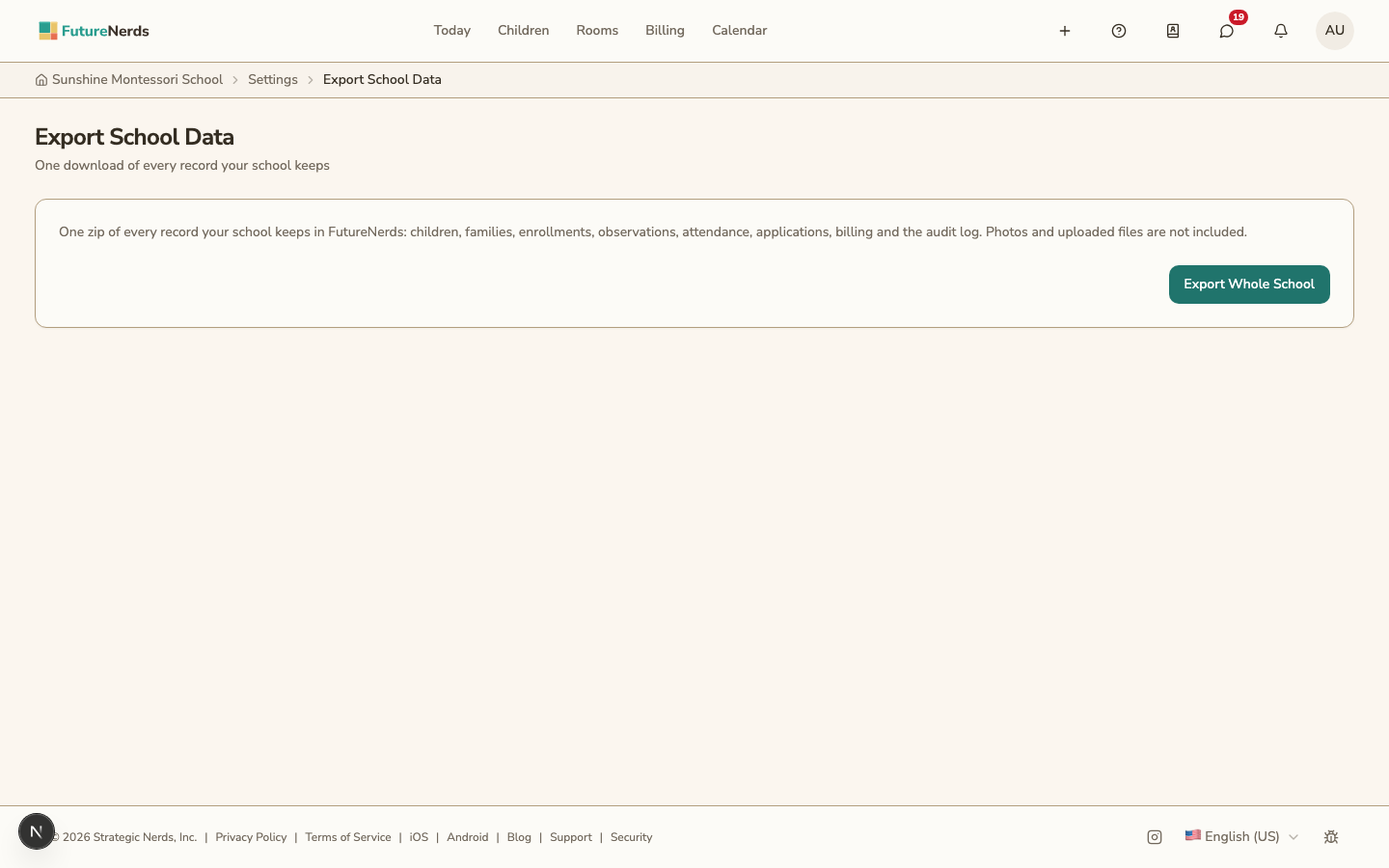
Start an export
- Open School Settings.
- Under Account, click Export School Data.
- Click Export Whole School.
You can leave the page while the export is prepared. We email you when it is ready.
Download the file
Click Download Export on the same page, or the Download Export button in the email. Both ask you to sign in as an administrator of the school.
The file is available for 7 days. After that, click Export Whole School to make a new one.
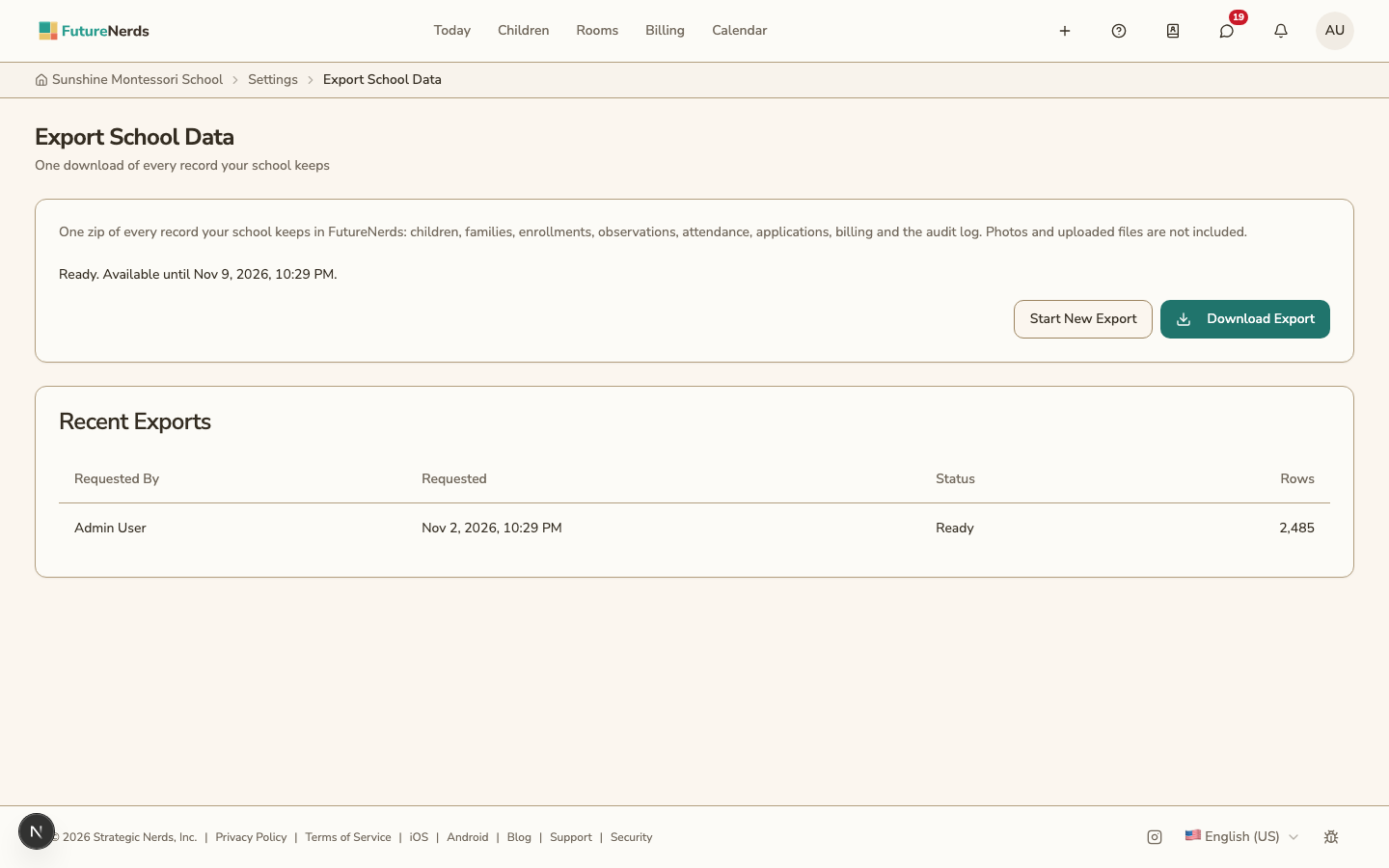
Recent Exports lists the last 10 exports, who asked for each and when. The Audit Log records each request and each download.
What the file contains
The zip holds one JSON file for each kind of record, and a manifest.json that lists every file with its number of rows.
- The school profile and classrooms
- School years (sessions), open-enrollment windows, term enrollment records, enrollment agreements, and agreement signatures (including attached contract filename and file size metadata)
- Children, their guardians, and contacts
- Enrollments in the school and in classrooms
- Consent records
- Observations, mastery records, and progress milestones. Private observations are included and marked
is_private. - Attendance
- Application forms and applications
- Invoices, invoice lines, payments, credit notes, and scholarships
- The school's audit log
A child who has left the school appears in the enrollments file, with the profile saved on the day they left.
What the file leaves out
- Photos and uploaded files. Attached enrollment contract PDFs and storage object paths are omitted, and a document uploaded with an application shows as
{"file_omitted": true}. Download the photos with Download Photos below. - Payment processor IDs, IP addresses, browser user-agent strings, document hashes, and sign-in tokens.
Download photos
Download Photos, on the same page, saves the school's classroom photos as one zip, with a folder for each school year and classroom.
- Under Download Photos, choose a school year, or All school years.
- Click Download Photos.
Keep the page open until the download finishes. If some photos could not be downloaded, the page says how many were saved; click Try Again for the rest.
Classroom photos are deleted 6 months after the end of the school year they were taken in. See photo retention.
Who can export
Any administrator of the school. Teachers and parents cannot open School Settings.
The export is on the website only.
Each person can download the records tied to their own account from Download Your Data on the Account tab of Profile Settings.
Was This Helpful?