Administrator
School managementCustomizing mastery levels
Rename mastery level labels and change their colors to match your school's terminology.
Last updated Oct 1, 2026
Mastery level customization
FutureNerds uses four mastery levels to track children's progress through the curriculum. By default they are called Not Yet Presented, Presented, Practicing, and Mastered. You can rename these labels and change their colors to match your school's terminology.
Getting there
Open School Settings from your avatar menu, then open Mastery Levels.
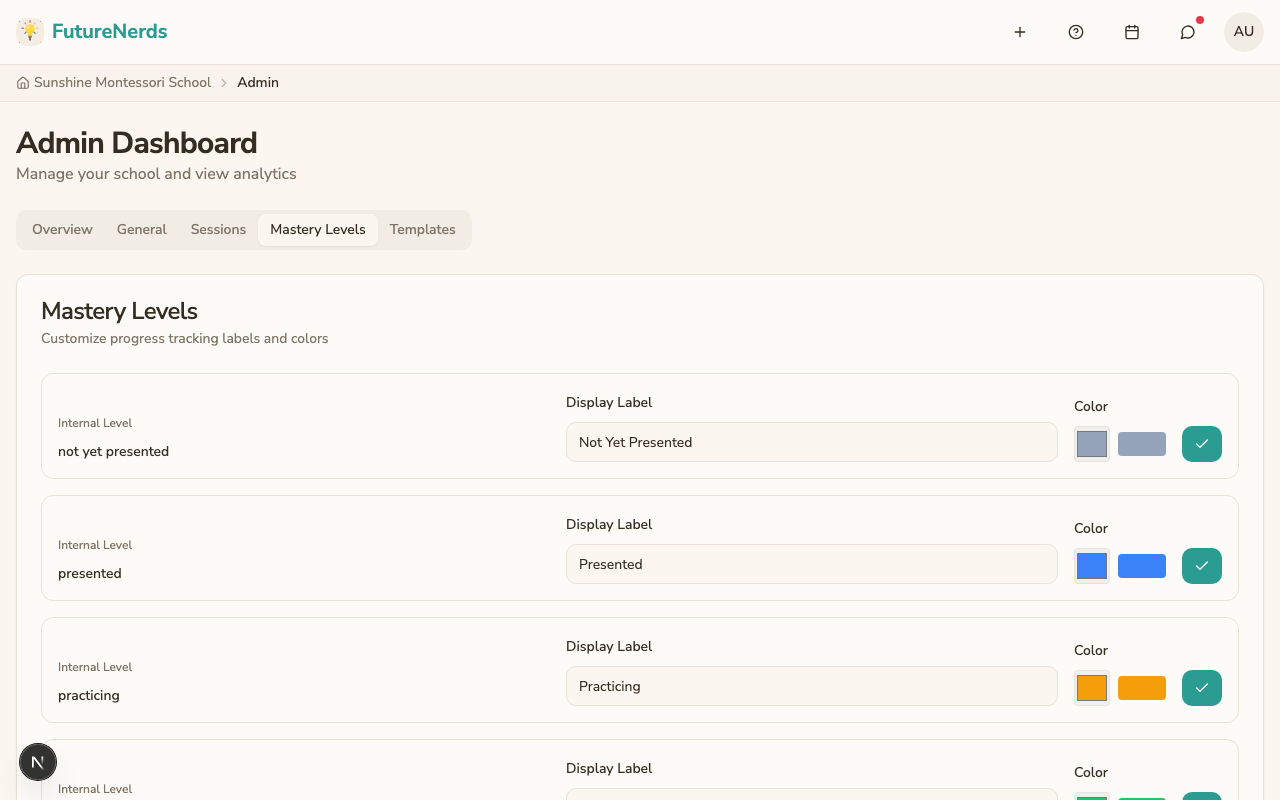
What you see
A table with one row per mastery level:
| Column | Description |
|---|---|
| Level | The internal level name (read-only) |
| Display label | The label teachers and parents see (editable) |
| Color | A color swatch with a color picker |
Changing a label
- Edit the Display label text field for the level you want to rename.
- Click the checkmark to save.
For example, you might rename "Not Yet Presented" to "Not Introduced" or "Mastered" to "Independent."
Changing a color
- Click the color swatch next to the level.
- Choose a new color from the color picker.
- Click the checkmark to save.
Colors appear on the progress grid, assessments, and anywhere mastery levels are displayed.
Tips
- Choose labels that are meaningful to your families. Avoid jargon.
- Use distinct colors so the progress grid is easy to read at a glance.
- Changes apply school-wide immediately. Teachers and parents see the updated labels and colors right away.
Was This Helpful?