Tuition and Fees: your price list
See and edit every price for a school year: each program's Pricing Tiers and fees, room fees, school-wide fees, clubs, meals, and sibling and annual discounts.
Remember: most price changes take effect on the first bill generated in the next period. For example, a weekly charge you turn on today starts next Monday, so a bill you generate today does not include it.
Open the price list for a school year
Open School Settings from your avatar menu, then Money, then Tuition and Fees.
Pick the year under School Year. The line under it says when families pay these prices:
- For the year you are billing now, families pay them from their next bill.
- For a year that has not started, families pay them from its first day.
- For a year that has ended, the prices stay as they were billed, and you cannot change them.
If the year has no billing months, the page shows Set billing months first. If the year has no prices, the page shows Set Prices for the year. See Setting up a new school year.
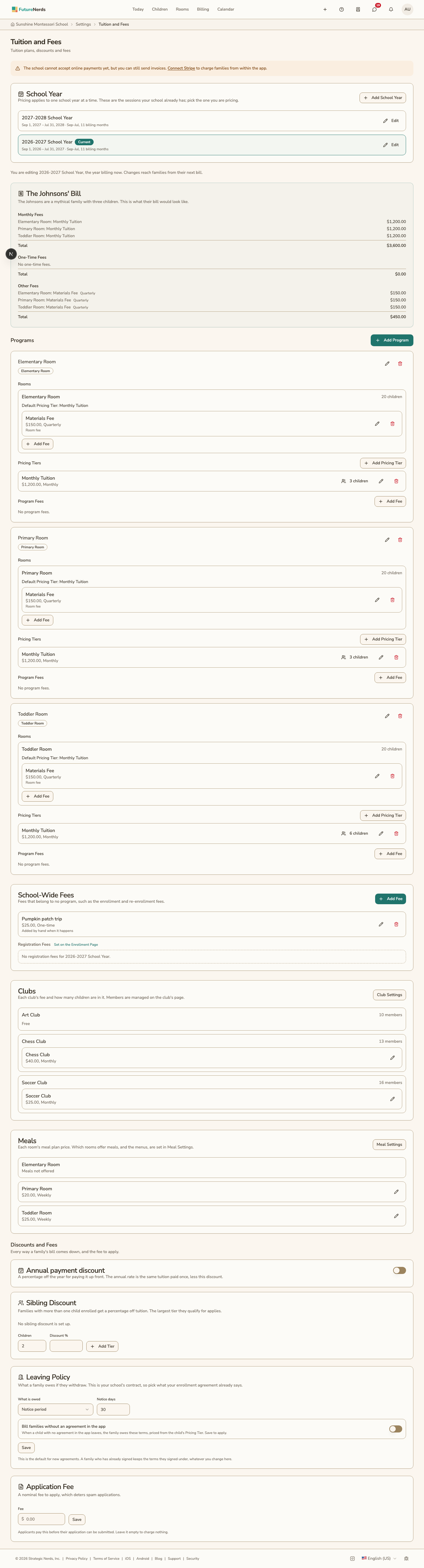
From top to bottom, the page shows the Johnsons' bill, Programs, School-Wide Fees, Clubs, Meals, and Discounts and Fees. You change every price on this page.
Check a sample family's bill
The Johnsons are a made-up family with three new children. Each child is in one of your first three rooms that charge tuition. The card at the top of the page shows their bill for the year you picked:
- Monthly Fees: each child's tuition and fees, the monthly fees every child pays, and your sibling discount
- One-Time Fees: one-time fees and the registration fees new children pay
- Other Fees: charges every three, six, or twelve months
The card changes each time you change a price on the page. It leaves out meals, clubs, and trips, because families choose those.
Read a program's card
Each program has a card. The card lists the program's rooms, its Pricing Tiers, and its Program Fees. You see the same cards on Programs, under Money. See Programs and rooms.
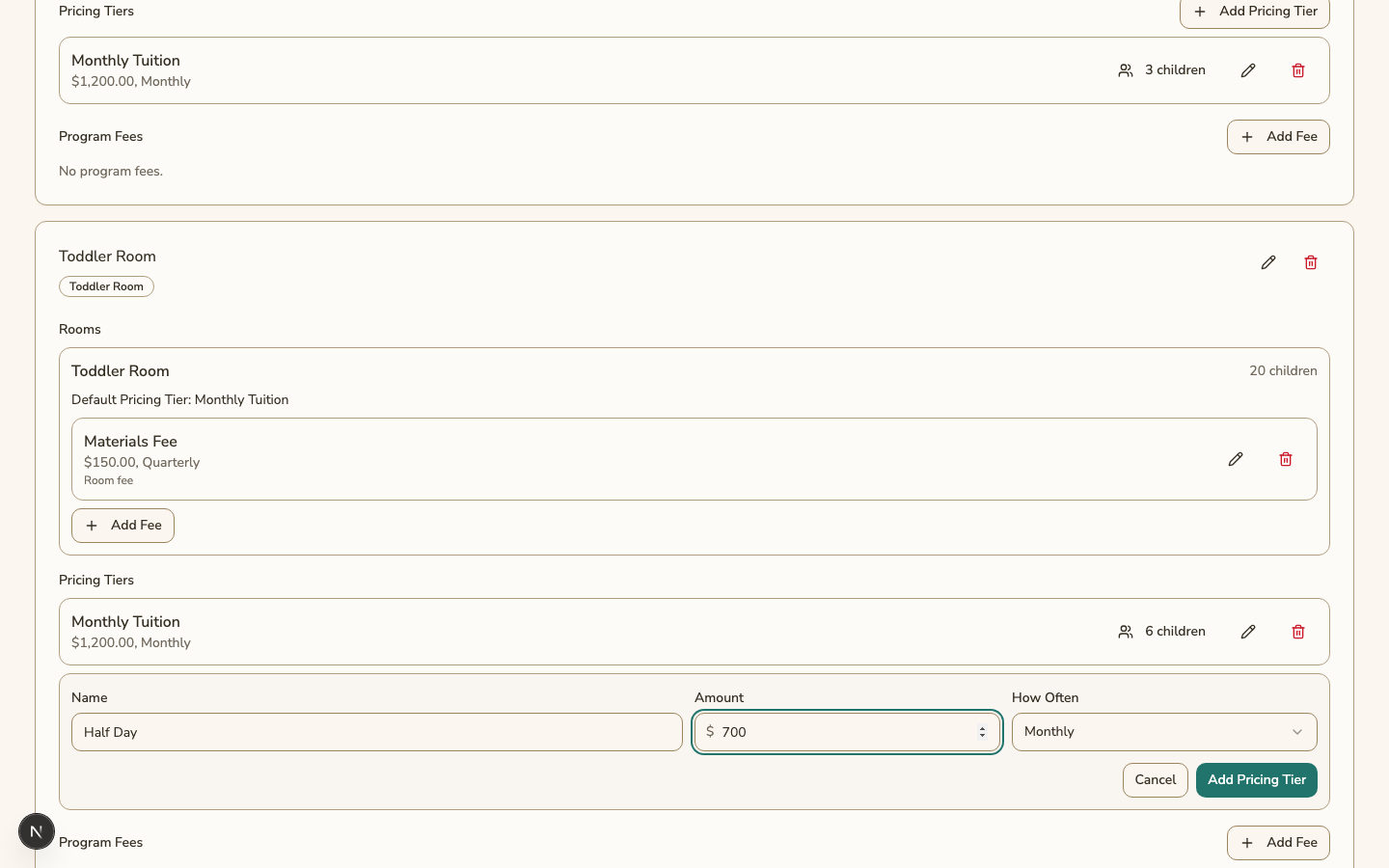
- A Pricing Tier is one tuition price in a program. It has a name, an amount, and how often it is charged. For example, Half Day is $460 a month and Full Day is $700 a month.
- A program fee is a fee that every child in the program's rooms pays. For example, a Materials Fee is $120 a year.
Under Rooms, each room shows how many children it has and its Default Pricing Tier. A child who joins the room starts on that Pricing Tier.
If you have no programs yet, the page says "Create a program to set tuition." Click Add Program to make one.
Add or change a Pricing Tier
- Click Add Pricing Tier on the program.
- Enter the Name (for example, Full Day), the Amount, and How Often.
- Click Add Pricing Tier.
Assign Children to Pricing Tier opens next, so you can put children on the new Pricing Tier right away.
To change a Pricing Tier, click its pencil. Change the Name, Amount, or How Often, then click Save.
Put children on a Pricing Tier
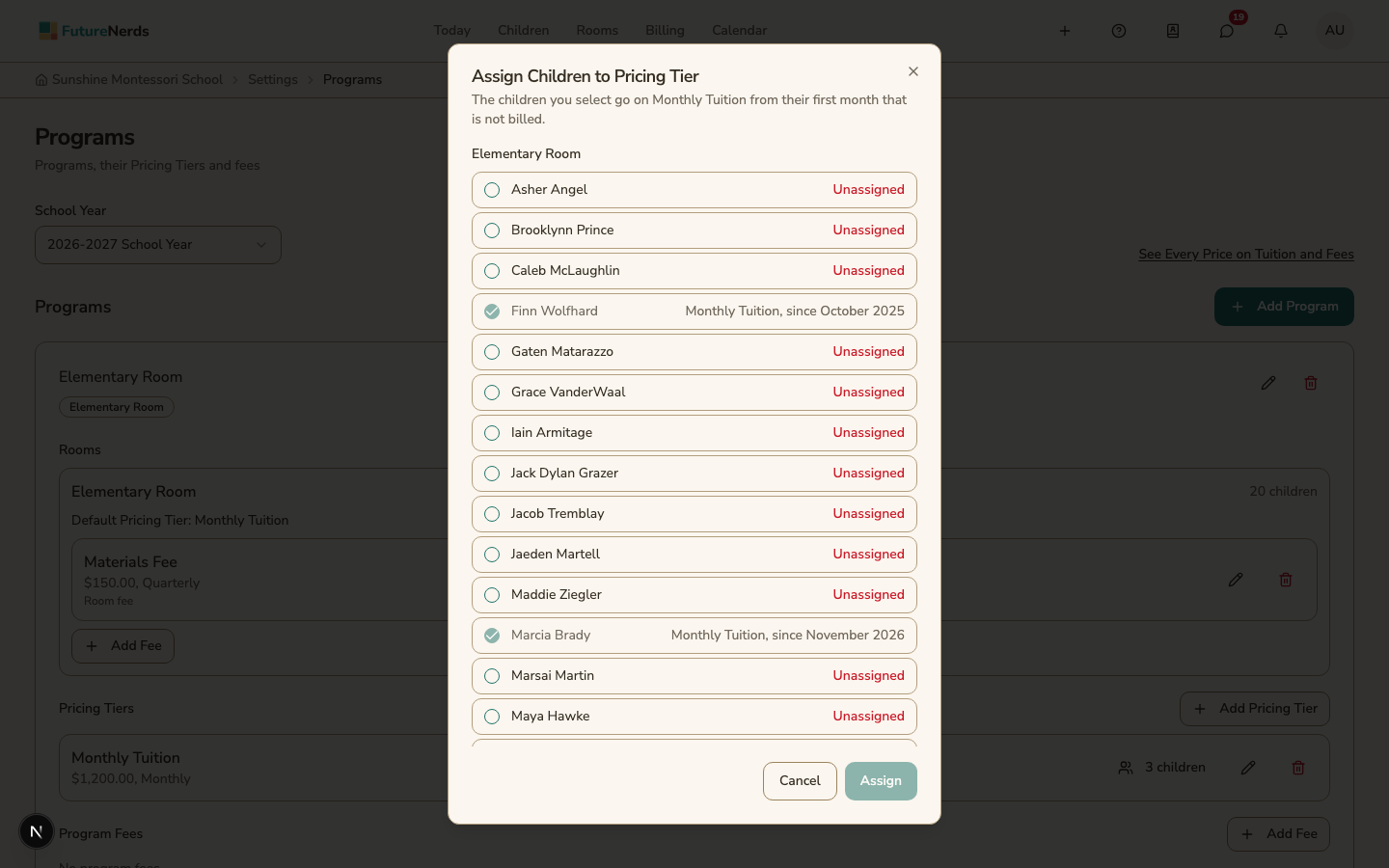
Each Pricing Tier has a button that shows how many children are on it, for example 12 children. Click it to open Assign Children to Pricing Tier.
- Choose the Pricing Tier at the top.
- The list shows every child in the program's rooms, grouped by room. Each name shows the child's Pricing Tier, or Unassigned in red.
- Select the children to move and click the Assign button, for example Assign 2 Children.
The children move to the Pricing Tier from their first month that has no bill yet. Bills already sent do not change.
Find children with no Pricing Tier
Every child in a room needs a Pricing Tier from that room's program. When a child has none, a warning shows at the top of the page and on the program, for example "3 children have no Pricing Tier." Click Assign to open Assign Children to Pricing Tier.
Remove a Pricing Tier
- Click the trash can on the Pricing Tier.
- The dialog says how many children are on it. Under Move Its Children To, choose another Pricing Tier or No Pricing Tier.
- Click Remove Pricing Tier.
The children move from their first month that has no bill yet. If you chose No Pricing Tier, they show in the warning until you assign them.
Add a program fee
- Under Program Fees, click Add Fee.
- Enter the Name (for example, Materials Fee), the Amount, and How Often.
- Click Add Fee.
Click the pencil on a fee to change it. Click the trash can to remove it.
Add a room fee
Every child in one room pays a room fee, such as a Books Fee. Room fees are listed under their room in the program's card, marked Room fee.
To add one, click Add Fee under the room. Enter the Name, Amount, and How Often, then click Add Fee. Click the pencil on a room fee to change it. To delete it, click the trash can, or click Remove while you edit it. Then click Remove Fee.
Add a school-wide fee
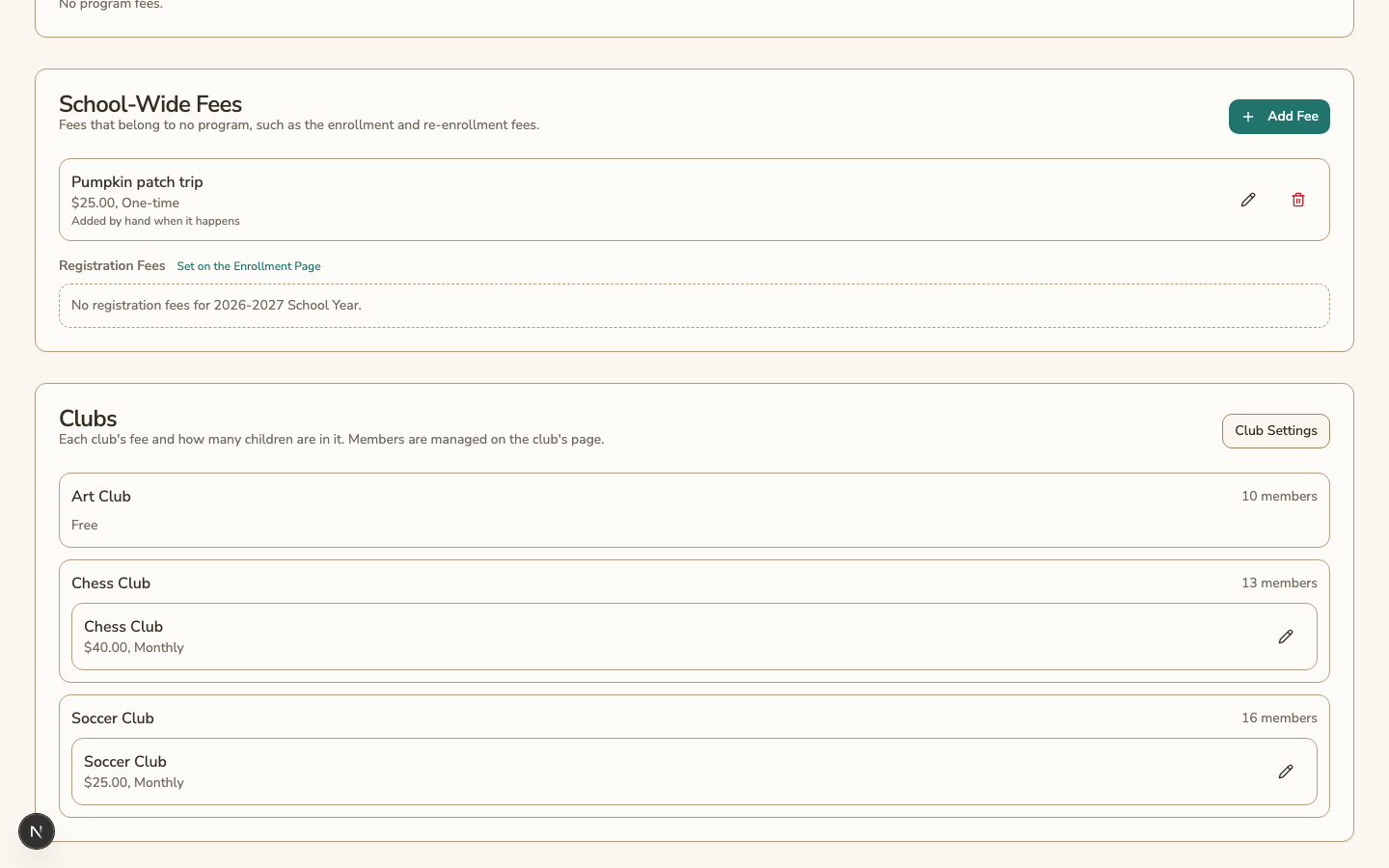
School-Wide Fees lists the fees that belong to no program, such as the enrollment and re-enrollment fees.
- In School-Wide Fees, click Add Fee.
- Enter the Name, Amount, and How often.
- Choose When it bills. For a repeating fee, choose From when the child enrolls or On a fixed date each cycle. For a one-time fee, choose Upon sign-up, On a specific date, or Added by hand when it happens.
- To charge a child who starts partway through a period only for the days left, turn on Prorate the first period.
- Click Save.
Add Fee on the Billing page lists each one-time fee set to Added by hand when it happens.
This card also lists the year's registration fees. You add, charge, and waive them on the Enrollment page. See Registration fees.
Change a club fee
Clubs lists every club with its fee and how many members it has. Click the pencil on a fee to change it. Click a club's name to open its page and manage its members. Click Club Settings to add, change, or delete clubs. A club with no fee shows Free.
Change a meal price
Meals lists the meal plan price for each room. Click the pencil to change a price. You choose which rooms offer meals, and set the menus, in Meal Settings.
Change a price during the year
When you change a price that children already pay in the year you are billing now, choose who pays the new price:
- Charge them the new amount from their next bill
- Only children who start from now on. Children who already signed up keep the old amount.
Click Save Price. Bills already sent never change.
Remove a fee
Click the trash can on the fee, then click Remove Fee. The dialog says how many children pay it. They stop paying it from their next bill. Bills already sent still show it.
To start a year's price list over, you can delete the whole year from Term Dates and Sessions. You can do this only while the year has no sent bills, signed agreements, or assessments. See Academic sessions.
Set sibling and annual discounts
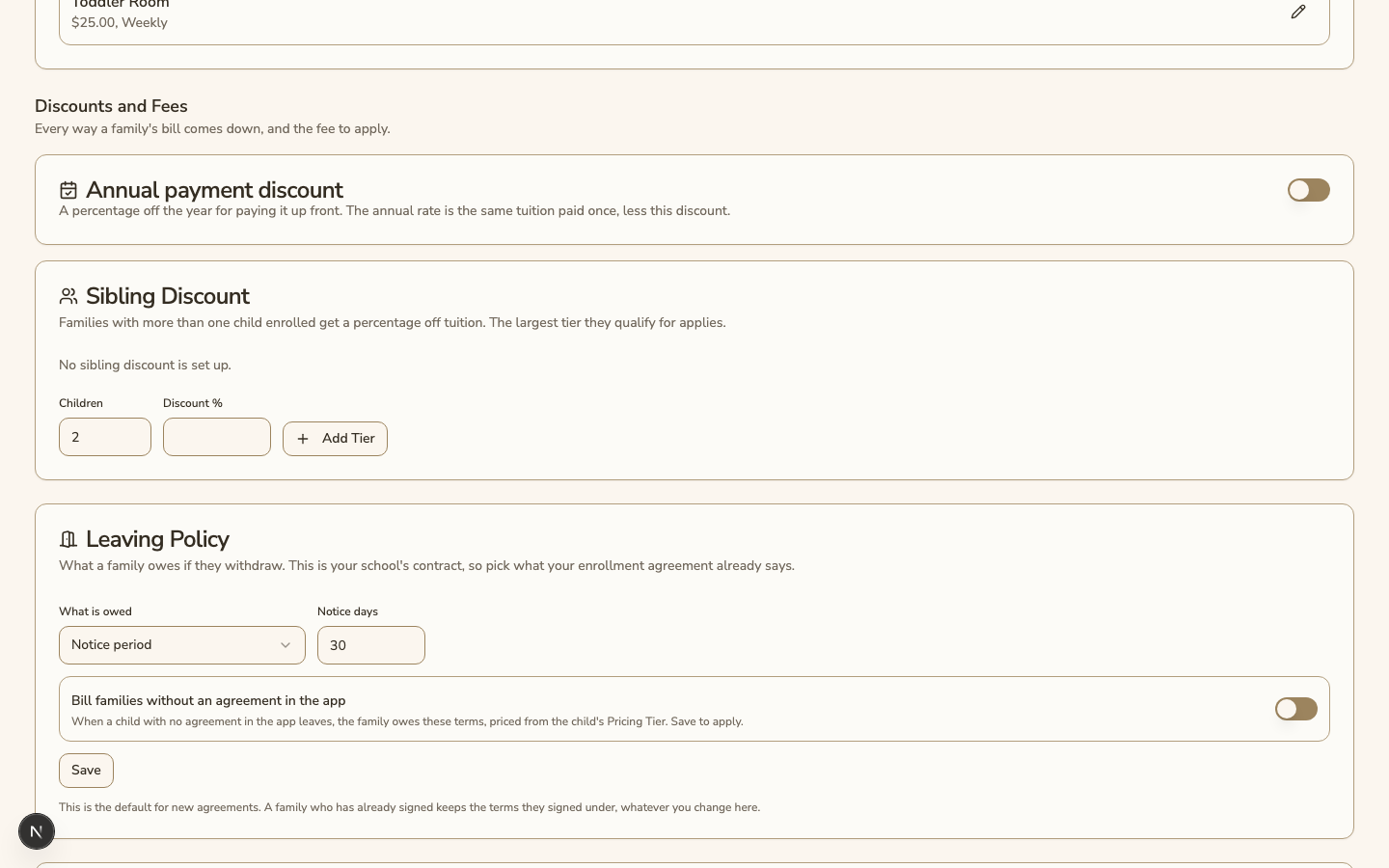
Under Discounts and Fees:
- Sibling Discount: add a tier for each number of enrolled children, starting at 2, with a percentage off tuition.
- Annual payment discount: turn on Offer annual payment and set the Percent off for families who pay for the whole year at once.
Store merchandise has its own page, Store Products.
Was This Helpful?