API, CLI, and ChatGPT integration
Connect to FutureNerds from AI assistants, automation scripts, and ChatGPT using the MCP server, CLI, or OpenAPI.
Last updated Oct 1, 2026
Integrations overview
FutureNerds exposes its full platform capabilities through three channels:
- MCP Server -- for AI assistants like Claude, Cursor, and other LLM clients
- CLI (
fnerds) -- for human operators and automation scripts - ChatGPT GPT Action -- for natural-language workflows via ChatGPT
All three channels use the same underlying server actions with the same role-based permissions you already have in the web app.
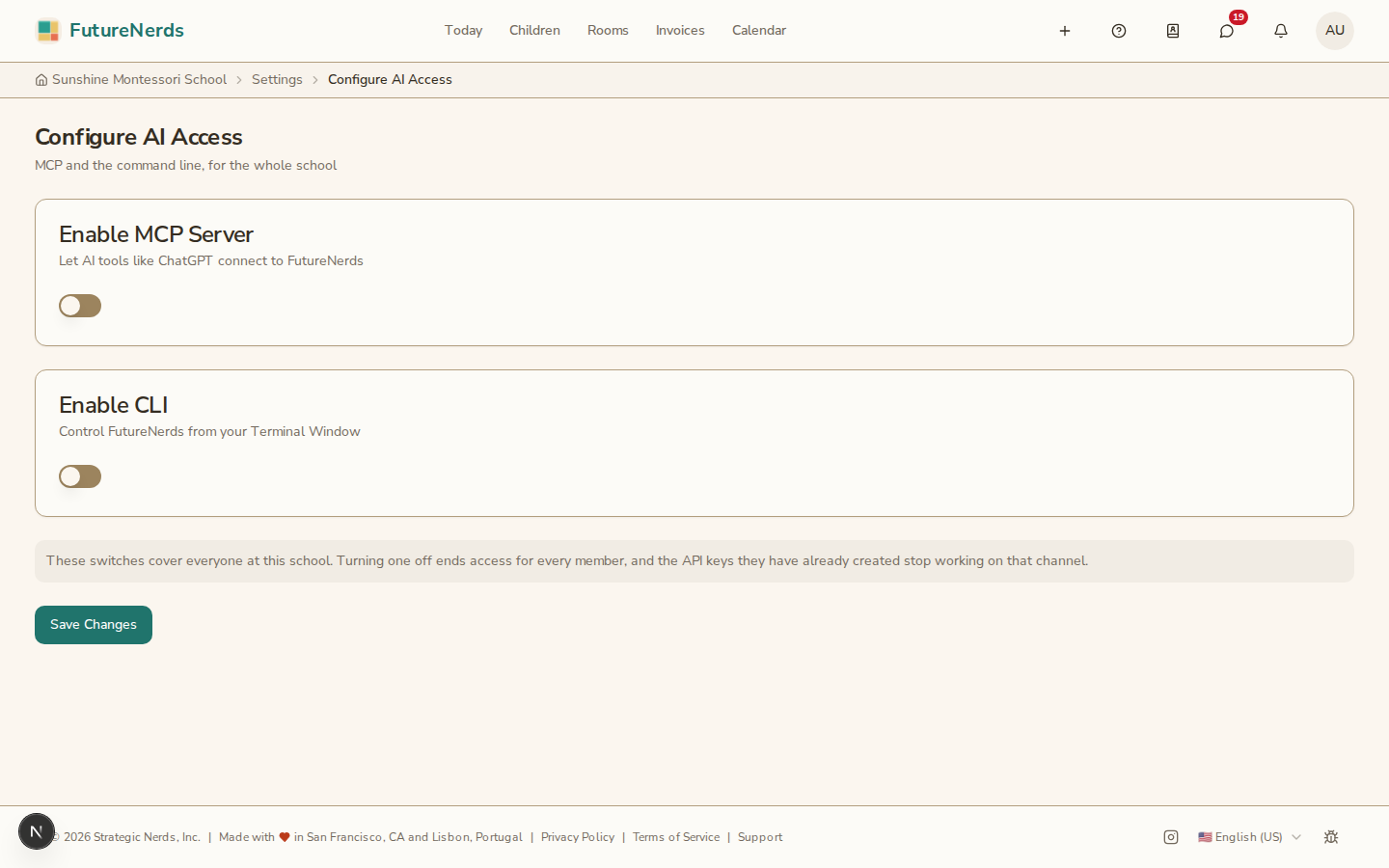
School-wide switches for MCP and the CLI live on Configure AI Access in School Settings (Account group). Turn a channel off there and every member's keys for that channel stop working.
MCP Server
The MCP (Model Context Protocol) server lets AI assistants interact with your school data. It runs at:
POST /api/mcp
Connecting from Claude Desktop:
- Get your Supabase access token (from the browser session or API)
- Add to your Claude Desktop configuration:
{
  "mcpServers": {
    "futurenerds": {
      "url": "https://app.futurenerds.com/api/mcp",
      "headers": {
        "Authorization": "Bearer YOUR_TOKEN"
      }
    }
  }
}
- Claude can now list children, record attendance, view progress, send messages, and more -- all respecting your school's permissions.
CLI (fnerds)
The command-line tool mirrors every MCP tool as a human-friendly command:
# List children
fnerds child list --school <id> --role administrator

# Record attendance
fnerds attendance mark --child-id <id> --classroom-id <id> --date 2026-04-11 --status present

# View progress grid
fnerds progress grid --classroom-id <id>

# Machine-readable output for scripts
fnerds child list --json | jq '.data[].first_name'
ChatGPT GPT Action
The OpenAPI spec is auto-generated at:
GET /api/openapi
This lets you create a custom GPT that can interact with your school. ChatGPT users can say things like "Show today's attendance for Primary A" or "Invoice all families with overdue balances."
Security
- All API calls require authentication (Supabase access token)
- Role-based permissions are enforced server-side -- the same rules as the web app
- Destructive operations (deletes, payments, enrollment decisions) require explicit confirmation
- Every tool call is recorded in the audit log
Available tools
Over 50 tools across 19 domains: children, classrooms, staff, attendance, tracking, observations, progress, assessments, messages, posts, calendar, billing, products, subscriptions, applications, school settings, profiles, documents, and office hours.
Was This Helpful?