Payments, bank transfers, credit notes, and refunds
Record a payment or a bank transfer, check a family's proof of payment, issue a credit note, cancel a bill, or refund a payment.
Open the bill
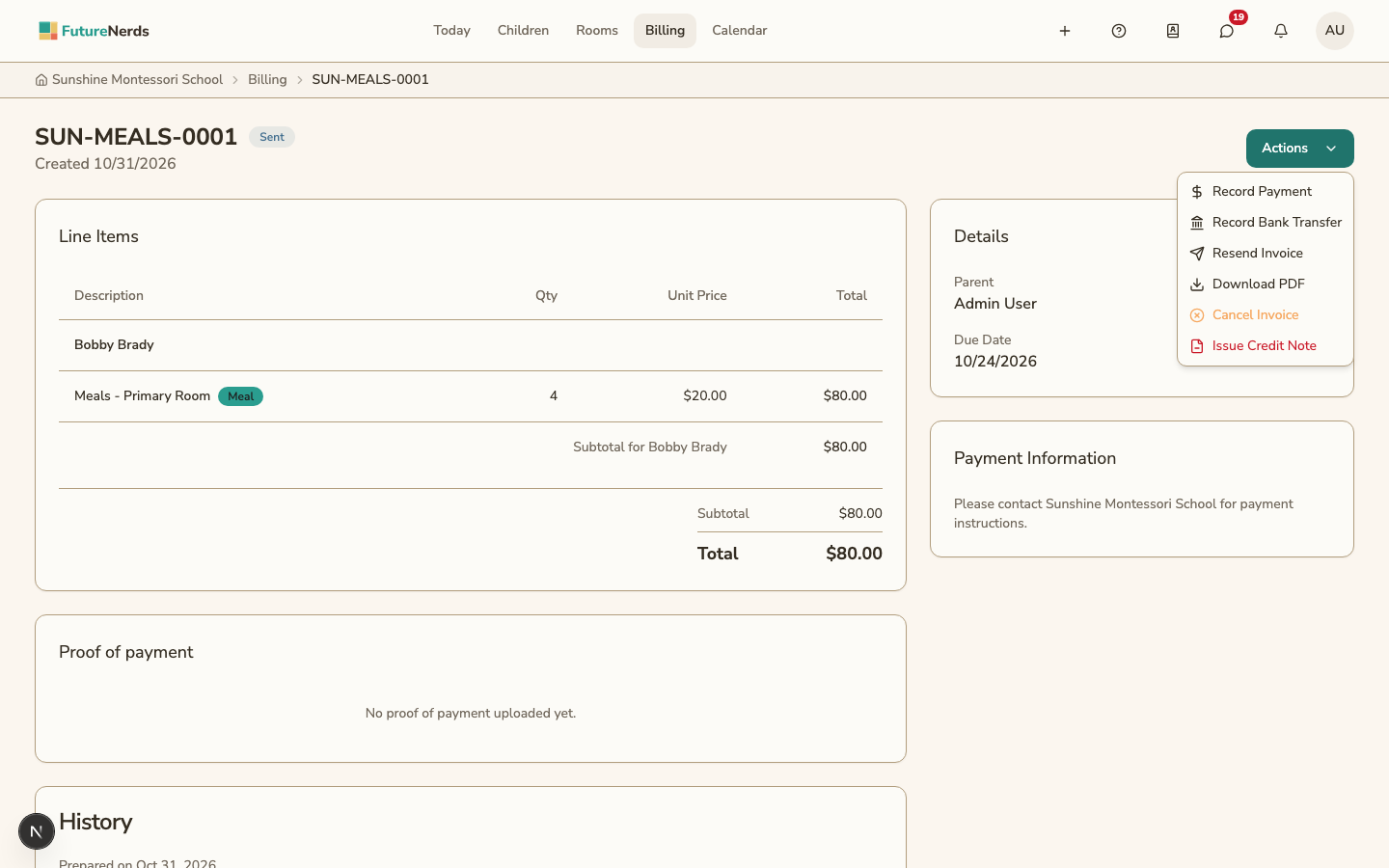
Open Billing and click the bill. A sent bill has an Actions menu. You record payments, credit notes, and cancellations from this menu.
Record a payment
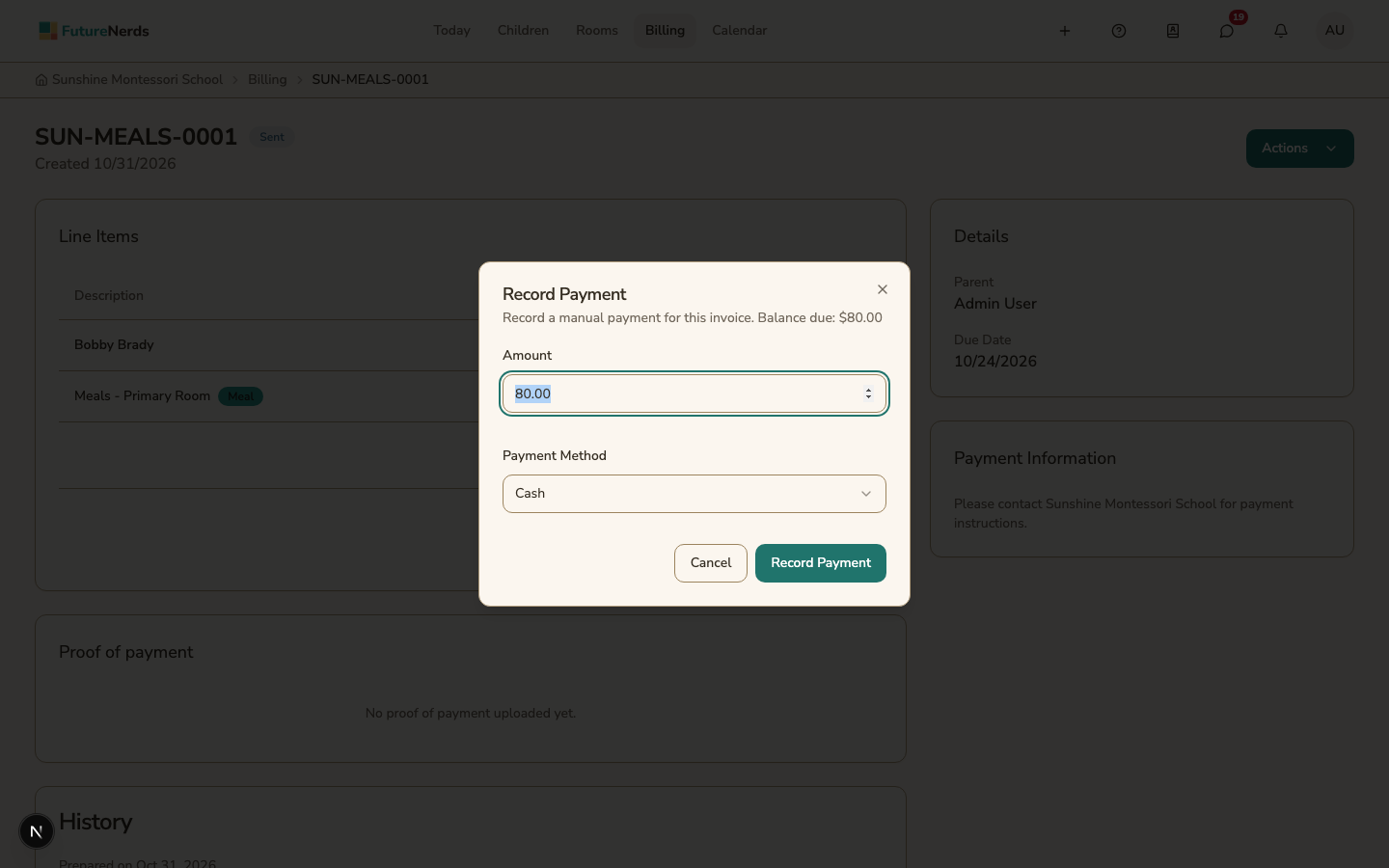
- Click Actions, then Record Payment.
- Enter the Amount and choose the Payment Method.
- Click Record Payment.
The amount cannot be more than the family still owes.
Record a bank transfer
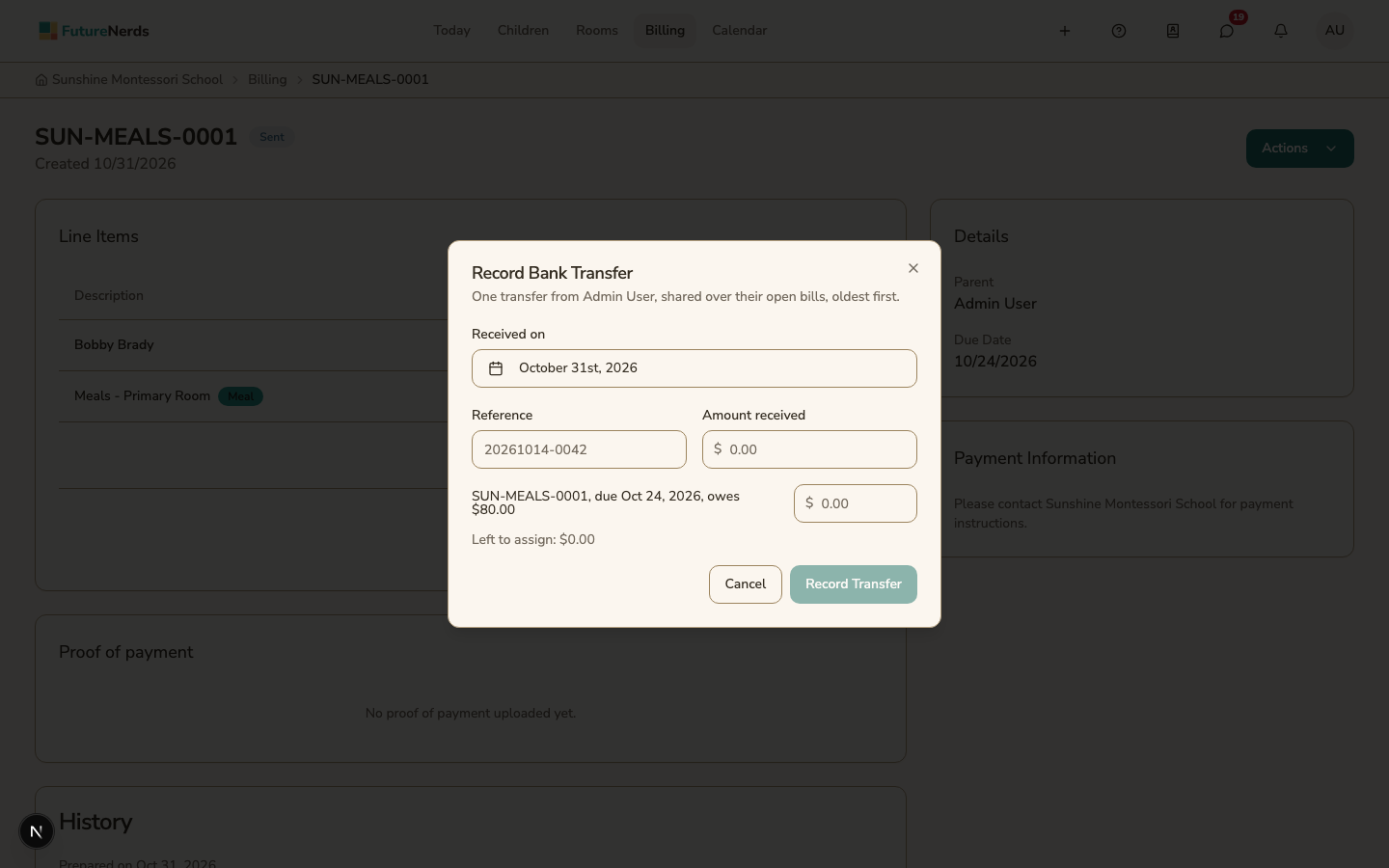
One bank transfer can pay several bills.
- Click Actions, then Record Bank Transfer.
- Enter the date it was Received on, the bank's Reference, and the Amount received.
- FutureNerds puts the money on the family's open bills, oldest first. Change the amounts if you need to, until Left to assign is 0.
- Click Record Transfer.
Check a proof of payment
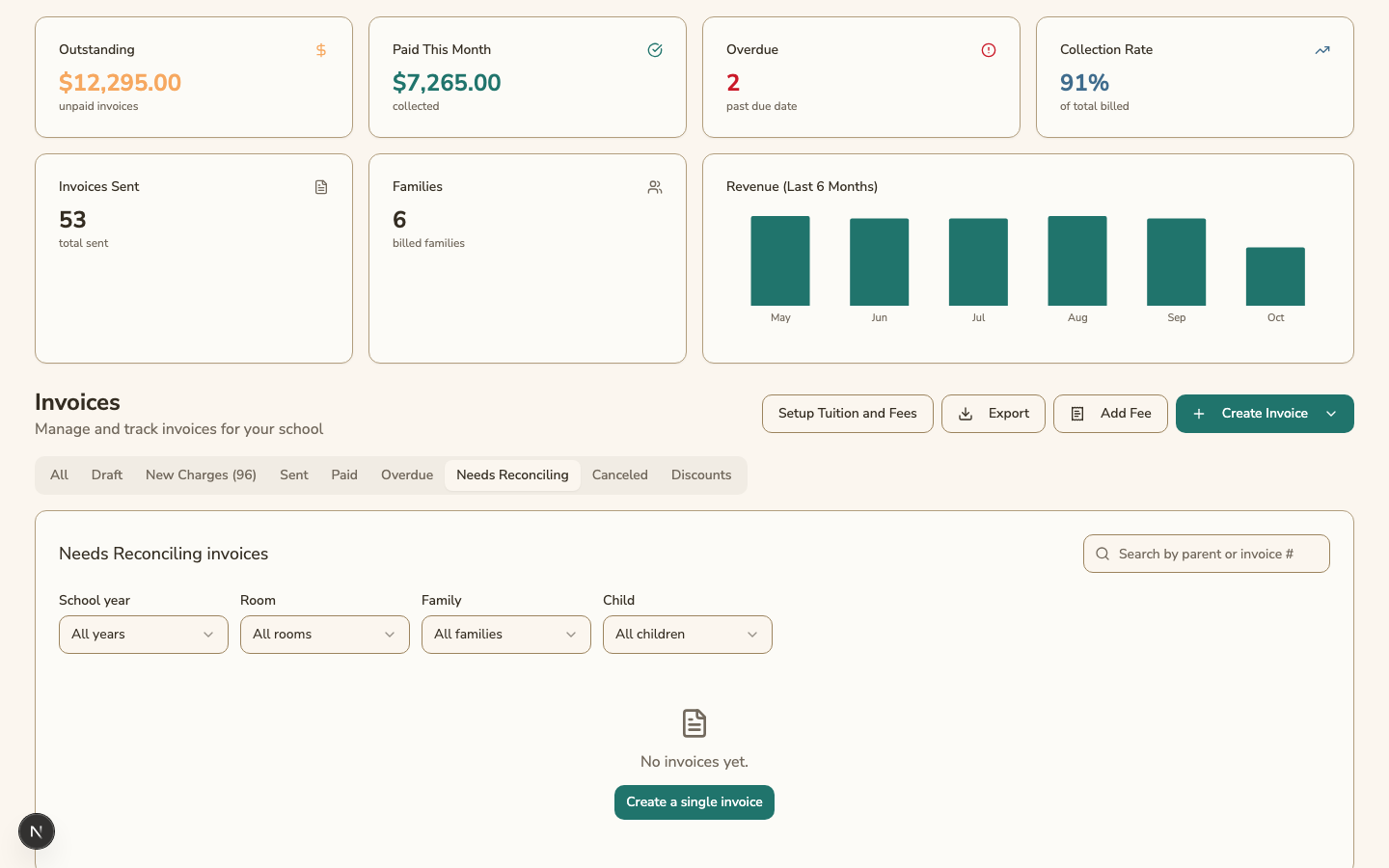
A family can upload proof of a payment they made outside the app. The bill then shows Review Needed and is listed under Needs Reconciling. Open the Proof of payment card and click Confirm or Reject.
Issue a credit note or cancel a bill
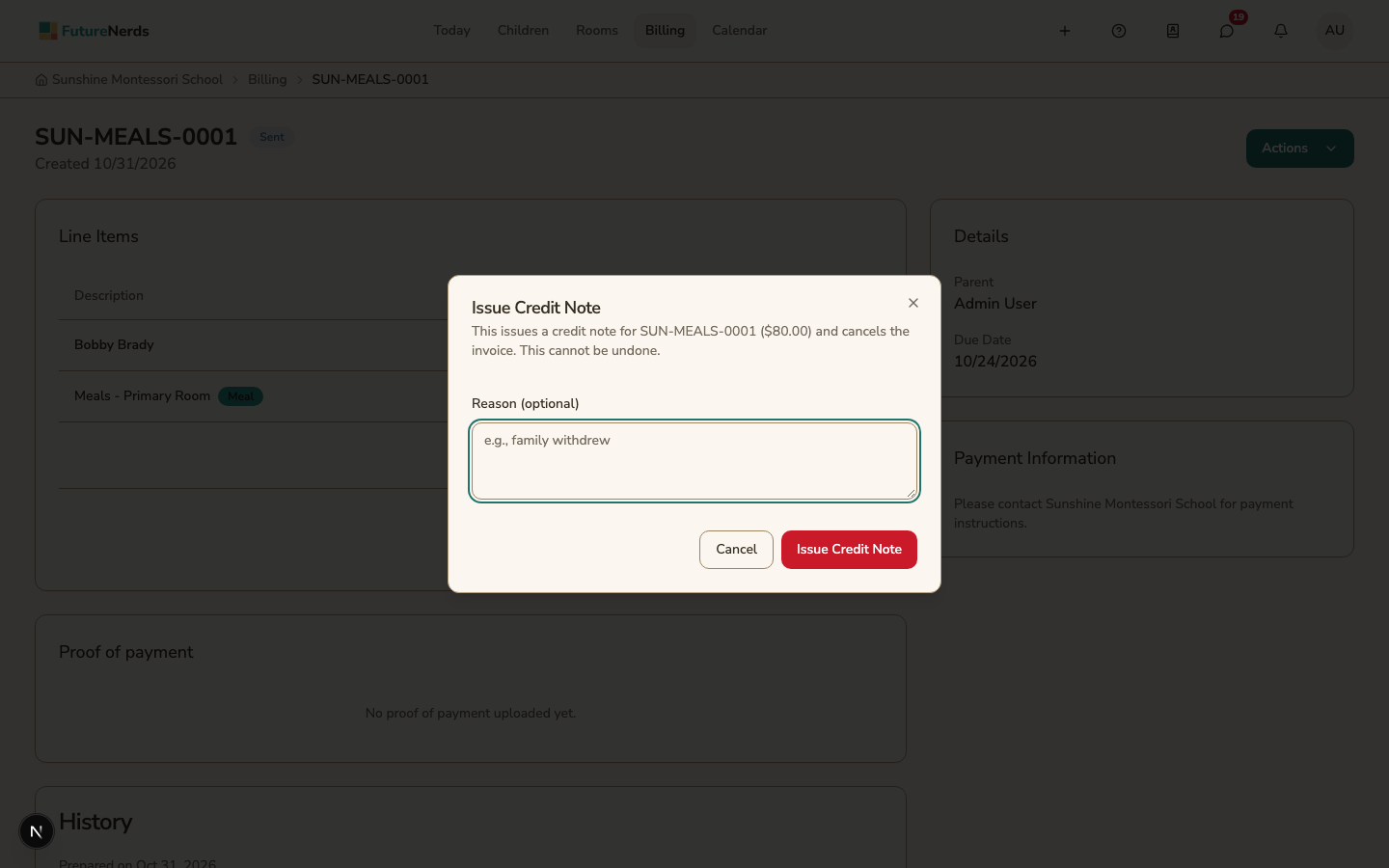
- Issue Credit Note credits the whole bill and cancels it. You can add a Reason.
- Cancel Invoice cancels a bill the family no longer owes.
If a registration fee changes after it was billed, the difference is credited on the family's next bill.
Refund a payment
A paid bill has Refund. A card payment is refunded through Stripe. For a payment made outside the app, select the box to confirm you returned the money, then refund it.
Follow an installment plan
A bill with an installment plan shows each installment, what is paid, and what is due next. After each payment, the bill's due date moves to the next unpaid installment.
Was This Helpful?