Administrator
School managementManaging administrators and staff
Invite administrators, change roles, and deactivate or reactivate people as they join or leave.
Last updated Oct 1, 2026
People
People and Roles is where you manage who has access to your school and what they can do. A person's role controls what they see, so this is also where you control access.
Getting there
Open School Settings from your avatar menu, then open People and Roles.
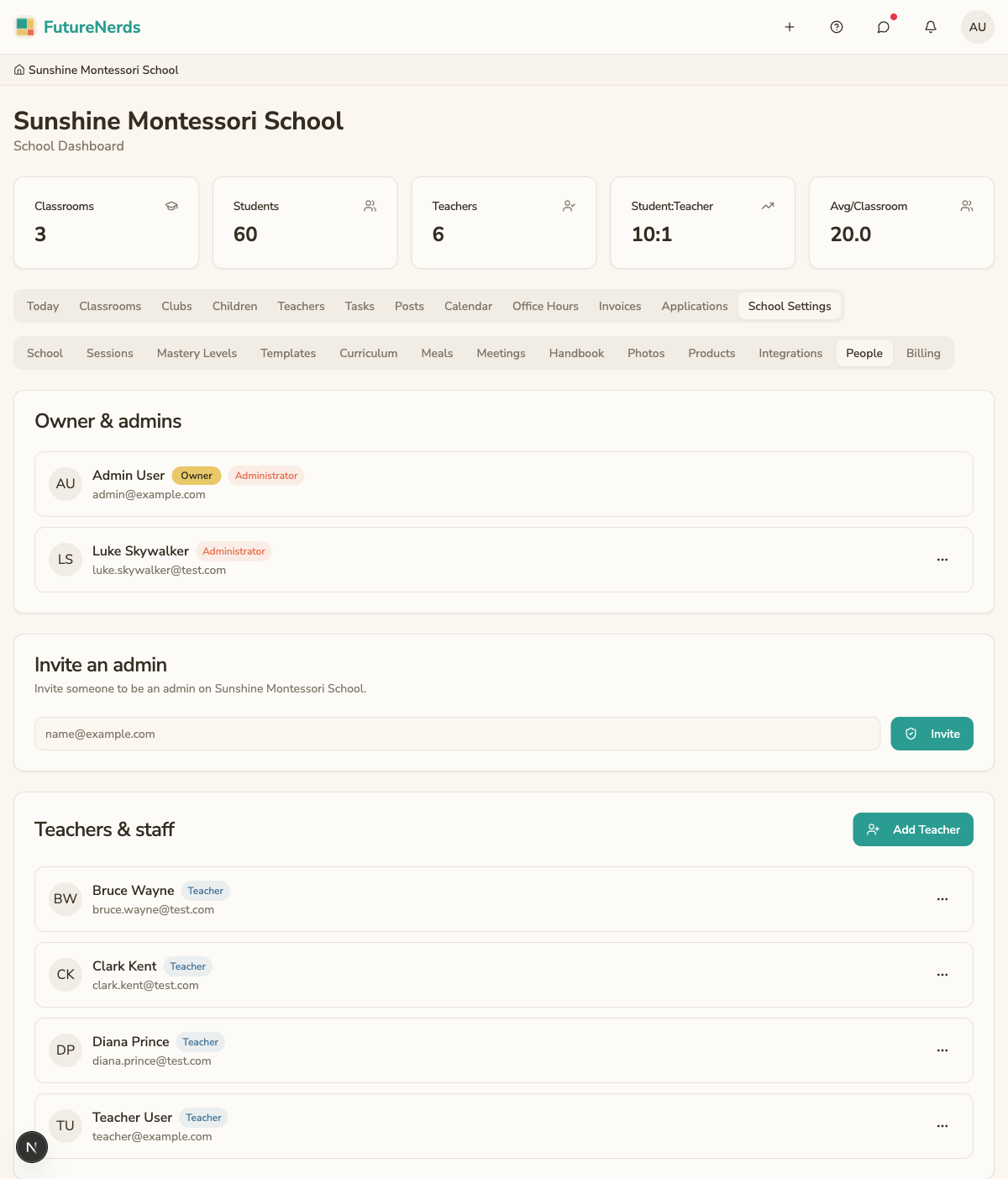
Inviting an administrator
- Click Invite and enter the person's email address.
- Choose the administrator role.
- Send the invitation. They receive an email with a link to join your school as an administrator.
Promoting and demoting
You can change a person's role from People and Roles:
- Promote a teacher to administrator to give them full access to school settings and data.
- Demote an administrator back to teacher to limit them to their assigned classrooms.
Roles control what each person can see and do. An administrator sees the whole school. A teacher sees only their assigned classrooms.
Deactivating and reactivating
- Deactivate a person when they leave. They can no longer access your school, but the data they created stays in place.
- Reactivate a person if they return. Their access is restored.
Deactivating removes access without deleting history, so it is the right choice when someone leaves rather than removing them outright.
Tips
- Keep the number of administrators small. Most schools need one or two.
- Demote rather than deactivate when someone moves from an admin role into a teaching role.
- Deactivate promptly when a person leaves to keep access current.
Was This Helpful?