Registration fees
Set next year's registration fees by program and by new or returning child, charge them, split them into installments, waive or reduce one, and settle a fee for a child who does not return.
Set the fees
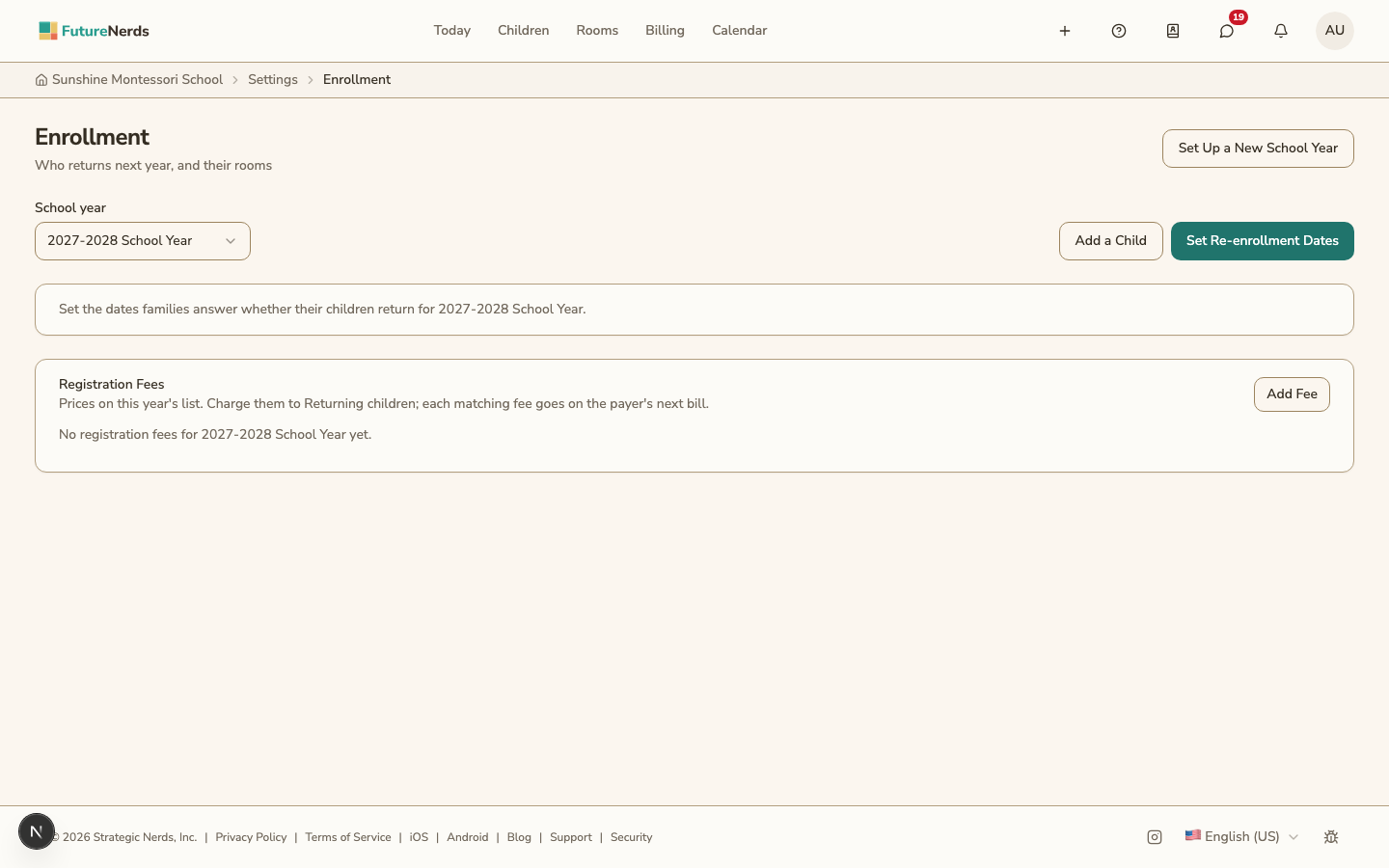
Each registration fee belongs to a school year. Open the Enrollment page, pick the year, and find Registration Fees.
- Click Add Fee.
- Enter the Name and Amount.
- Choose the Program or All programs. Then choose the Children: Everyone, New children, or Returning children.
- Click Save Fee.
The fee is also listed under Registration Fees on Tuition and Fees for that year.
To delete a fee, open it, click Delete Fee, and confirm. Children who were charged for it stop being charged from their next bill. Bills already sent do not change.
Split a fee into installments
Turn on Pay in installments. Add two or more dates and amounts that add up to the fee. After each payment, the bill's due date moves to the next unpaid installment.
Charge the fees
Click Charge Fees to charge each Returning child who has not been charged yet. Each fee is charged to the child's payer and added to their next bill.
A child with no matching fee or no payer is not charged. The result tells you how many children were left out.
When you change a child's answer, program, or kind, their fees change too. A fee that no longer applies is removed if it was not billed yet. If it was billed, it is credited on the family's next bill.
Waive a fee
Open the row's menu and click Waive Fee. Enter the Reason and click Waive Fee. You can waive a fee before it is charged or before it is billed.
Lower one child's fee
- Click the child's name to open their details.
- Click Reduce on the fee.
- Enter the New amount and the Reason, and click Reduce Fee.
The standard amount on the year's price list stays the same. To remove the reduction, enter the standard amount again. If the fee is already on a bill, FutureNerds corrects it with a credit note on that bill.
Settle the fee for a child who does not return
When a family answers Not returning after the fee was billed, open the row's menu and click Settle Fee. Choose one:
- Keep the fee
- Credit it on the family's next bill
- Record a refund made outside the app
Was This Helpful?