Billing statements and your invoicing tool
For schools in Portugal, Spain, and Italy: bills are statements, you issue official invoices in your own tool, export the bill lines, and link each official invoice back.
How statements work
In Portugal, Spain, and Italy, the official invoice must come from certified invoicing software. In these countries, the bills FutureNerds makes are billing statements with their own number series. You issue the official invoice in your own tool.
Enter your tool's codes once
- Open School Settings, then Money, then Invoicing.
- Under Invoicing Tool Codes, fill in the Tax region, Document type, Series, Payment terms (days), Payment method code, and Tax exemption reason.
- Under Accounting codes by category, fill in the Income account, Tax code, Tax name, and Article code for tuition, fees, lunch, clubs, trips, other, and discounts.
- Click Save Codes.
Enter each payer's tax details
On a child's Tuition card, click Tax Details for each payer. Enter the Tax number, billing name, address, postal code, city, country, billing email, and the Client code in your invoicing tool. Click Save Details.
Do these steps each month
- Click Create Invoice, then Generate Monthly Invoices, and send the drafts.
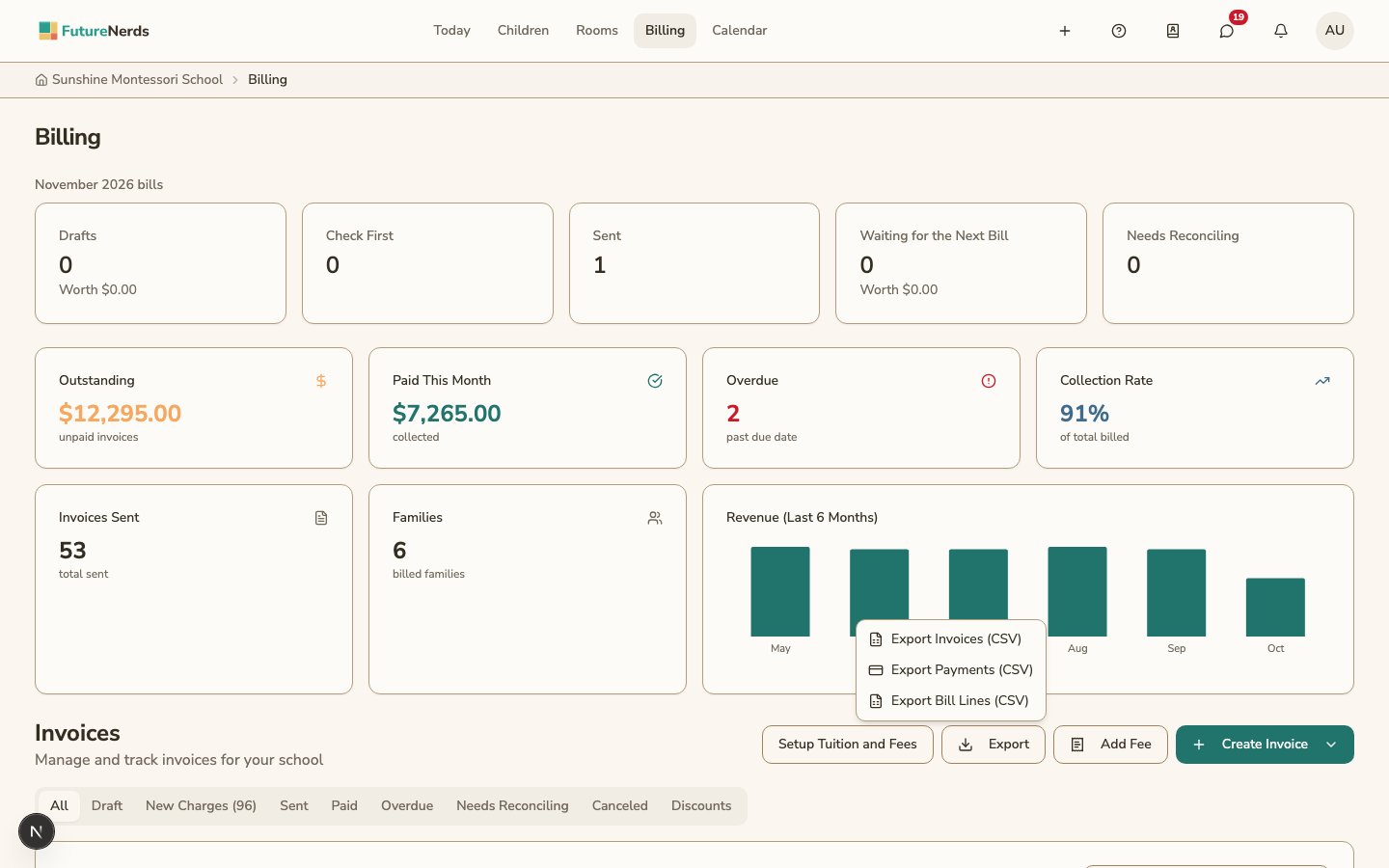
- Click Export, then Export Bill Lines (CSV). Import the file into your tool.
- Issue the official invoices in your tool.
- Open each statement and click Link Official Invoice. Enter the Invoice number, ATCUD, Status, Total on the official invoice, and a PDF link. Click Save Link.
A statement with no official invoice linked, or with a different official total, is listed under Needs Reconciling. You cannot change the link to an official invoice that is final.
Was This Helpful?