Billing months, bill dates, and how bills go out
Choose the months billed in a school year, the day bills are prepared, and the day they are due, preview the year's schedule, and decide whether bills are sent automatically.
Each school year has its own billing settings
Each school year has its own billing months, prepare day, and due day. A month's bills use the settings of the school year that month is in.
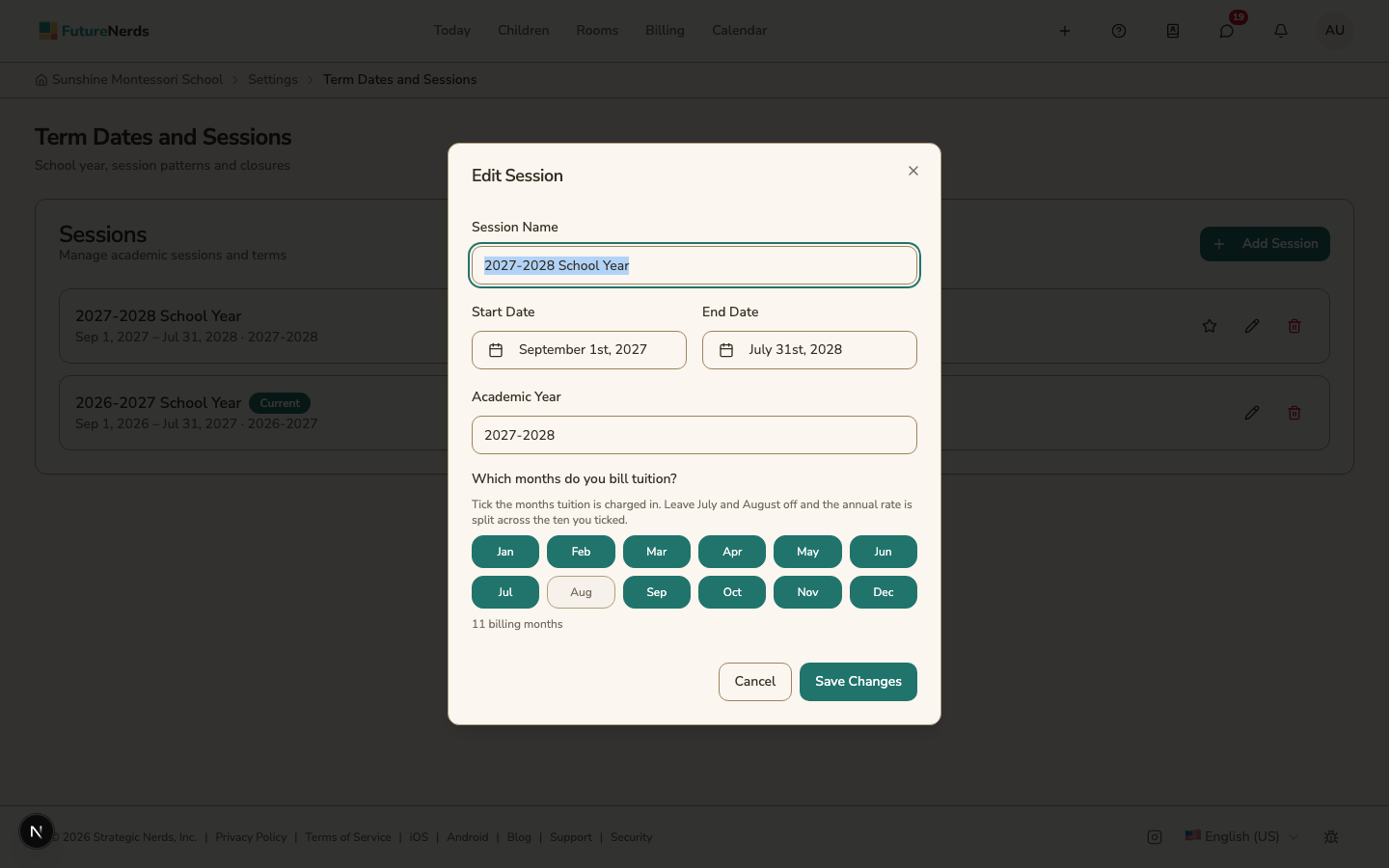
Choose the billing months
- Open School Settings from your avatar menu, then Term Dates and Sessions.
- Click Edit session on the year.
- Under Which months do you bill tuition?, select each month you bill.
- Click Save Changes.
Two school years cannot overlap. Each year needs at least one billing month.
Set the bill dates
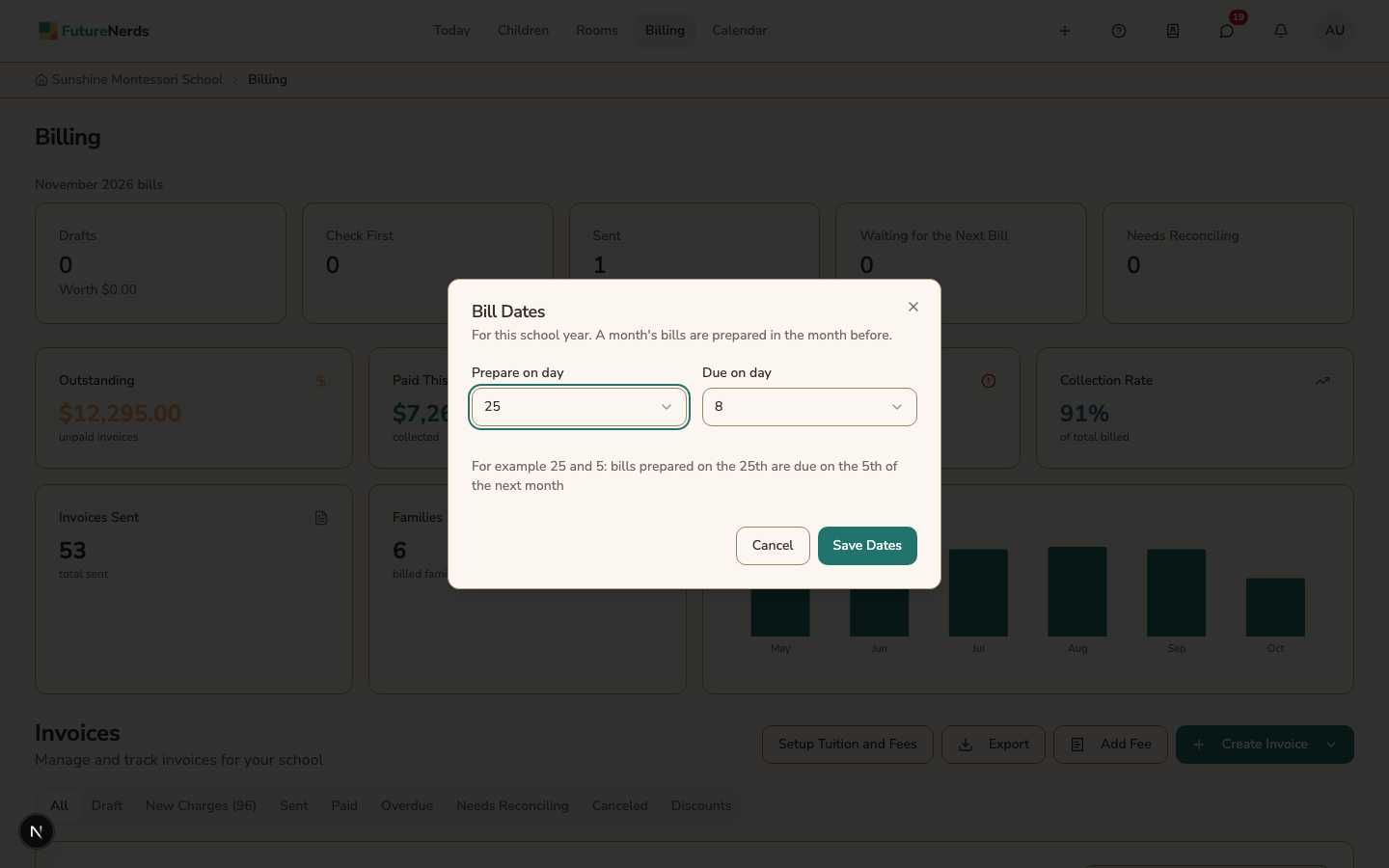
A month's bills are prepared in the month before and are due in the month itself.
- Open Billing in the top bar.
- Click Create Invoice, then Bill Dates.
- Choose Prepare on day and Due on day. Each is a day from 1 to 28. For example, with 25 and 8, bills prepared on 25 October are due on 8 November.
- Click Save Dates.
If you set no dates, a month's bills are prepared on the 1st and are due 14 days later.
Preview the year's schedule
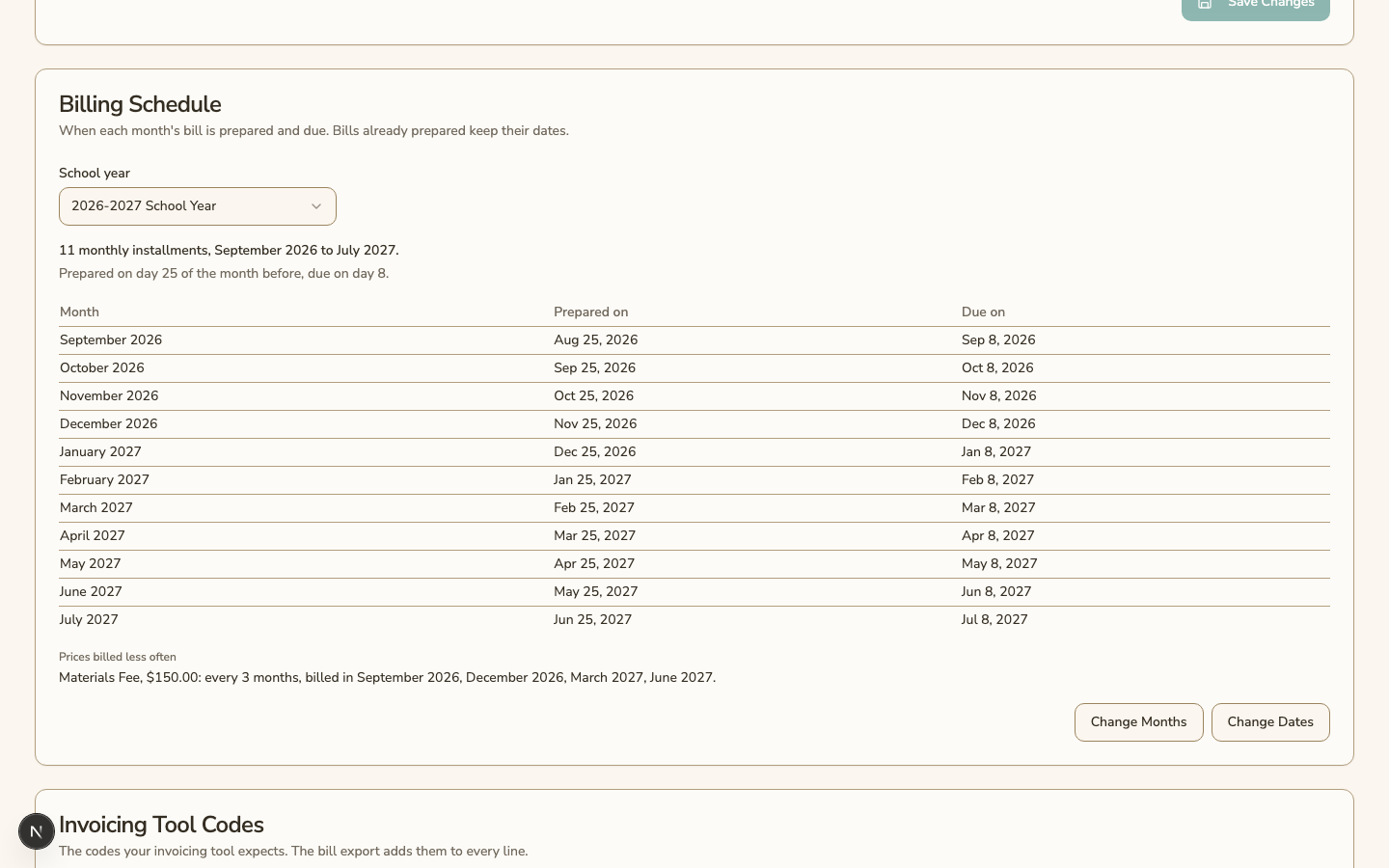
Open School Settings, then Money, then Invoicing. Pick a school year in the Billing Schedule card. The card shows:
- how many monthly payments the year has, and its first and last billing month
- each month, with the day its bills are prepared and the day they are due
- each month you do not bill, marked No bill
- each price charged every three, six, or twelve months, with the months it is billed for a child who starts on the first day of the year
Click Change Months or Change Dates on the card to open the same dialogs as above. Changing them does not change bills that are already prepared.
Prepare bills automatically
On the same page, under Automatic Invoicing, turn on Automatically generate invoices.
If the year has a prepare day, next month's bills are prepared as drafts on that day. If it has no prepare day, each charge is billed on the day it is due.
Choose how bills are sent
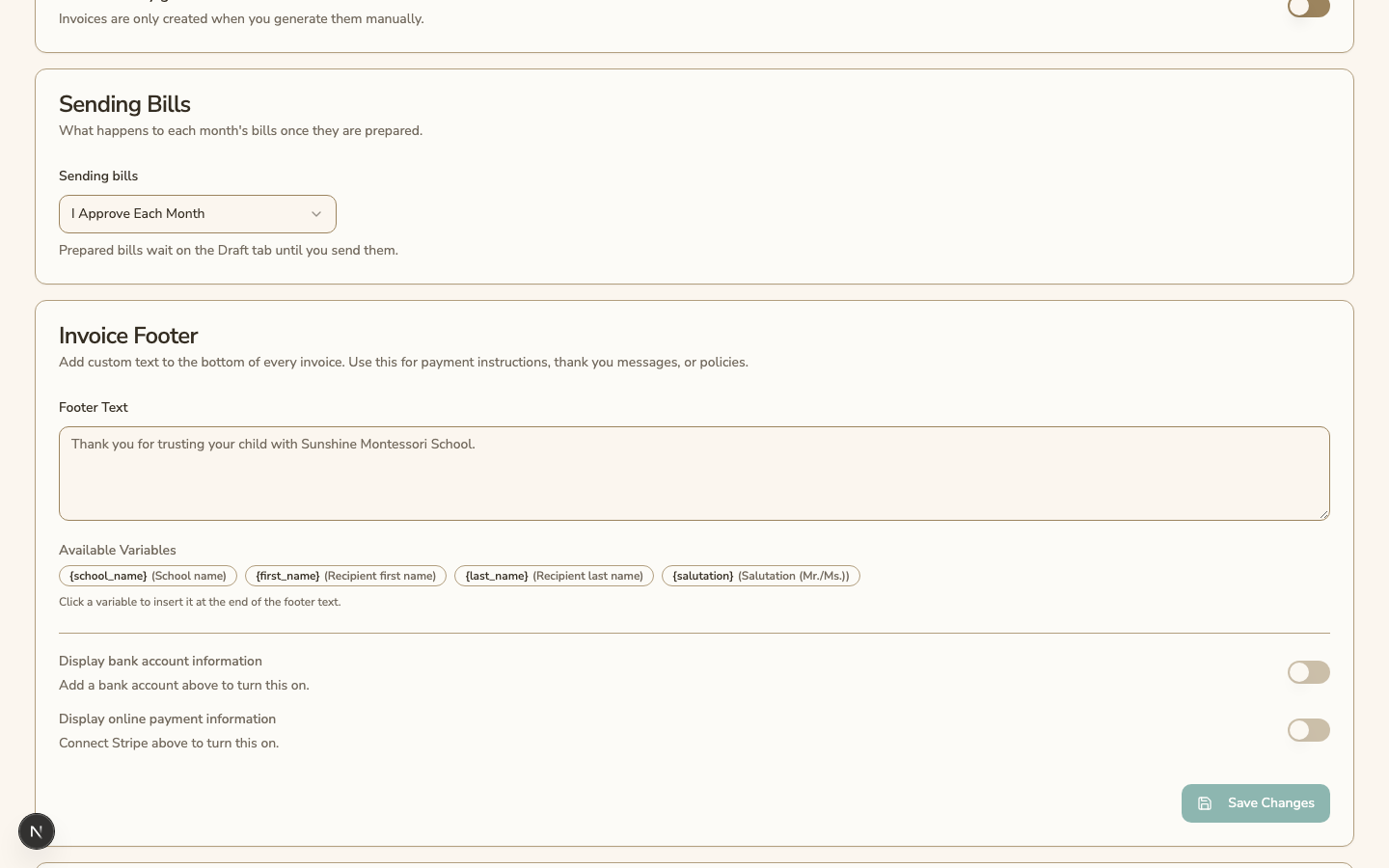
Under Sending Bills, choose one option:
- I Approve Each Month: drafts stay on the Draft tab of Billing until you send them. This is the default.
- Send Automatically: on the prepare day, each draft with nothing to check is sent and emailed to the family. Drafts with something to check stay on the Draft tab for you.
A bill that was sent automatically shows Sent automatically in its history.
Was This Helpful?