A child's tuition, payers, and room
Change a child's Pricing Tier, set their own tuition amount, split who pays, record tax details, move them to another room, and see the family's bills.
Find a child's Tuition card
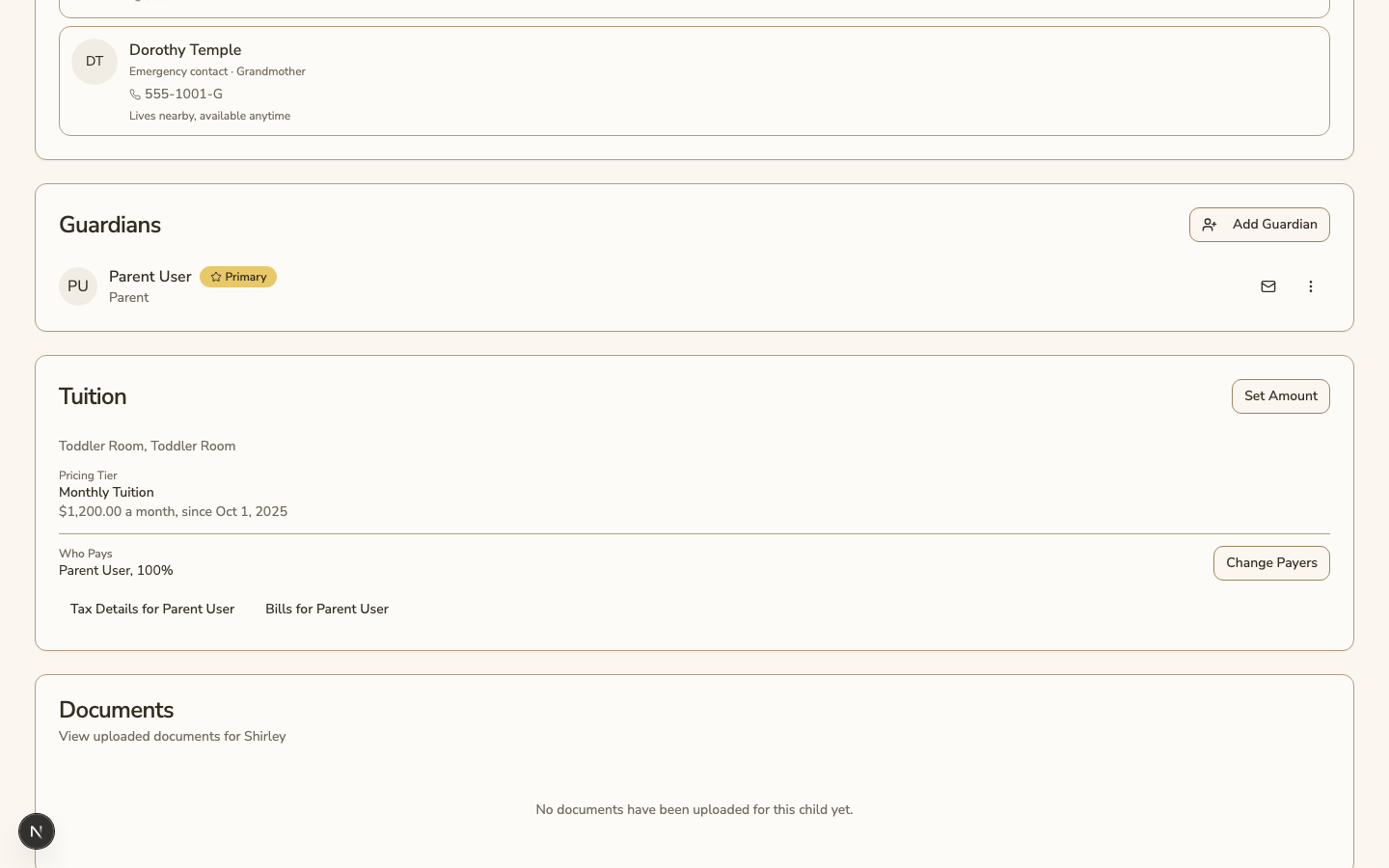
Open Children, open the child, then open the Family tab. The Tuition card shows:
- the child's room and program
- their Pricing Tier, its price on the price list, and the date it started
- their own amount and the reason for it, if they have one
- their scholarships, under Discounts
- any change coming up, their earlier Pricing Tiers, and every change to their amount
A change starts on the 1st of a month that has no bill yet. Bills already sent never change.
Change the Pricing Tier
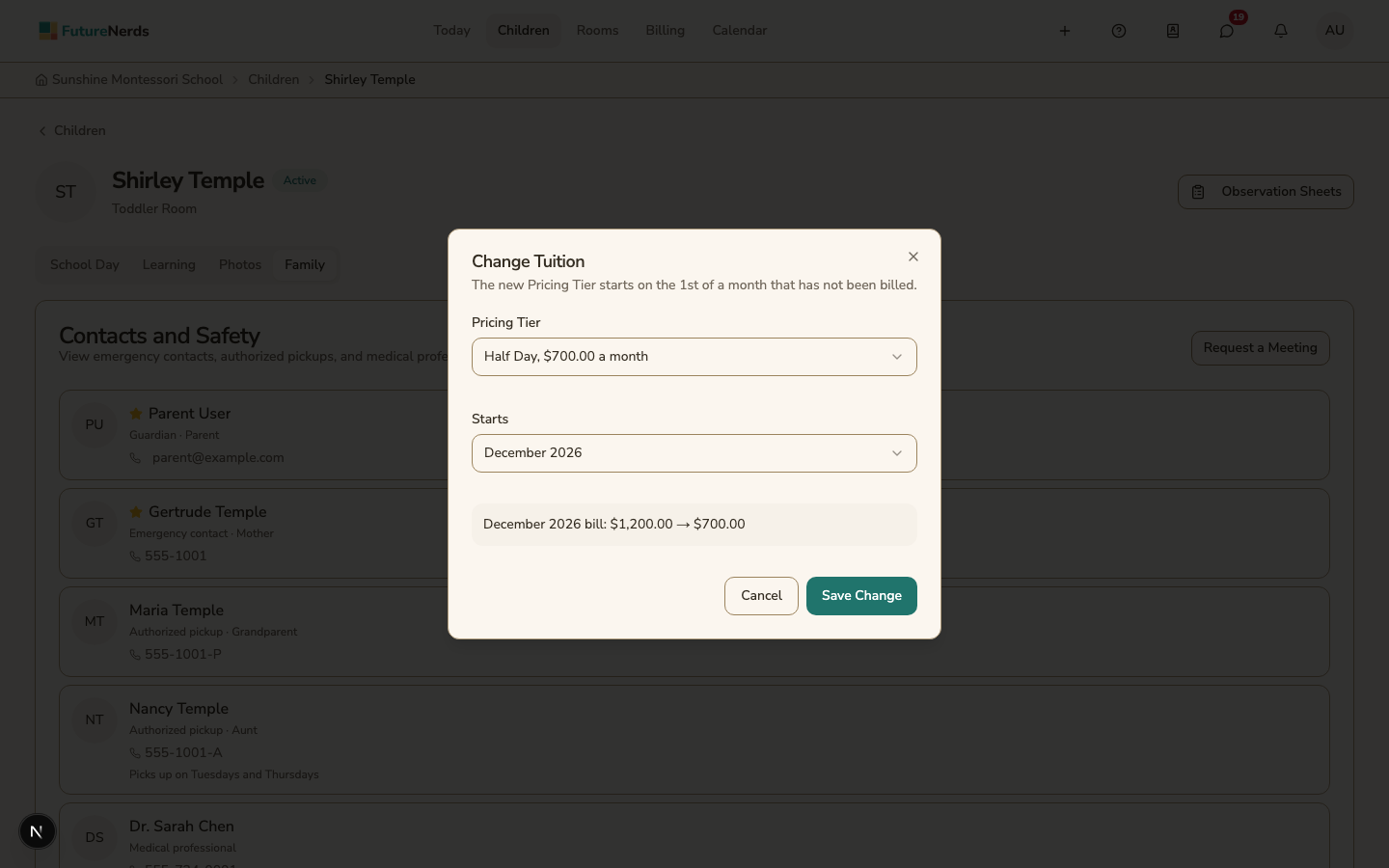
- Click Change.
- Choose the Pricing Tier and the month it Starts.
- Check the line that shows the first bill it changes, for example "November 2026 bill: $700.00 → $460.00".
- Click Save Change.
You see Change only when the child's program has more than one Pricing Tier. A child whose year is paid in full keeps the Pricing Tier they signed up for.
You can also move several children at once from Tuition and Fees. See Tuition and Fees.
If the child has a signed agreement, the change adds an amendment to it from that month.
Set the child's own amount
Use this when you agree on a price with one family, such as a staff discount. The price list does not change.
- Click Set Amount.
- Enter the New amount and the Reason.
- Click Save Amount.
The amount starts on the first bill that has not been sent. The bill shows the standard tuition, with the difference on its own line.
To remove the amount, enter the standard amount. You cannot change a month here when a signed agreement sets its price. Changing the Pricing Tier ends the child's own amount.
Choose who pays
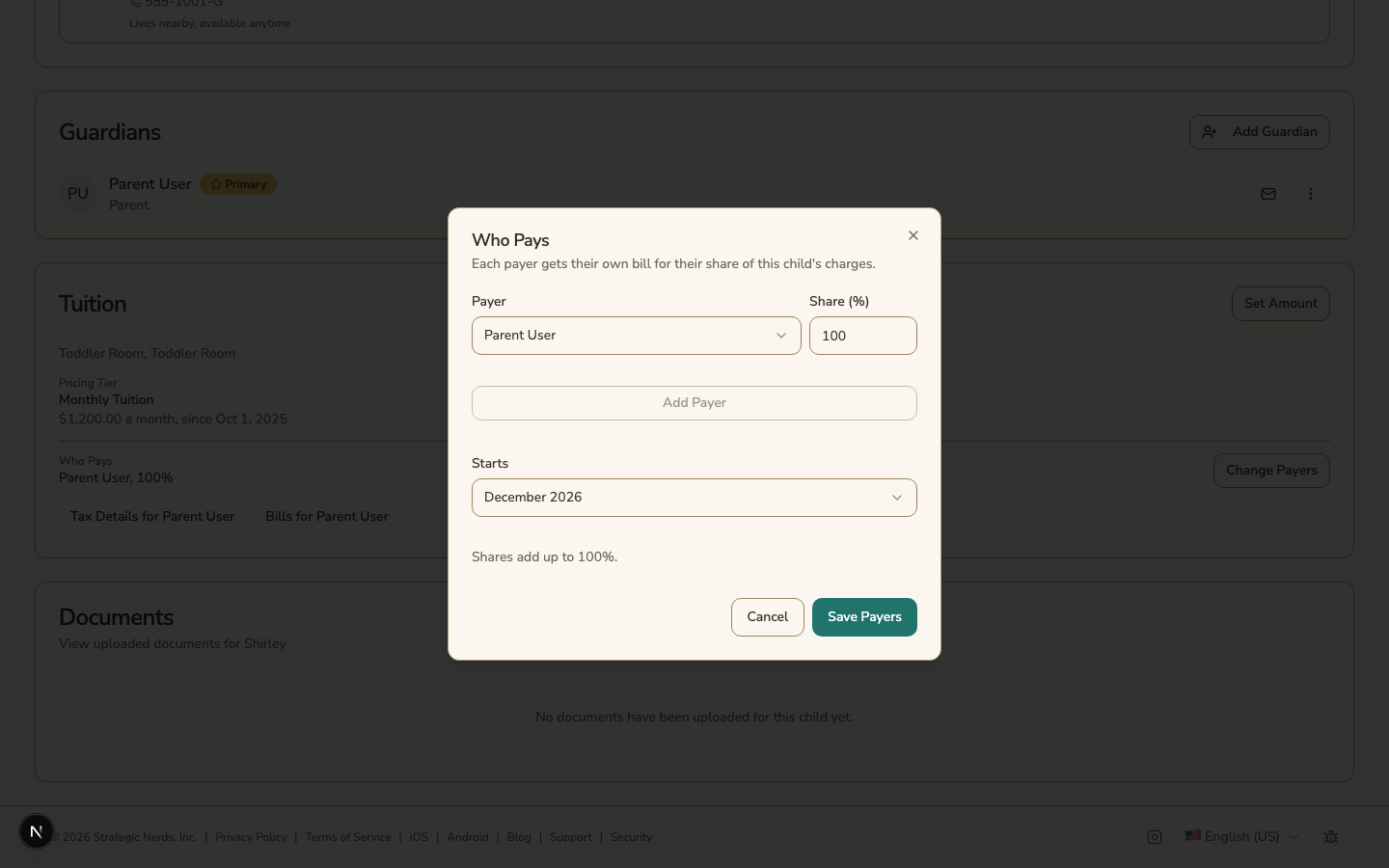
Who Pays lists each payer and their share.
- Click Change Payers.
- Choose each Payer and their Share (%). The shares must add up to 100%.
- Choose the month it Starts and click Save Payers.
Each payer gets a bill for their share of every charge. Tax Details for a payer holds the tax number and billing address used on statements and in the export.
Click Bills for a payer to open that payer's family billing page.
Move the child to another room
- On the Family tab, open Enrollment History, then click Manage enrollment.
- Click Move classroom and choose the room.
- Choose the child's Pricing Tier in the new room. If the new room is in the same program, you can choose Keep the current Pricing Tier.
- Click Move.
The move happens today. Charges for the old room stop, and the family gets a credit for unused days already billed. Charges for the new room start, and the rest of this month goes on the next bill.
A child who moves to a room in another program goes on that room's Default Pricing Tier unless you choose another one. You can choose a different Pricing Tier later with Change.
Get told when a family changes a plan
When a parent signs a child up for a club or meals, or takes the child off one, every administrator gets a notification. It opens the child's Family tab. In your notification settings, choose email and push for A family starts a club or meals and A family stops a club or meals.
Was This Helpful?