Building application forms
Customize your school's application form, add custom questions, and share it with prospective families.
Last updated Oct 1, 2026
Your public application page
Every school on FutureNerds gets a public application page. Families can visit this page to apply without creating an account first.
Customizing the form
On Today, under Manage, open Applications, then click Edit Application Form to open the form builder.
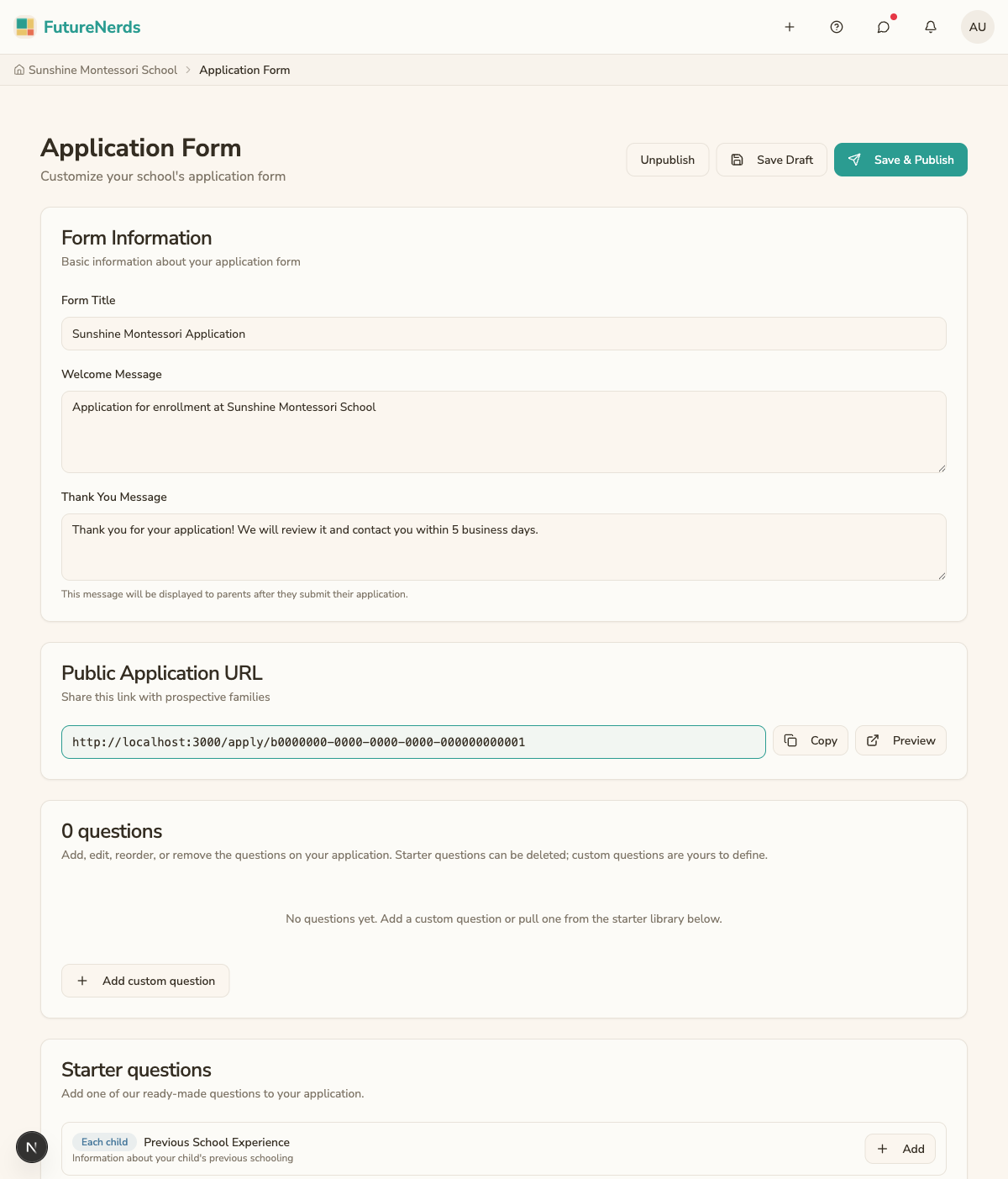
In the builder you can configure:
- Welcome message -- introduce your school and set expectations.
- Programs -- list the programs families can apply to. Each program can have its own age range and description.
- Required fields -- choose which standard fields to include: child name, date of birth, allergies, and emergency contacts.
Starter questions
The builder includes a library of starter questions covering things schools commonly ask: prior schooling, languages spoken at home, toilet training, and similar topics. Each starter question has a toggle.
Turn a starter question on to add it to your form. Turn it off to remove it. You do not have to write these from scratch, and you can mix them with your own custom questions below.
Custom questions
Below the starter library you can add your own questions. Click Add custom question and choose the answer type:
- Short text -- a single line, for brief answers.
- Long text -- a paragraph box, for longer responses.
- Single select -- the applicant picks one option from a list you define.
- Multiple select -- the applicant can pick more than one option from your list.
For each custom question you set the question text, and for the select types you add the answer options. Mark a question required if applicants must answer it before they can submit.
Drag questions by the handle to reorder them. The order in the builder is the order families see on the form. You can edit or delete a custom question at any time.
Sharing the form
Your application page URL looks like: https://futurenerds.app/apply/your-school-id
You can:
- Link to it from your school website.
- Share it in emails or social media.
- Include it in printed materials with a QR code.
What happens when a family applies
- The family fills out the form and submits it.
- The application appears on Applications (from Today under Manage) with a status of Submitted.
- You review the application and decide to approve, waitlist, or reject it.
- The family receives an email notification with your decision.
Tips
- Keep the form short. You can always collect more information later.
- Test the form yourself before sharing it with families.
- Review applications promptly -- families appreciate fast responses.
Was This Helpful?