Re-enrollment: who returns next year
Open re-enrollment, see each family's answer, confirm next year's rooms, add a child, send agreements, and follow up with counts and filters.
Open the Enrollment page
Open School Settings from your avatar menu, then Operations, then Enrollment. Pick next year under School year.
Each child at the school has a row, grouped by the room they are in now. The counts at the top show children, Returning, Not returning, Undecided, Fully Registered, Agreements Outstanding, and Fees Outstanding.
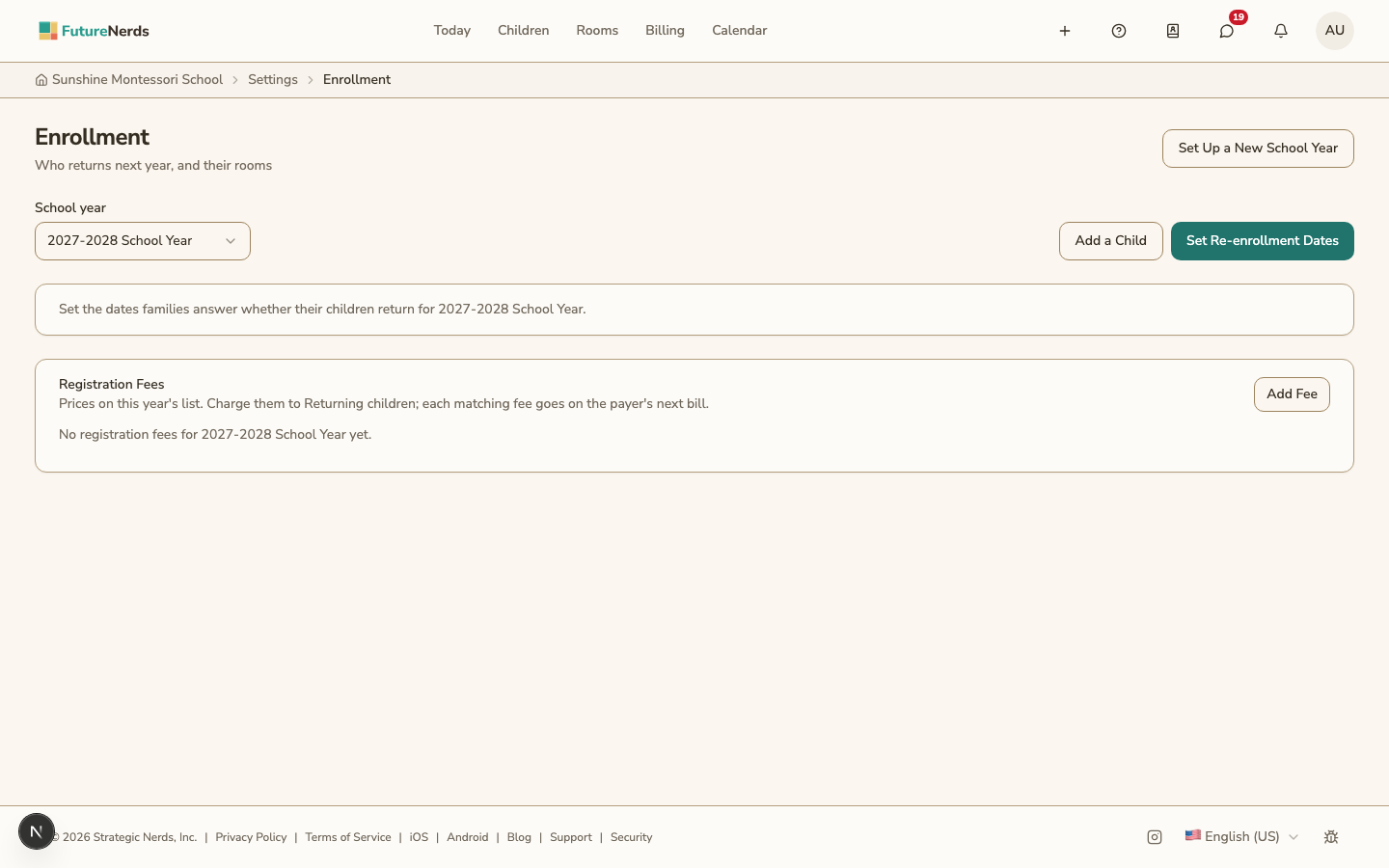
Open re-enrollment
- Click Set Re-enrollment Dates.
- Enter the Opens on and Closes on dates. Both must be before the year starts.
- Click Save Dates.
Families see the question in Needs You from the opening date. Until then, only administrators see the list. To change the dates later, click Change Dates. Earlier dates stay listed under Earlier dates, with the name of the person who changed them.
Read the families' answers
A guardian answers Returning or Not returning, with a reason, on the Next Year page. The first guardian's answer is the one that counts.
To record an answer yourself, open the row's menu and click Record Answer. For a child who is not returning, add the reason and their Last day.
Confirm next year's rooms
Each row suggests a room. The child either stays in their room or moves to the next program at the age set in the program's Edit Program dialog. Due to move marks a child who is moving. Room closes marks a child whose room does not run next year (see Programs and rooms). Confirm another room for that child.
To confirm a room, click Confirm Room, choose the Room and the First day, and click Confirm Room. The child moves on that day.
Add a child to the year
Use this for a child accepted after re-enrollment opened.
- Click Add a Child.
- Choose the Child, New or Returning, the Room, and the First day.
- Click Add to the year.
The child gets a row with their room already confirmed.
See a child's details
Click a child's name. The details show:
- the family's answer, and who changed it and when
- New or Returning, which you can change
- the agreement and each signature
- the registration fees and their bills
- the child's earlier years
Send agreements
Send Agreements sends next year's agreement for each Returning child with a confirmed room. You can add an Agreement version, such as 2027-28, version 1.
Each guardian signs in the app. When every guardian has signed, the row says Agreement signed on and the date.
To record a paper signature, open the row's menu and click Record Paper Signature. Choose the Guardian, the date it was Signed on, and a Document reference, then click Record Signature.
Filter the list
You can filter by Answer, Room, Agreement (not sent, waiting for signatures, signed), and Registration (not charged, outstanding, paid, waived, or credited). You can use more than one filter at a time.
What happens on the first day of the year
Confirmed rooms take effect. A child who is not returning leaves the school after their last day. If no last day was given, they leave after the last day of the year. Their charges and clubs end.
Was This Helpful?