Programs and rooms
Make programs with their Pricing Tiers and fees, add rooms, put each room in a program, and move a room between programs.
Programs and rooms
A program holds the prices. A room is a classroom, and every room is in one program. For example, a Primary program with three rooms, where every child pays one of Primary's Pricing Tiers.
- Programs are in School Settings, under Money, below Tuition and Fees.
- Rooms are in School Settings, under School.
Programs
Open School Settings from your avatar menu, then Money, then Programs. Pick the year under School Year. Each program has a card with its rooms, its Pricing Tiers, and its Program Fees. The same cards are on Tuition and Fees, and you can edit them on either page.
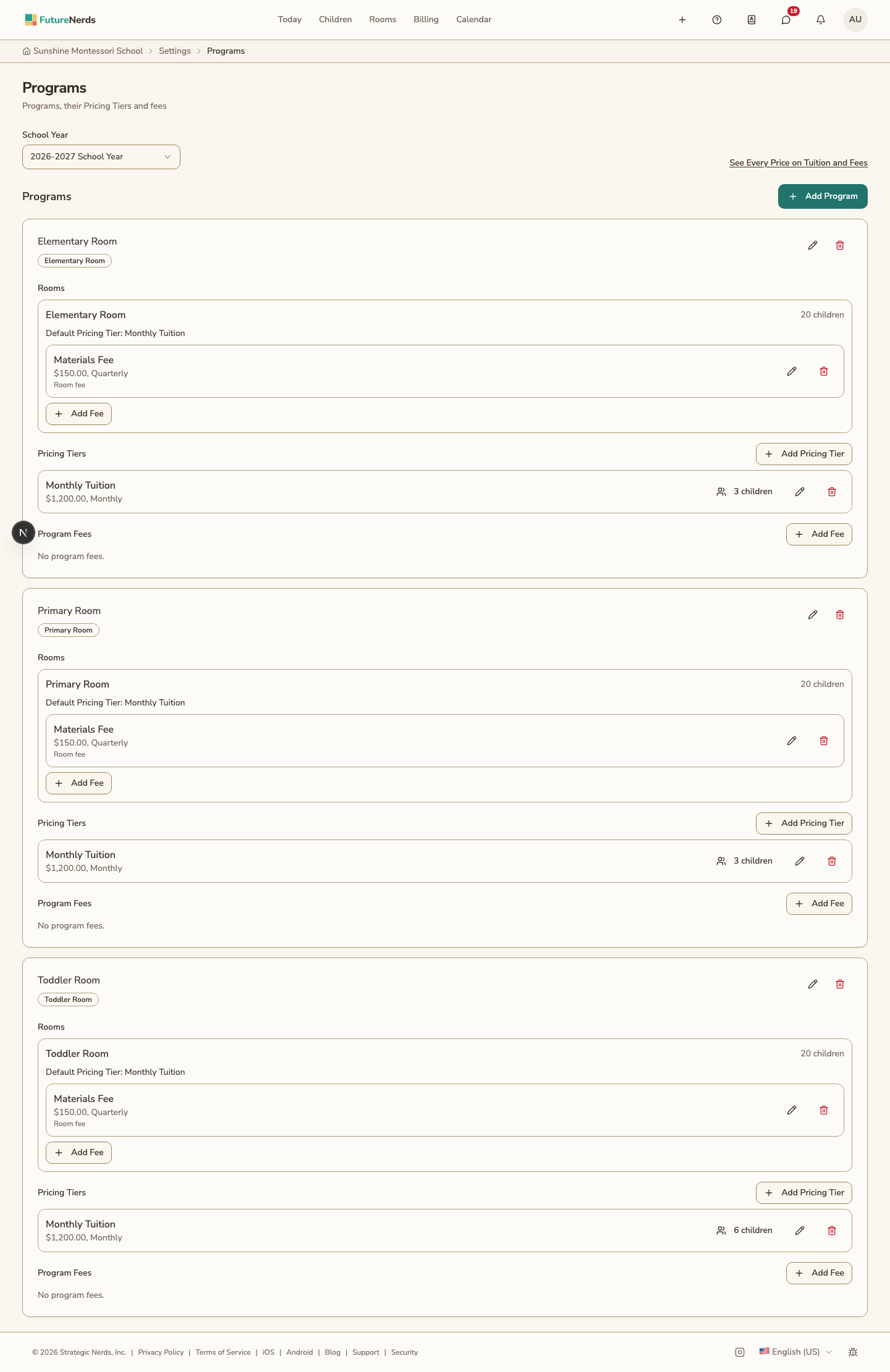
Add a program
- Click Add Program.
- Enter the Program Name, for example Primary.
- If you like, enter Ages From (Years) and Ages To (Years), for example 3 to 6.
- Under Pricing Tiers, enter at least one Pricing Tier Name, for example Half Day, with its amount and how often it is charged. Click Add Pricing Tier for each one more.
- Under Program Fees, click Add Fee for any fee every child in the program pays, for example a Materials Fee.
- Click Save Program.
Rooms join the program from their own Program field (see below).
Edit a program
Click the pencil on the program to open Edit Program. You can rename it, change its ages, and choose its Next program. A child who is older than the program's top age on a school year's first day is suggested the next program's first room for that year. Re-enrollment shows the suggestion as Due to move.
Pricing Tiers and fees are changed on the program's card. Changes are saved as you make them. See Tuition and Fees.
Remove a program
Click the trash can on the program, then Remove Program. Its Pricing Tiers and fees go with it. Bills already sent keep them. A program that still has rooms cannot be removed, so move its rooms to another program first.
Rooms
Open School Settings, then School, then Rooms. Rooms are listed by program, with their ages and places. Programs and Pricing Tiers opens the Programs page.
Add a room
- Click Add Room.
- Enter the name, ages, capacity, and curriculum level.
- Choose the room's Program. To make a new one, choose New program….
- Choose the Default Pricing Tier. Children who join the room start on this Pricing Tier. If you leave it empty, they start on the program's first Pricing Tier.
- Click Create Classroom.
To change a room's program or Default Pricing Tier later, open the room from Rooms in the top bar, open its menu, click Edit, and change them in Edit Classroom.
Move a room to another program
- Click the arrows on the room.
- Choose the Program.
- Click Move Room.
The room's children move to the new program's first Pricing Tier from their first month that is not billed. Bills already sent do not change.
A room's years
A room can open in a later school year, or have a last one. Click the calendar on a room, choose Opens in and Last year, and click Save Years. When you add a room here, you can set them too.
- The room shows "Opens ..." or "Last year ..." on this page.
- Tuition and Fees lists the room only for the years it runs.
- A child cannot be placed in the room outside its years.
- Re-enrollment marks children whose room does not run next year with Room closes, and the New School Year review counts any still without a room.
Was This Helpful?