Setting up a new school year
Create next year, check its programs and rooms, set its prices from this year's with a raise, open re-enrollment, and review what changes on the first day.
Follow the New School Year steps
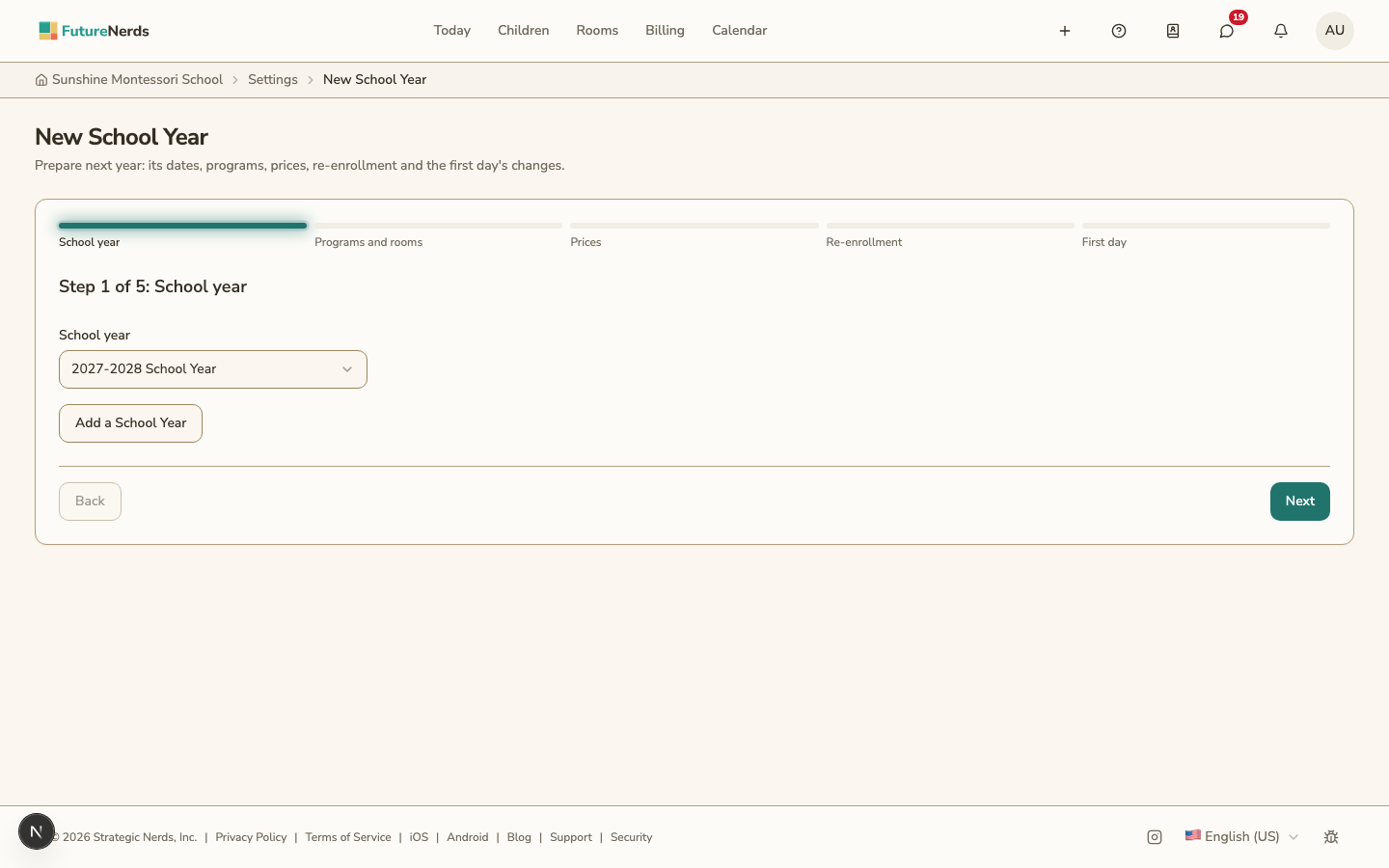
Open School Settings, then Operations, then New School Year. You can also click Set Up a New School Year on the Enrollment page.
- School year: choose next year, or click Add a School Year to create it with its dates and billing months.
- Programs and rooms: check which rooms are in each program. Change programs on Programs or Tuition and Fees. Change a room's program in its Program field on Rooms.
- Prices: next year starts with no prices. Click Copy Prices from Another Year.
- Re-enrollment: set the dates when families answer.
- First day: see the room moves, the children leaving, and what is still to do.
Click Done to open the Enrollment page.
Copy prices with a raise
Copy Prices from Another Year opens Set Prices for the year. Tuition and Fees shows the same button when you pick a year with no prices.
- Choose the year to Copy from.
- Enter Raise every price by (%), for example 4, and choose how to Round to.
- Click Show Prices to see each old and new price.
- Click Set Prices.
Every Pricing Tier and fee is copied with its new price. You can change any price later on Tuition and Fees. You set registration fees on the Enrollment page.
A returning child keeps their Pricing Tier in the new year.
Check what is left before the first day
Still to do counts the families who have not answered, the returning children without a room, and the charges that have no price for next year.
On Tuition and Fees, Preview Next Year lists the charges for each child that move to next year's prices. Children move on the first day of the year. To move them now, click Apply Next Year. Each child's payer and their share stay the same.
Pause Changes stops the first-day changes until you click Resume Changes.
Was This Helpful?