Administrator
OperationsConnecting Stripe for online payments
Set up your Stripe account so families can pay invoices online.
Last updated Oct 1, 2026
Stripe Connect setup
Before families can pay invoices online, you need to connect your school's Stripe account. Stripe handles all payment processing, security, and payouts.
Getting there
Open School Settings from your avatar menu, then open Invoicing. Stripe Connect sits under the bank account block.
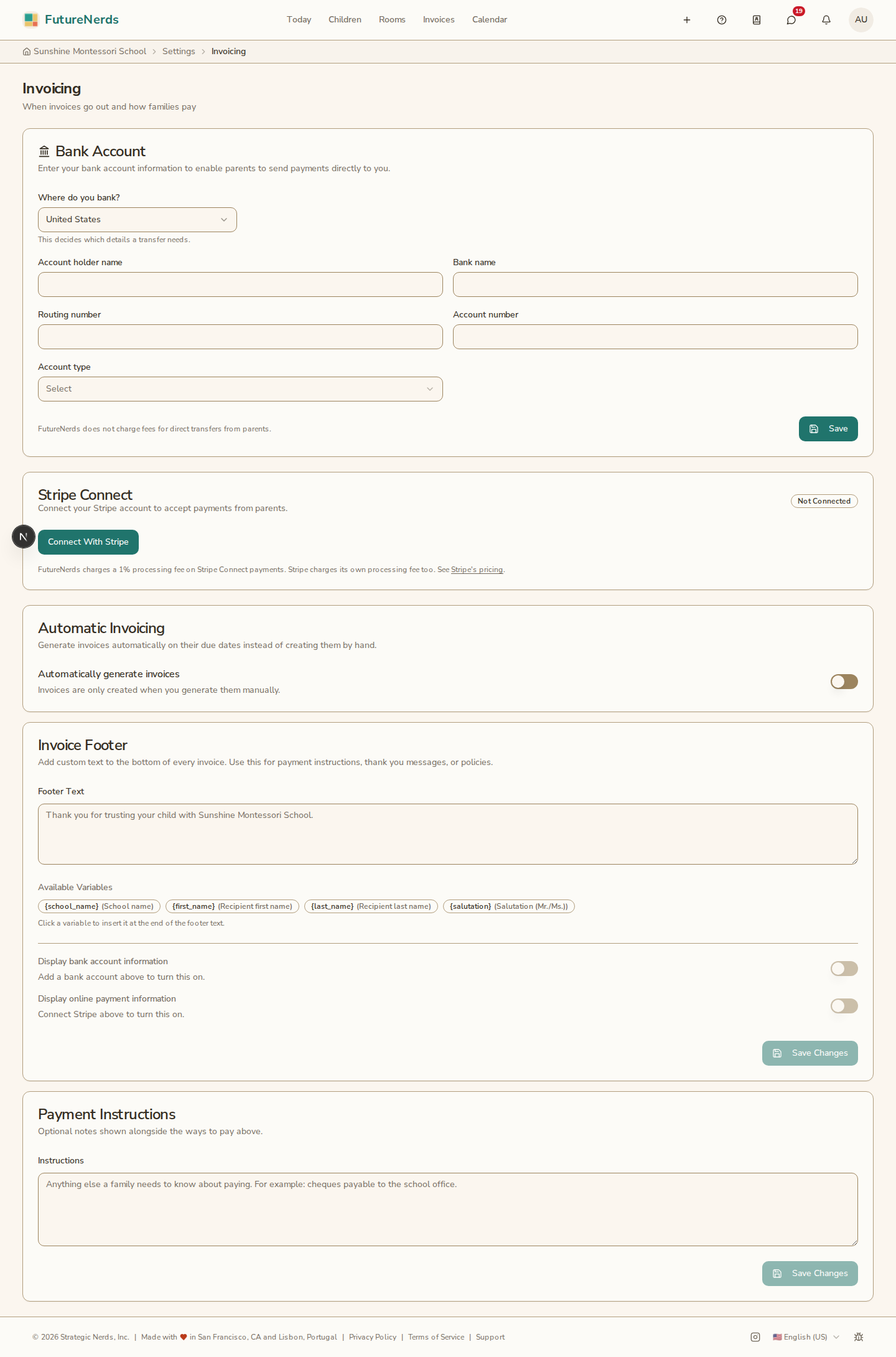
Connection status
Your Stripe connection can be in one of these states:
- Not connected -- you have not started the Stripe onboarding process.
- Onboarding -- you started the process but have not finished all the required steps.
- Active -- your account is fully connected and ready to accept payments.
- Restricted -- Stripe needs additional information or verification from you.
- Disabled -- your account has been disabled by Stripe.
Connecting your account
- Click Connect With Stripe.
- You are redirected to Stripe's onboarding flow.
- Follow the steps to verify your identity, add your bank account, and agree to terms.
- When finished, you are redirected back to FutureNerds.
- Your status changes to Active.
If you leave the onboarding process before finishing, your status stays at "Onboarding." You can resume at any time by clicking Continue setup.
After connecting
Once your Stripe account is active:
- Families see a Pay Invoice button on their invoices.
- Payments go directly to your connected bank account after Stripe processing.
- You can view your Stripe dashboard directly from the settings page.
Tips
- Have your bank account information ready before starting.
- The onboarding process takes about 10 minutes.
- If your status is "Restricted," check the Stripe dashboard for instructions on what additional information is needed.
Was This Helpful?