Administrator
School managementAcademic sessions and reporting periods
Create and manage academic sessions that control assessment periods and attendance tracking.
Last updated Oct 1, 2026
Academic sessions
Sessions define the reporting periods for your school (e.g., "Fall 2025", "Spring 2026"). They control which date range assessments cover and help organize progress tracking over the academic year.
Getting there
Open School Settings from your avatar menu, then open Term Dates and Sessions.
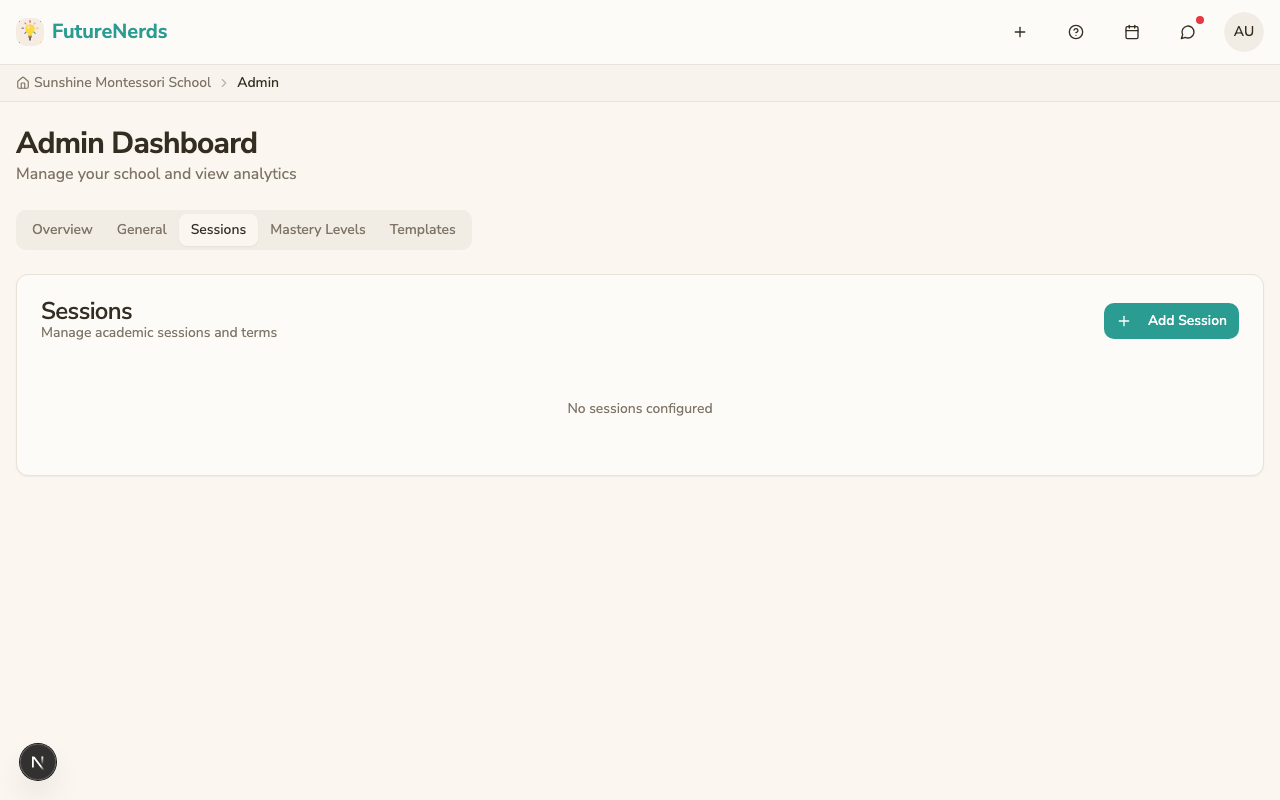
Creating a session
- Click Add Session.
- Fill in:
- Session Name -- a label for the session (e.g., "Fall 2025").
- Start Date -- when the session begins.
- End Date -- when the session ends.
- Academic Year -- an optional label grouping sessions (e.g., "2025-2026").
- Click Add Session again to save.
Setting the current session
One session should be marked as current at any time. The current session is the default for new assessments.
Click Set as current session on the session you want. Only one session can be current at a time.
Editing and deleting sessions
- Click Edit session to change the name, dates, or academic year.
- Click Delete session. You will be asked to confirm.
Tips
- Create sessions at the start of each academic year.
- Set the current session before teachers begin writing assessments.
- Use consistent naming so sessions are easy to identify later.
Was This Helpful?