Message templates
Create reusable message templates that staff can insert when composing messages.
Last updated Oct 1, 2026
Message templates
Templates give your staff pre-written messages for common situations: health alerts, weather closures, reminders, and general communications. Staff can insert a template with a single click instead of typing the same message repeatedly.
Getting there
Open School Settings from your avatar menu, then open Message and Post Templates.
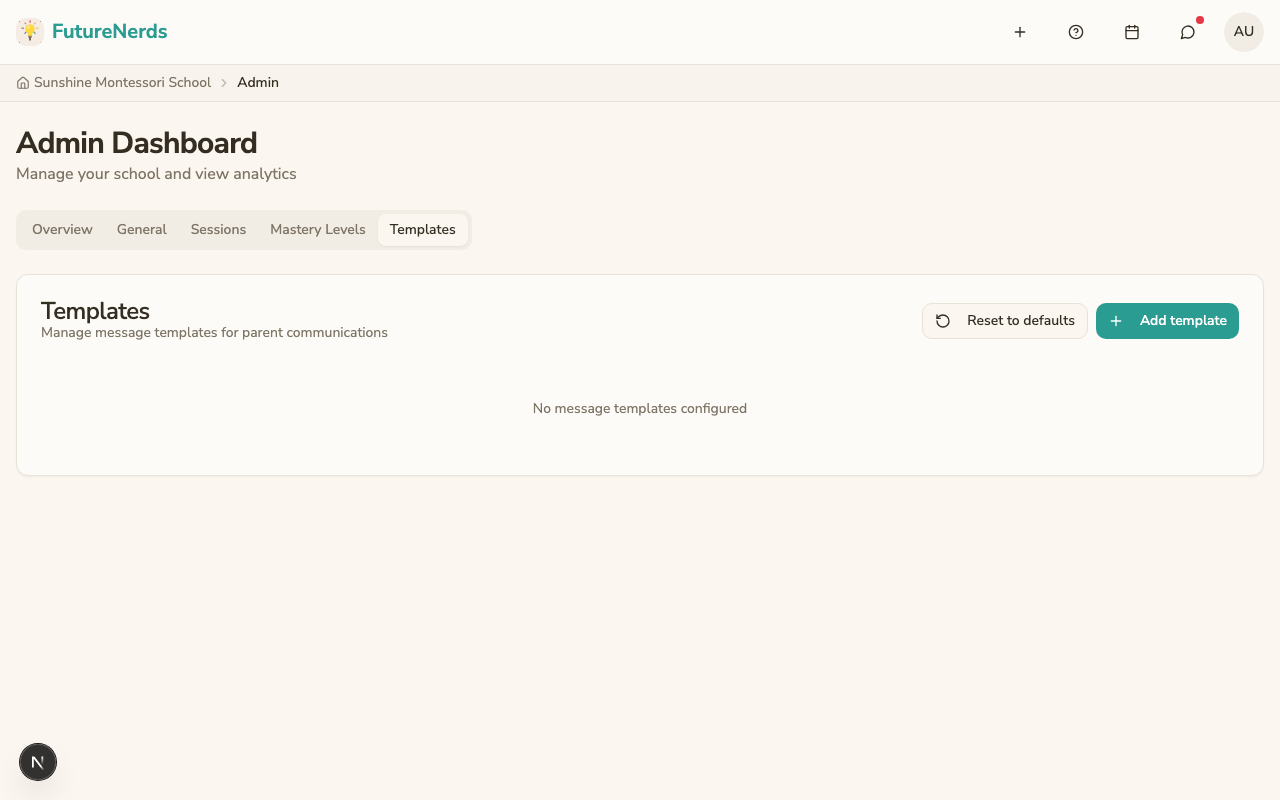
Creating a template
- Click Add template.
- Fill in:
- Name -- a short label (e.g., "School closure - weather").
- Category -- choose from: Health Alert, Weather, Reminder, or General.
- Subject -- optional. If provided, it appears as bold text at the top of the message when inserted.
- Body -- the message content.
- Click Save.
How staff use templates
When composing a message in any classroom message board, staff can type / as the first character in the compose box. A popup appears listing all available templates. Clicking a template inserts its content into the message. If the template has a subject, it is inserted as bold text followed by the body.
Templates are only available to staff (administrators and teachers). Parents do not see the template picker.
Managing templates
- Click the pencil icon to edit a template.
- Click the trash icon to delete a template (with confirmation).
- Click Reset to defaults to restore the built-in default templates. This replaces all current templates.
Tips
- Create templates for messages you send more than once a month.
- Use clear, descriptive names so staff can find the right template quickly.
- Include placeholder text like "[child's name]" or "[date]" in the body so staff remember to customize before sending.
Was This Helpful?