The Billing page: monthly invoices, drafts, and new charges
Generate the month's invoices as drafts, check, delete, skip, or send each draft, add one-time fees, approve new charges, filter bills, and open a family's billing page.
See the month's bills
Open Billing in the top bar. The row at the top covers next month's bills:
- Drafts: bills that are prepared and not sent, with their total
- Check First: how many drafts have something for you to check, such as a tuition change, a new payer, or a child who is leaving
- Sent: bills sent for the month
- Waiting for the Next Bill: one-time fees that are not on a bill yet, with their total
- Needs Reconciling: bills where the money or the paperwork does not match yet
Click Drafts, Check First, Sent, or Needs Reconciling to open the list of those bills. Check First opens only the drafts to check. Outstanding and Overdue below the row cover every month.
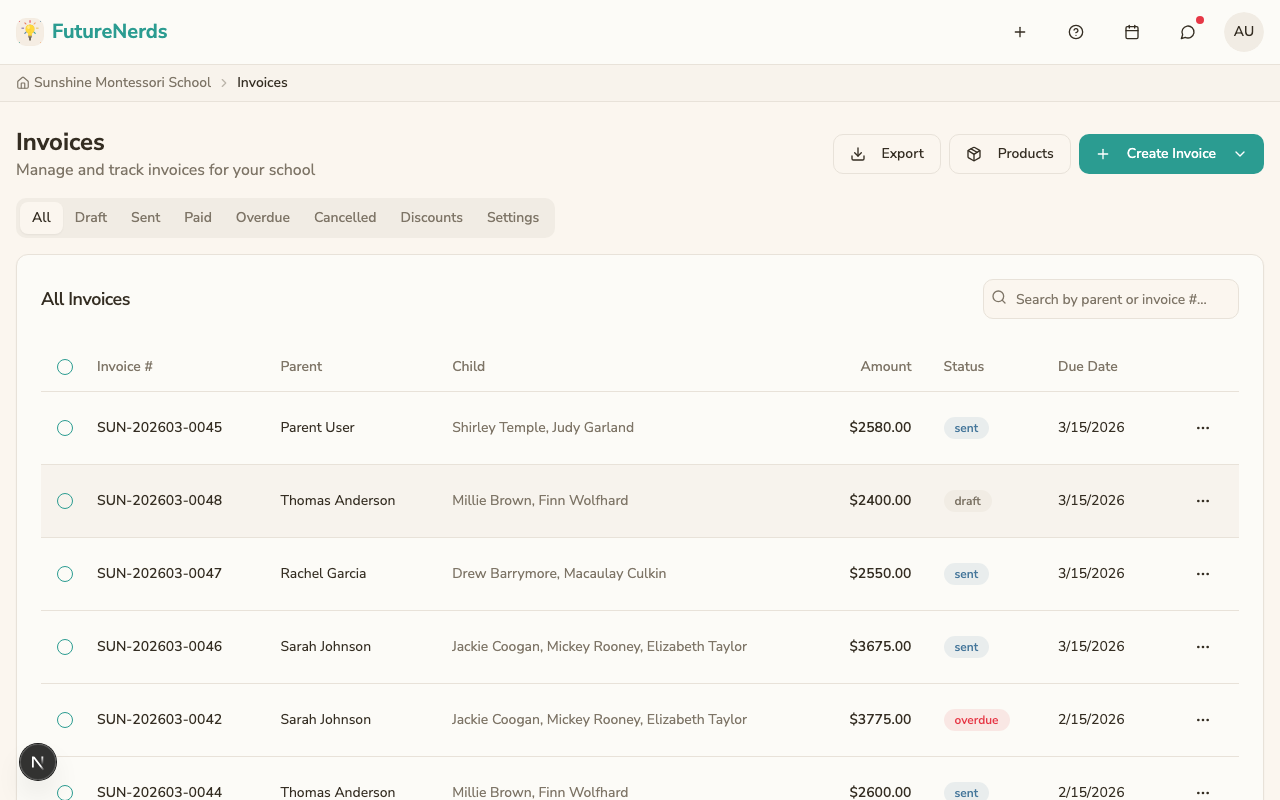
The list of every bill is under the totals.
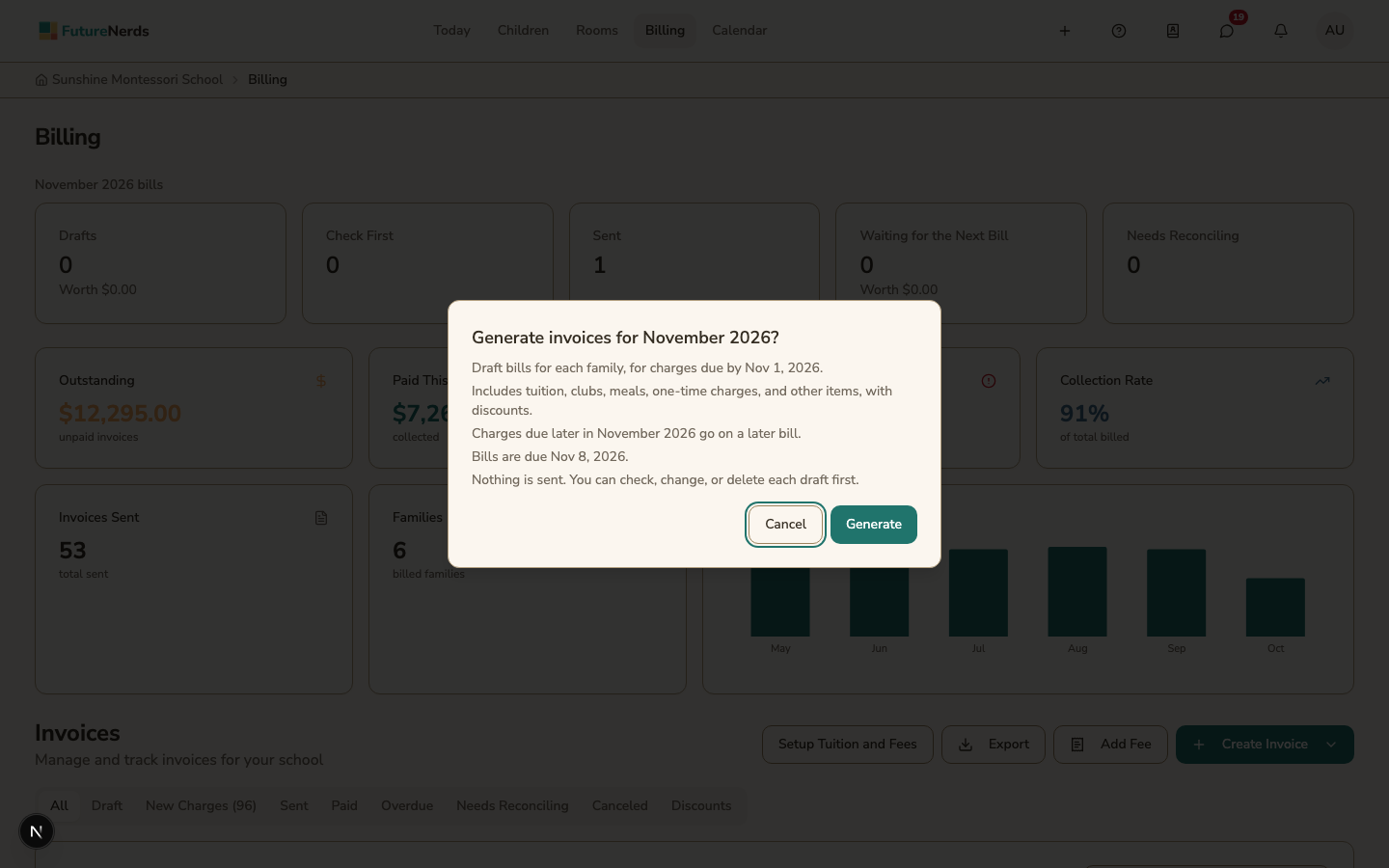
Generate the month's invoices
- Click Create Invoice, then Generate Monthly Invoices.
- Read what the dialog will do and the date the bills are due.
- To add fees from earlier in the term that were never billed, select Include fees from earlier in the term. The dialog lists each fee with its child and amount.
- Click Generate.
FutureNerds makes a draft bill for each family and opens the Draft tab. A message says how many drafts it made. Nothing is sent to families yet.
If your school sends bills automatically, the dialog says so. Drafts with nothing to check are sent on the prepare day. See Billing months and bill dates.
Check the drafts
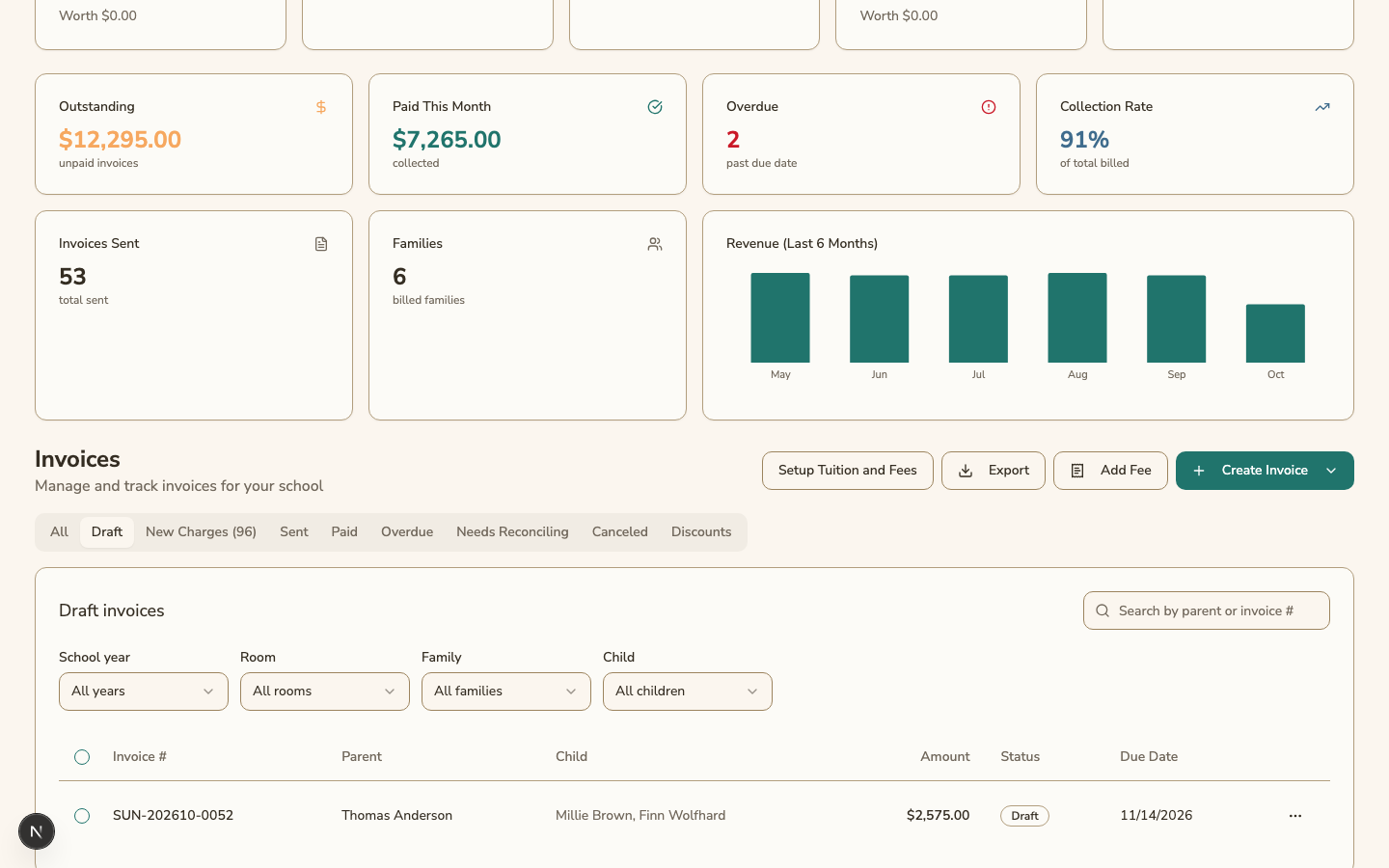
Open the Draft tab to see every draft. Click a draft to open it.
A draft with something to check shows a Check badge next to its status. Point at the badge to see why, for example "Arrived after preparing" or "Payer changed". The draft's own page lists the reasons under its title.
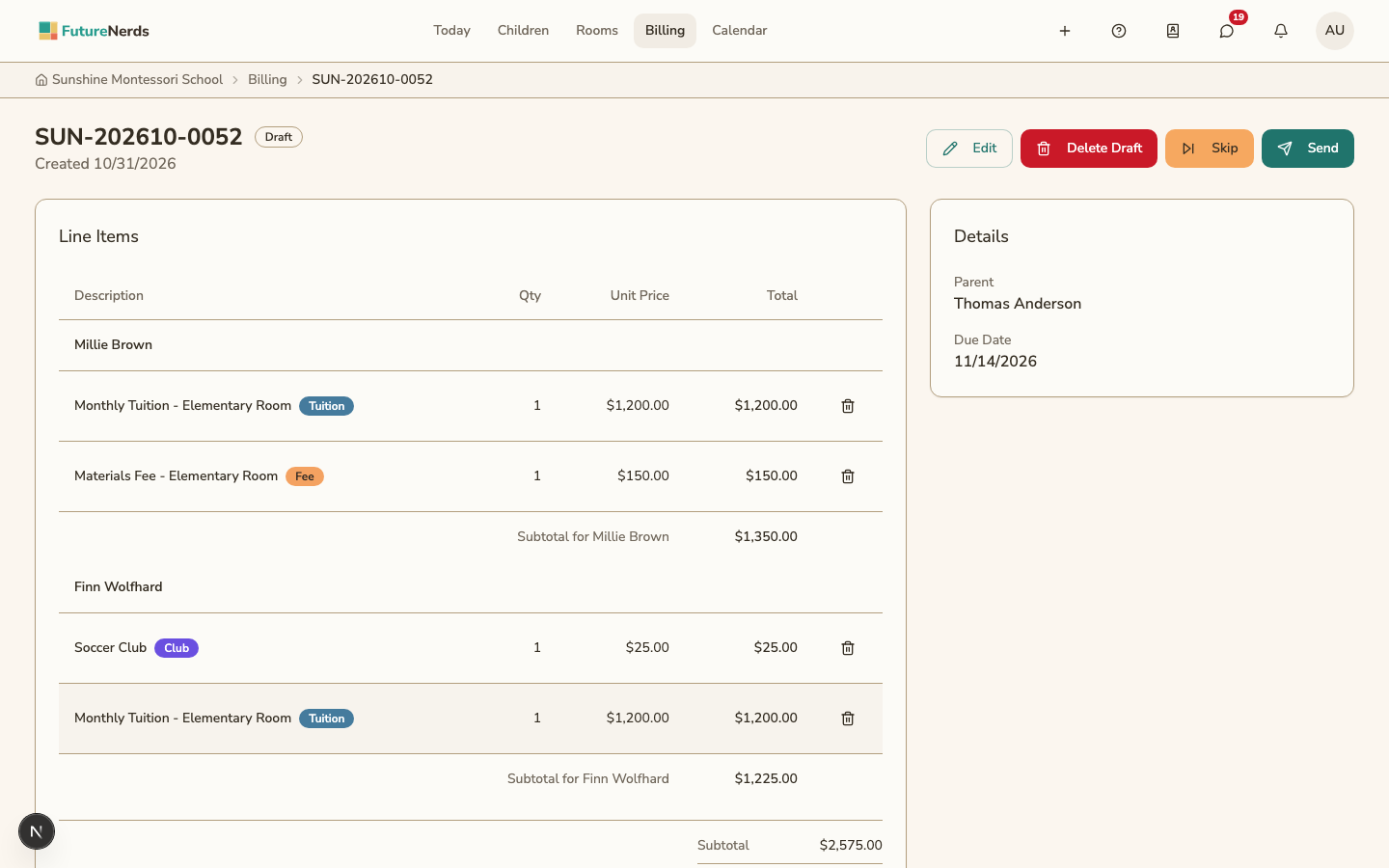
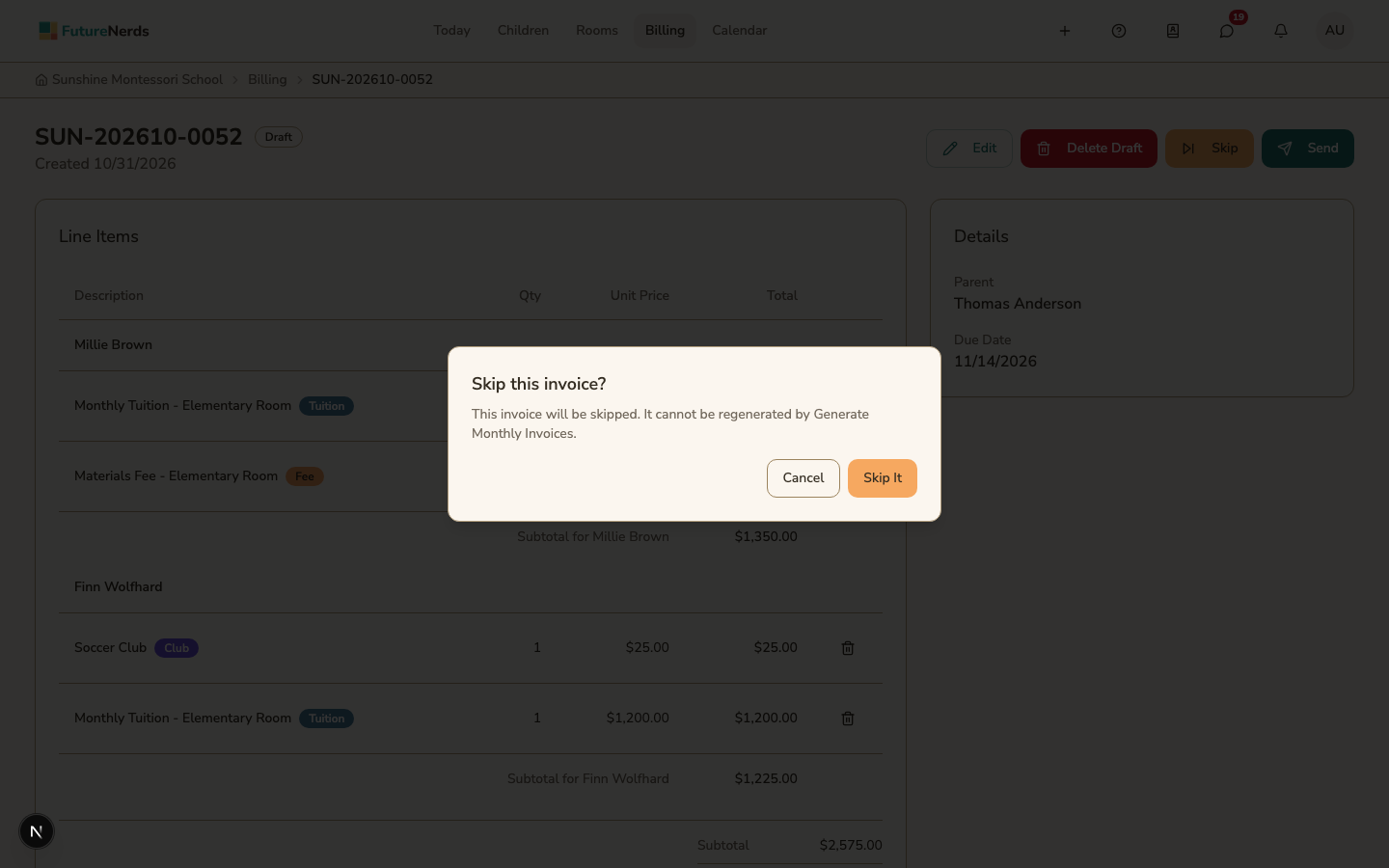
A draft has Edit, Send, Delete Draft, and Skip. The menu at the end of each row on the Draft tab has View, Edit, Send, Delete Draft, and Skip.
- Edit lets you change the lines or apply a scholarship.
- Send sends the bill and emails it to the family.
- Delete Draft deletes the draft right away, with no question first. The charges on it go back to being owed. The next time you click Generate Monthly Invoices, the draft is made again.
- Skip opens a dialog that says "This invoice will be skipped. It cannot be regenerated by Generate Monthly Invoices." Click Skip It to remove the draft. The family is never billed for its charges.
To work on several drafts at once, select them on the Draft tab and open Actions above the list. Choose Send, Delete, or Skip for the drafts you selected, for example Skip 3 drafts. You can also change their due date there.
A deleted or skipped draft leaves a gap in the bill numbers. For example, bill 0003 can be followed by bill 0005.
Take a line off a draft
Open the draft and click the remove button on the line. Choose Charge It on the Next Bill or Don't Charge It, give a Reason, and click Remove Line.
Approve new charges
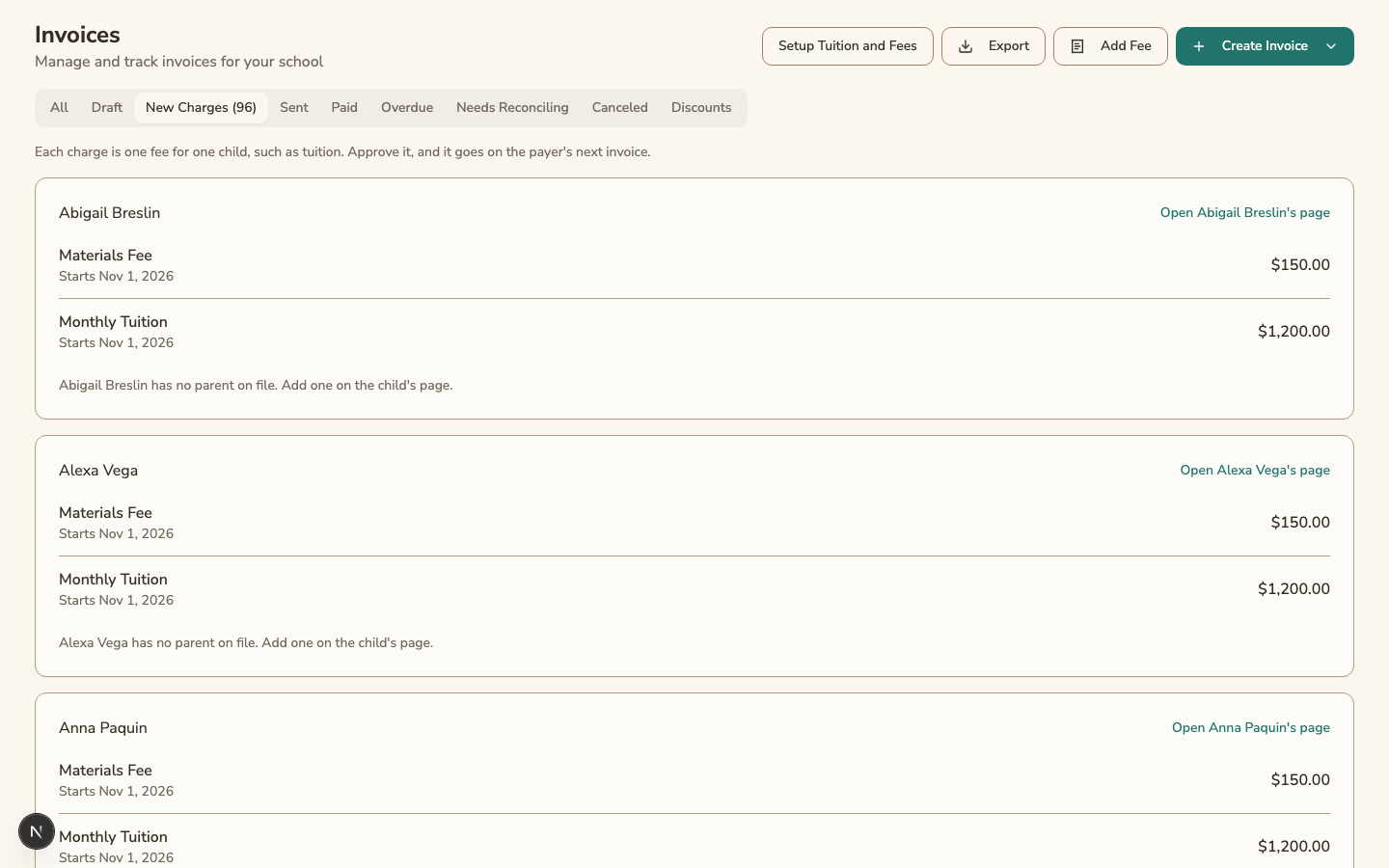
The New Charges tab lists charges that need a payer or your approval, such as the room charges for a new child. Charges are grouped by child.
- Click Add to Ava's Next Invoice, to the right of Open Ava's page. Each child's button has that child's name. The button approves all of that child's charges, and the child leaves the list right away. The charges go on a draft the next time you click Generate Monthly Invoices.
- Click Approve to approve one charge, or Don't Bill to drop it. A charge you don't bill never goes on a bill.
- If a charge has no payer, choose one under Who pays and click Set payer. The Add to Ava's Next Invoice button shows after the child has a payer.
Add a one-time fee
Use this for a fee such as a late pickup.
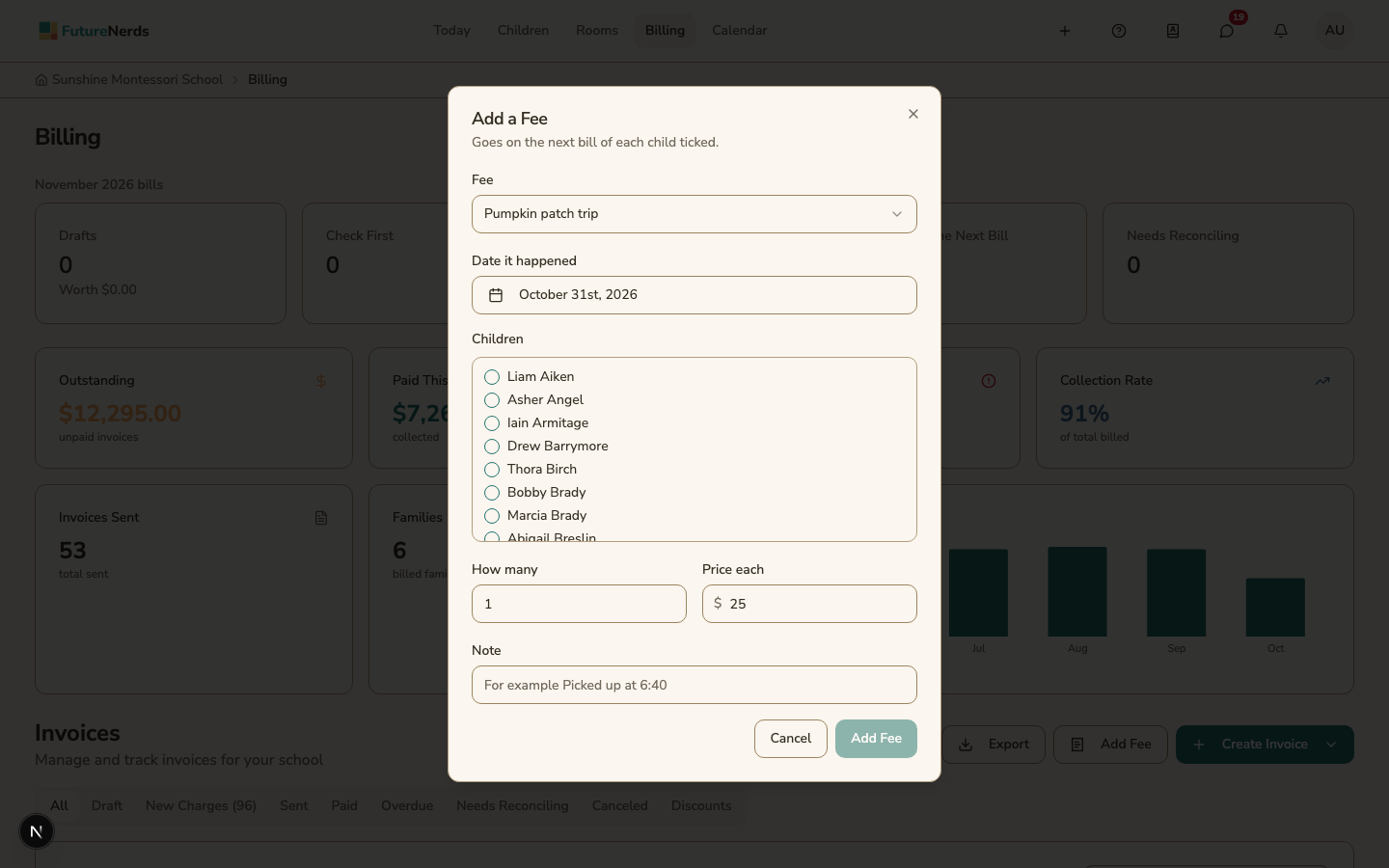
- Click Add Fee at the top of the page.
- Choose the Fee, the Date it happened, and the Children.
- Set How many and the Price each. Add a Note if you want.
- Click Add Fee.
The fee goes on each child's next bill, for that child's payer. Run Generate Monthly Invoices to put it on a draft. If the same fee is already there for that day, you are asked before it is added again.
Fee lists only the one-time fees set to Added by hand when it happens. You create them on Tuition and Fees.
Find a bill
The tabs are All, Draft, New Charges, Sent, Paid, Overdue, Needs Reconciling, Canceled, and Discounts. Search finds a bill by its number or a parent's name.
You can narrow the list by School year, Month, Room, Family, and Child. You can use more than one at a time.
- Needs Reconciling lists bills with a proof of payment to check, a disputed payment, or money paid on a canceled bill or above its total. For schools that use statements, it also lists sent statements that have no official invoice or have a different total.
- Create Invoice, then Create a single invoice, makes one bill by hand.
- Export, then Export Bill Lines (CSV), downloads every bill line for your invoicing tool.
Open a family's billing page
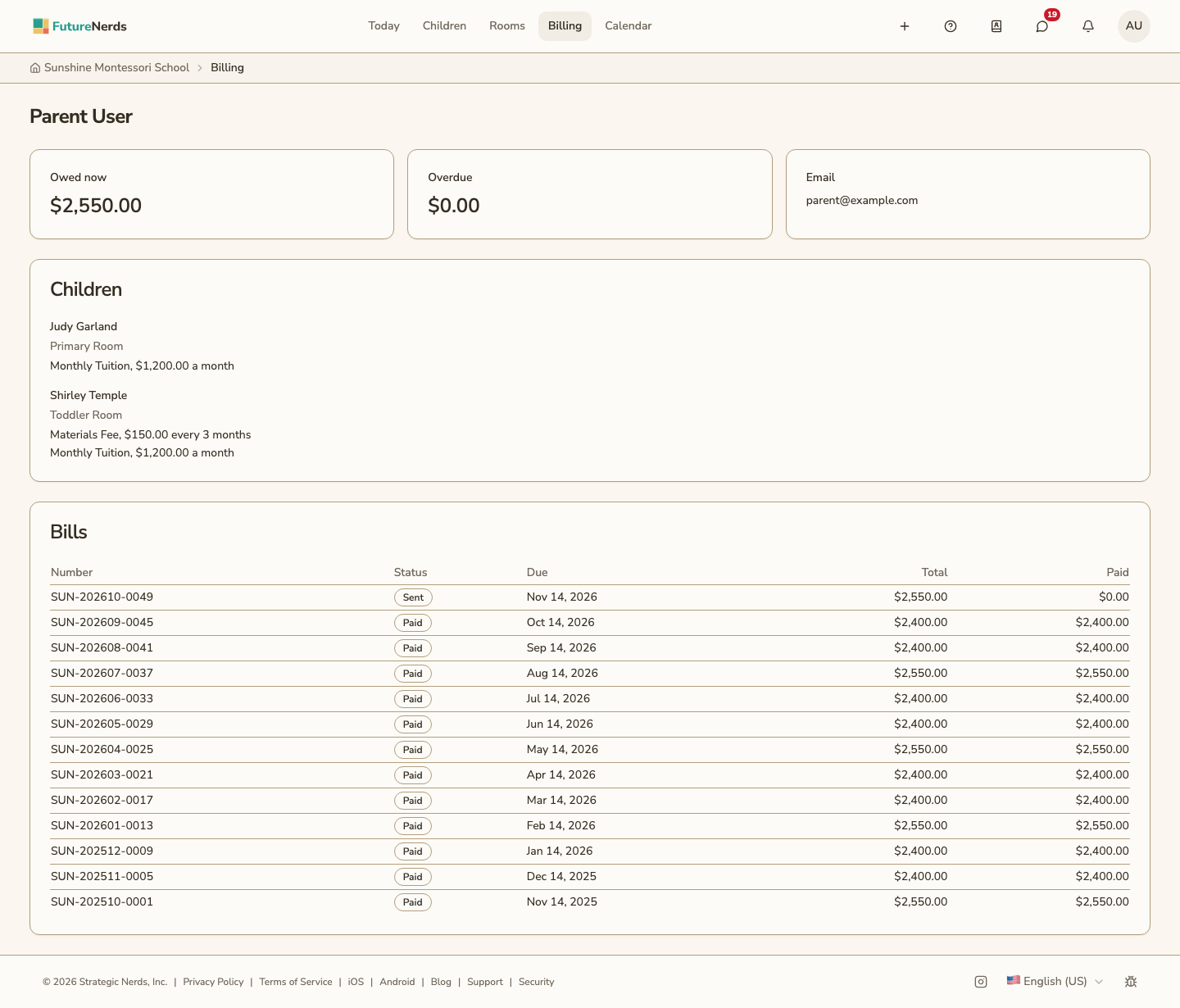
Click a parent's name in the list. Their page shows what they owe now and what is overdue. It lists each child they pay for, with the child's room and what the child is signed up for, and every bill sent to them.
Read a bill's history
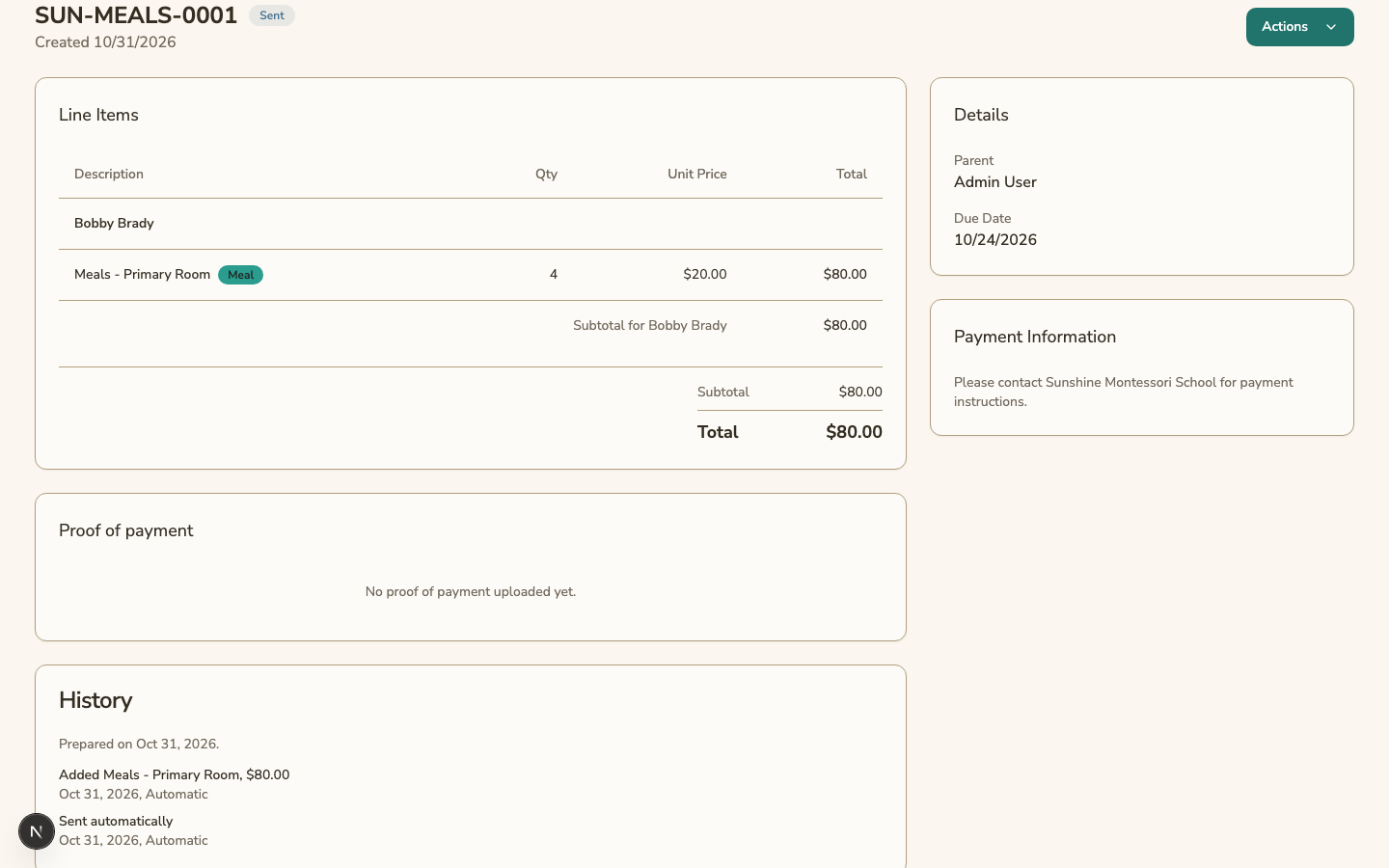
Open a bill. History lists each change made after the bill was prepared: lines added, changed, or removed, due date changes, and when it was approved and sent or sent automatically. Each entry shows the date, who made the change, and the reason they gave.
To change a bill that was already sent, use the bill's Actions menu. See Payments, credit notes, and refunds.
Was This Helpful?