Running a club
See your club's roster and approve or reject membership requests for clubs that need approval.
Last updated Oct 1, 2026
Clubs
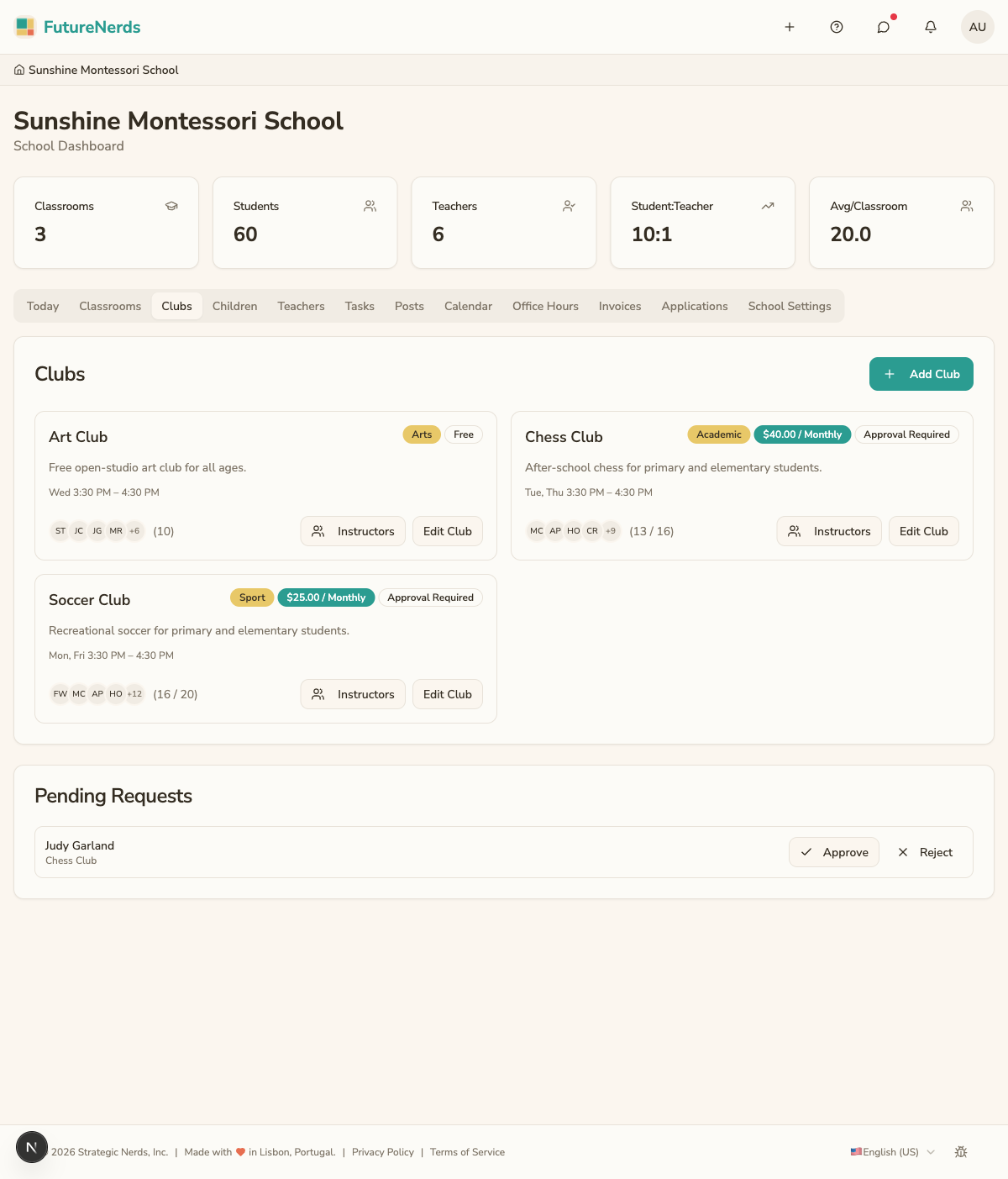
A club is a group that runs alongside your classrooms, for activities like chess, gardening, or music. As staff you see the clubs you lead, their rosters, and any membership requests waiting on you.
Getting there
Open Rooms, then switch to Clubs. You see a card for each club. Click a club to open its detail page, where the roster and any pending requests live.
Viewing the roster
The club detail page lists every member with their name and photo. This is the group you work with for the club's sessions.
Approving or rejecting requests
Some clubs accept members automatically. Others require staff approval, and those are the ones that need you.
- Open the club from Rooms → Clubs.
- Look for the pending requests on the club's detail page.
- For each request, click Approve to add the child to the roster, or Reject to decline.
Approved children join the roster right away. Rejected requests are removed from the pending list. A club set to join automatically has no requests to act on, so its detail page shows only the roster.
Tips
- Check pending requests at the start of the week so families are not left waiting.
- The roster on the detail page is the source of truth for who is in the club.
- If you expect a request and do not see it, confirm the club requires approval rather than joining automatically.
Was This Helpful?