Teacher
During the work cycleLogging incident reports
Document incidents involving children for internal record-keeping.
Last updated Oct 1, 2026
Incident reports
Incident reports are internal records for documenting safety incidents, behavioral concerns, or other events that need to be on file. They are separate from observations and are not visible to parents.
Creating an incident report
- Open the classroom from Rooms. Under Classroom Tools, click Incident Report. Today's shortcuts also include Incident Report.
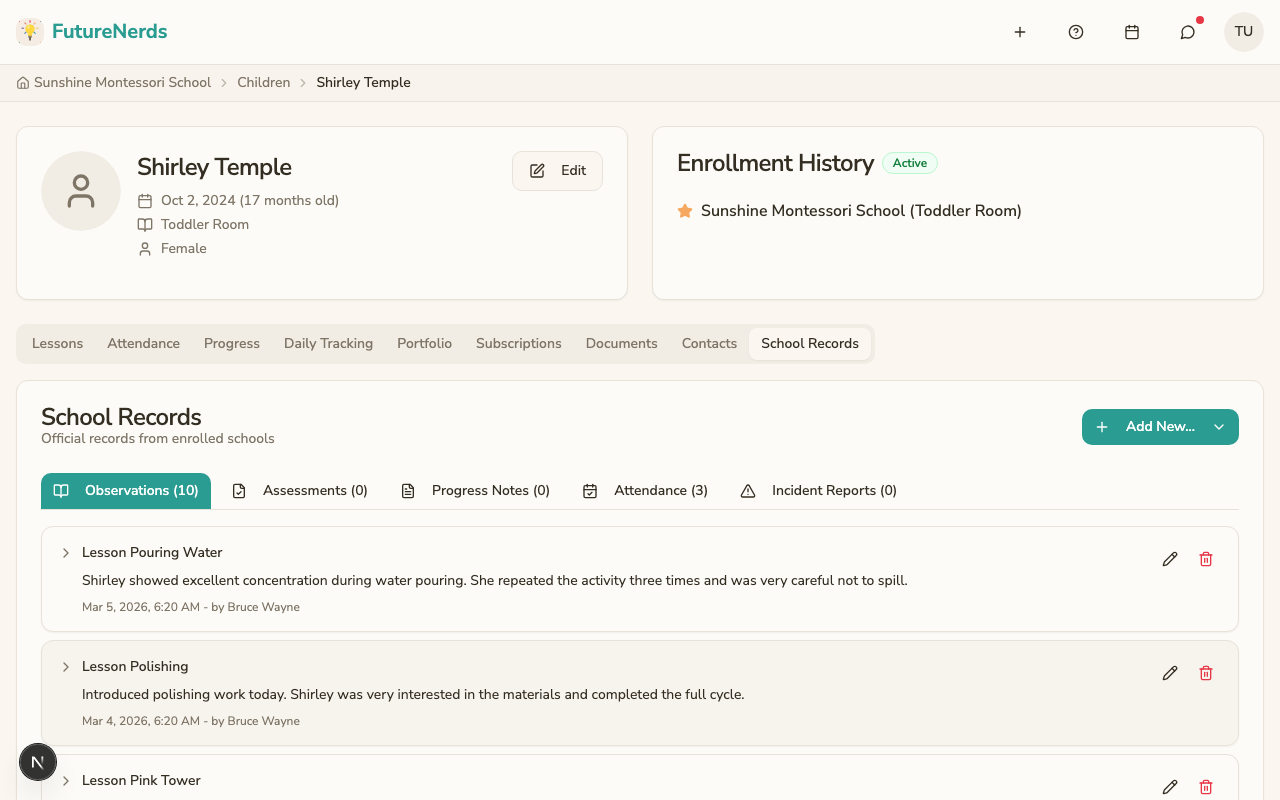
- Or open the child's profile and stay on School Day. Recent incidents appear there when any exist. There is no Records tab.
- Select the child or children.
- Fill in:
- Incident name -- a short title (the placeholder is "e.g., Fell on the playground").
- What happened? -- who was involved and any follow-up.
- Date -- defaults to today.
- Click Record incident.
Editing an incident report
Open a recent incident on the child's School Day to edit the name, description, or date/time. You cannot change the list of involved children after creation.
Who can see incident reports
Only staff can view incident reports. Parents do not see them on the profile. They can choose Incident Reports under their own notification settings if the school sends that alert.
Tips
- Document incidents as soon as possible while details are fresh.
- Be factual in descriptions. Avoid subjective language.
- If the same incident involves multiple children, select all of them when creating the report so each child has the record on file.
Was This Helpful?