Parent
CommunicationMessaging teachers
Message your child's teachers, the office, and your classroom channels.
Last updated Oct 1, 2026
Messaging
Click the speech bubble in the top bar to open Messages. An unread count shows on the icon.
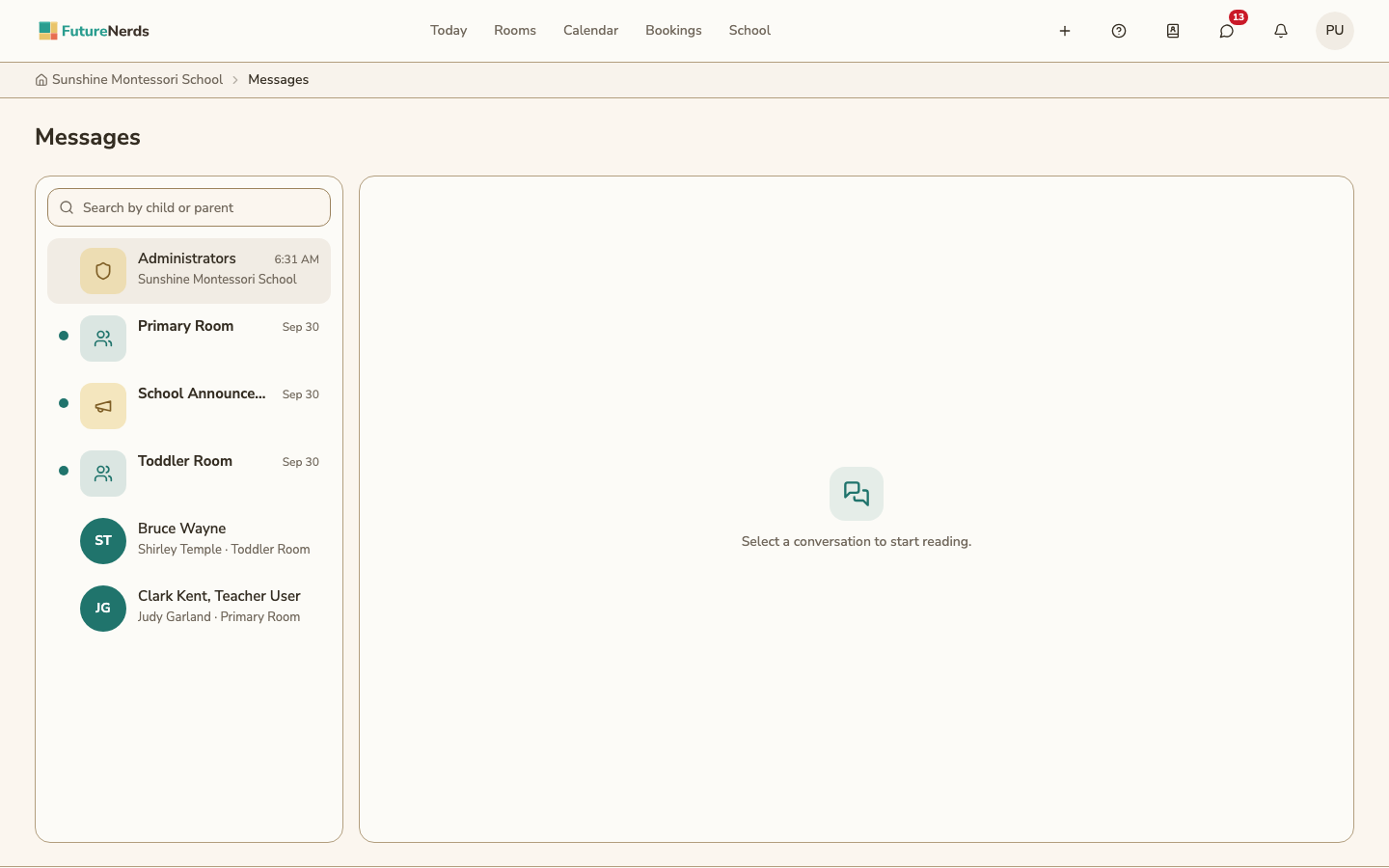
Your conversations
One list holds all your conversations:
- Administrators -- a thread with the office.
- Classroom channels -- one for each of your children's classrooms.
- School announcements -- a school-wide channel.
- Direct threads with a teacher -- named for the teacher, the child, and the classroom.
Sending a message
- Open a conversation.
- Type in the box at the bottom.
- Press Enter to send, or Shift+Enter for a new line.
Use a classroom channel for the whole room. Use a teacher or Administrators thread for a note about one child.
Choose how new messages reach you under notification settings. For something urgent, such as a sick child, call the school.
Was This Helpful?