Getting started: your family's first week
A short tour of what you can do as a parent: progress, contacts, assessments, meals, invoices, documents, clubs, messaging, the calendar, and the daily digest.
Last updated Oct 1, 2026
This guide covers what you can do in your first week as a parent. Work through it in order, or jump to what you need. Some features depend on what your school turns on, so a section may be missing.
The top bar is Today, Rooms, Calendar, Bookings, and School. Open a child from Today. Their profile has four tabs: School Day, Learning, Photos, and Family. Billing and Profile Settings are in your avatar menu.
1. See your child's progress
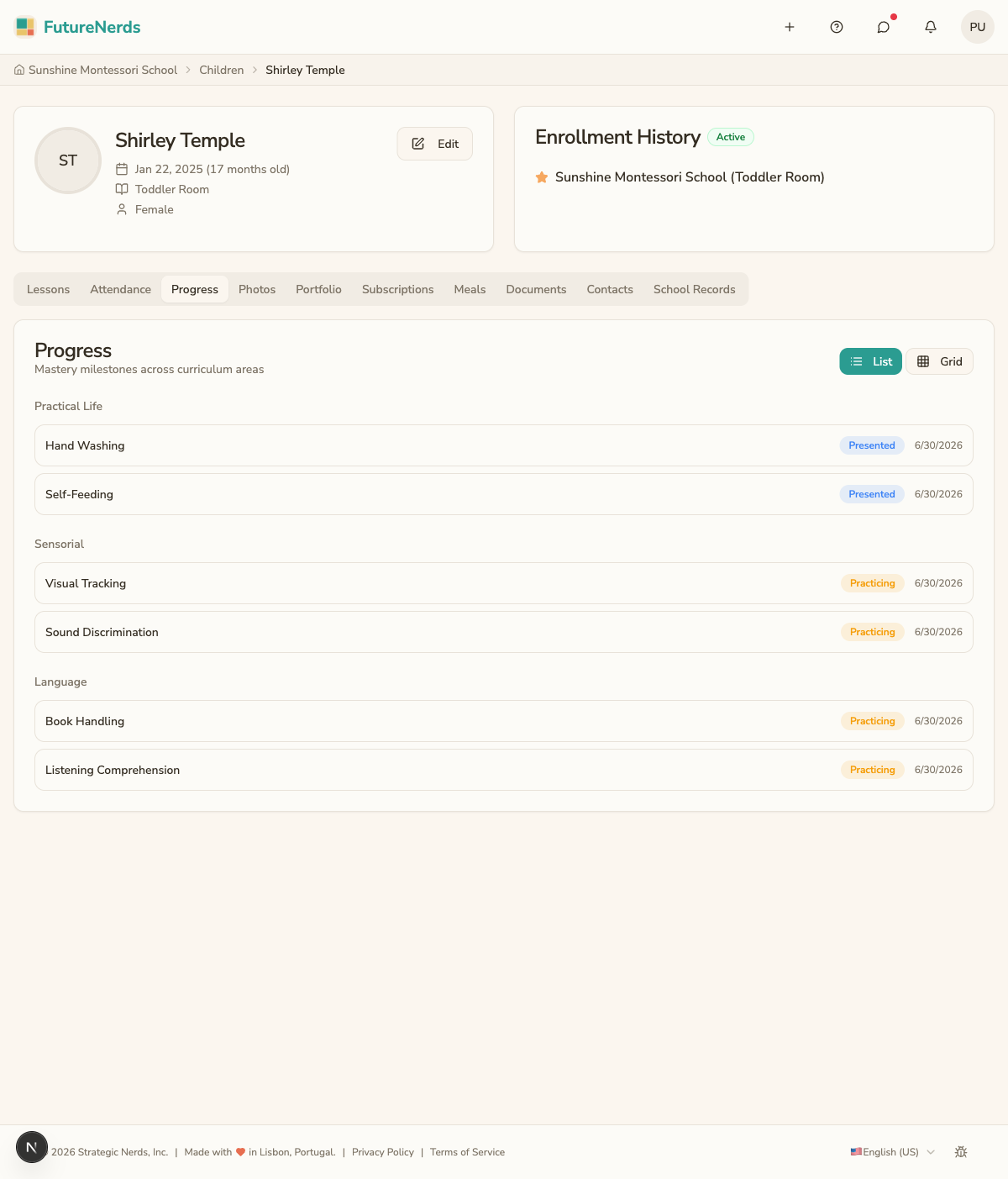
Open your child's profile, then Learning. Scroll to Progress and switch between List and Grid. Each skill shows a level, from not yet presented to mastered.
2. Add your guardians and contacts
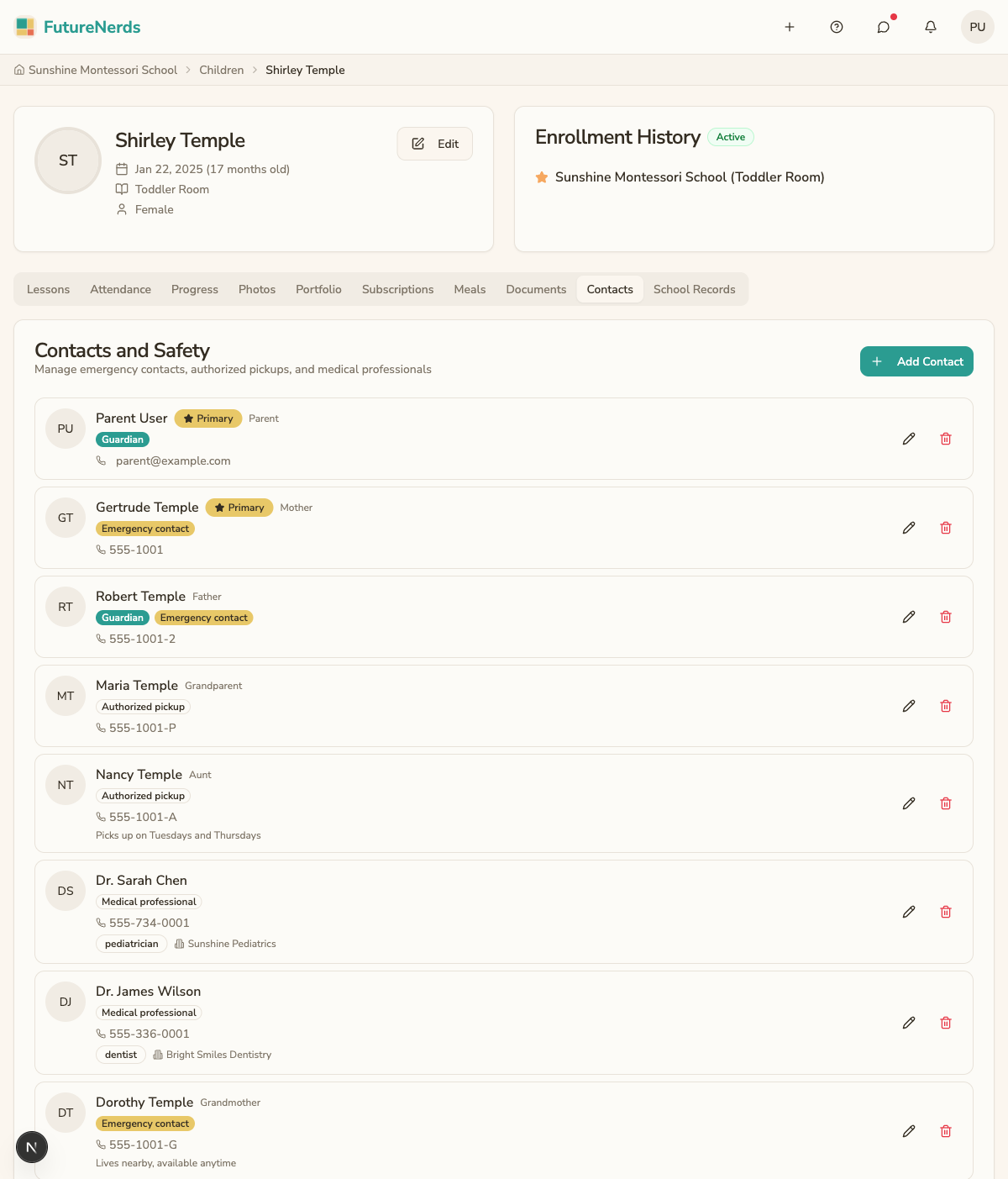
Open your child's profile, then Family. Use Add Contact on the Contacts and Safety card for caregivers and pickups. Use Add Guardian on the Guardians card for a parent or guardian.
Give the Authorized pickup role to anyone allowed to collect your child.
3. Read assessments
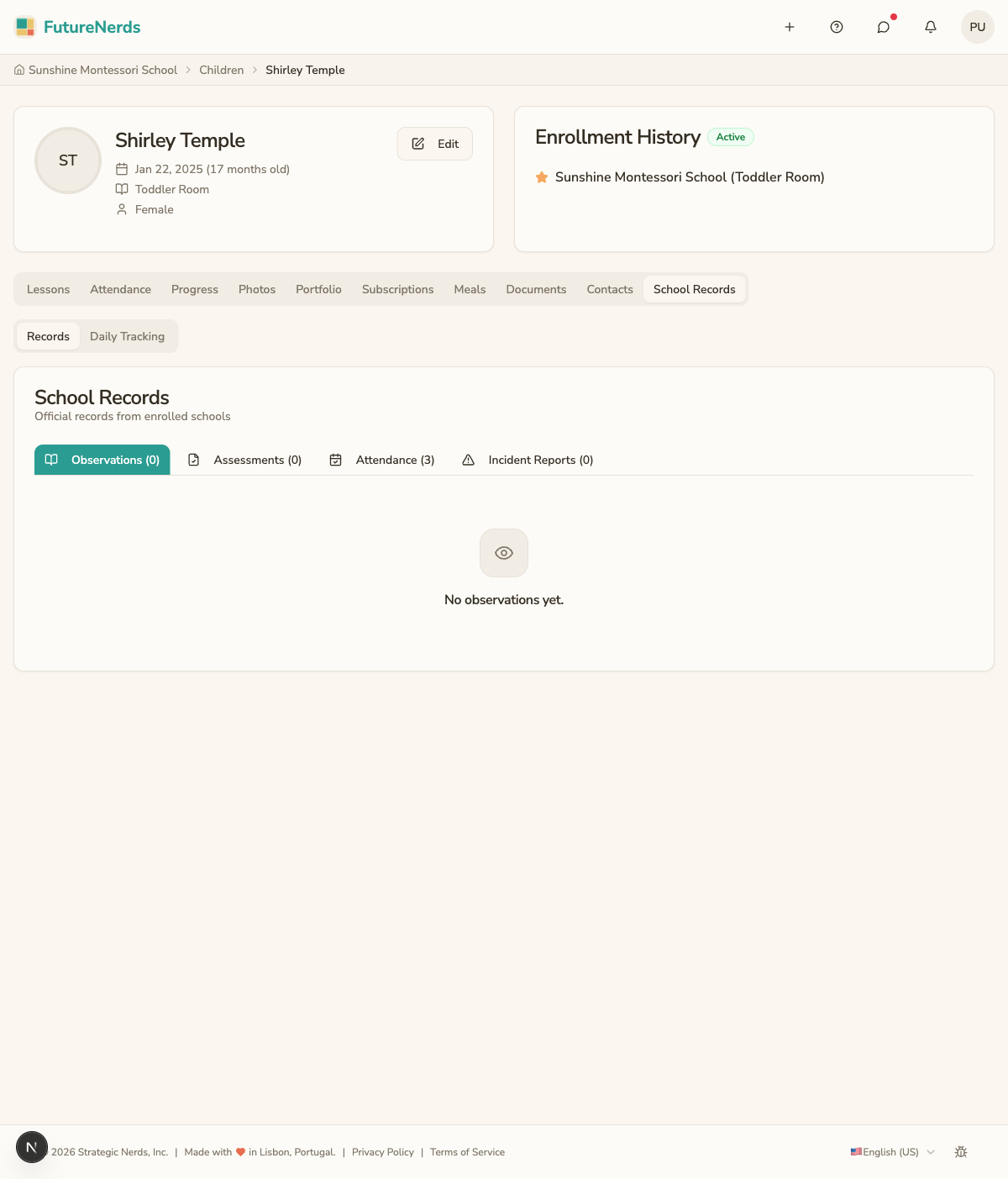
Open Learning on your child's profile and scroll to Assessments. Each card is one term. Expand it to read the teacher's summary and comments.
4. Sign up for meals
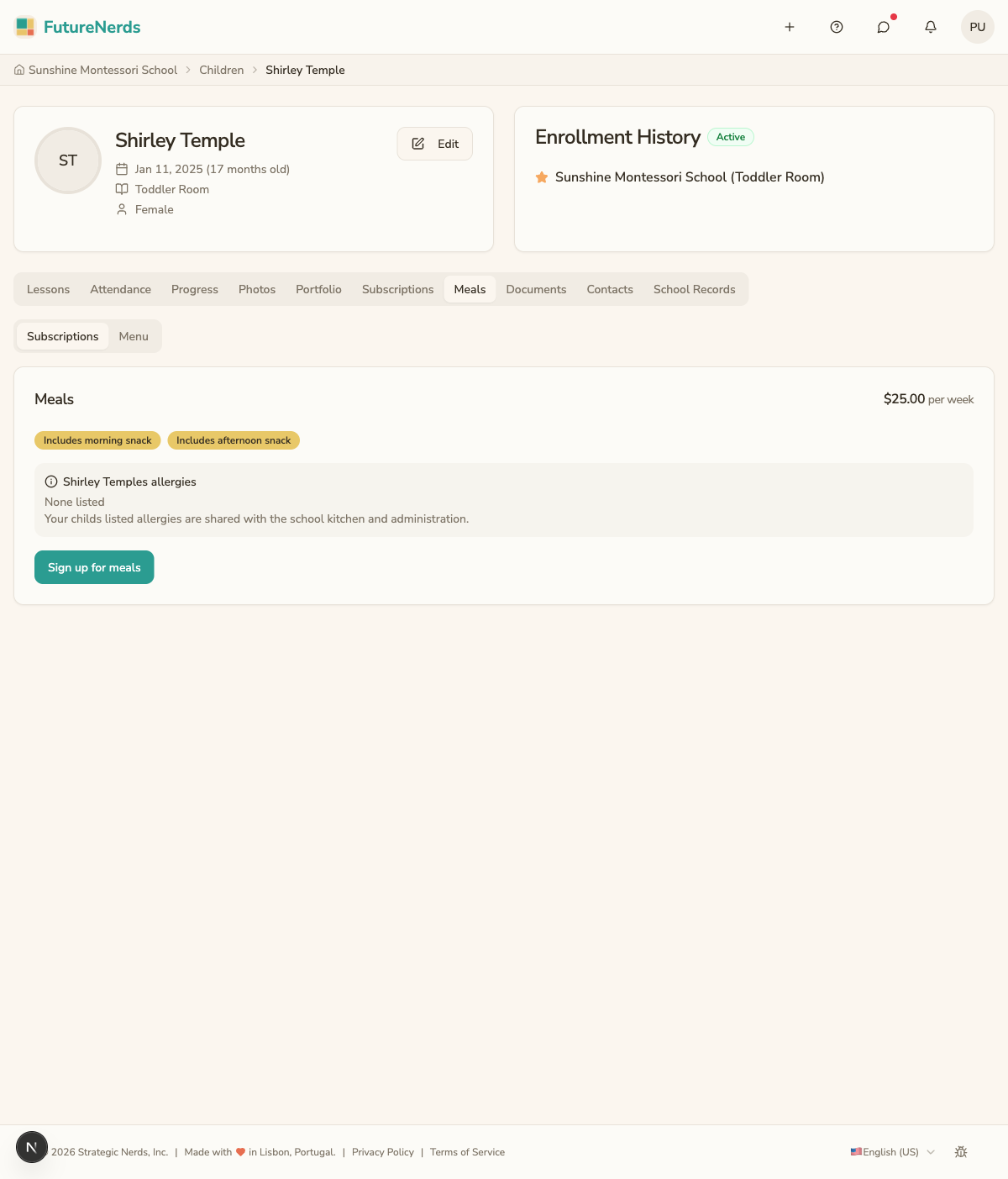
If your school serves meals, open your child's profile, then Family, and scroll to Meals. Use Sign up for meals on Subscriptions. The week's menu is on Menu.
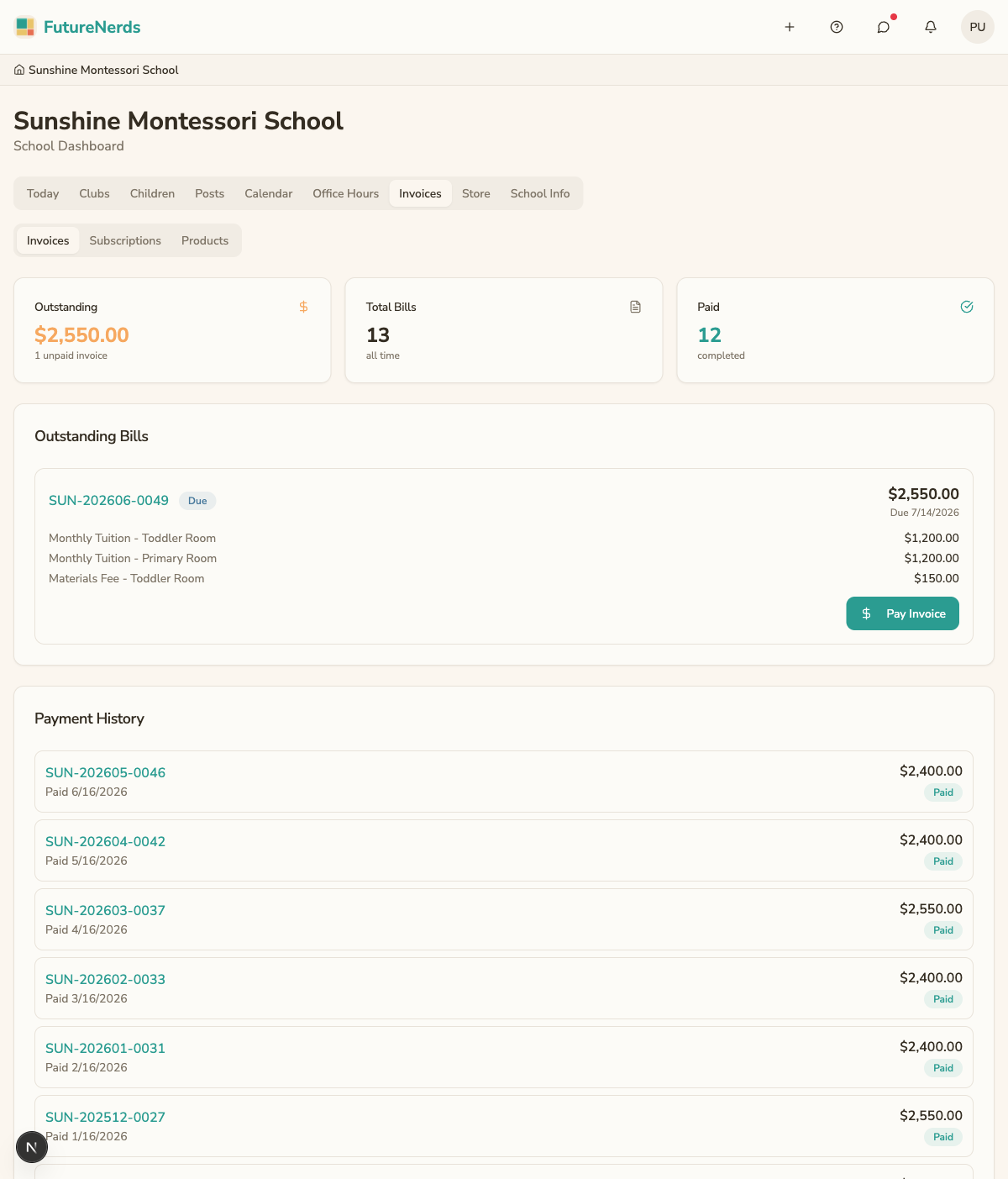
5. View and pay your invoice
Open Billing from your avatar menu. Open an invoice and click Pay Invoice. Choose Pay with Card, or Transfer funds manually and upload proof of the transfer.
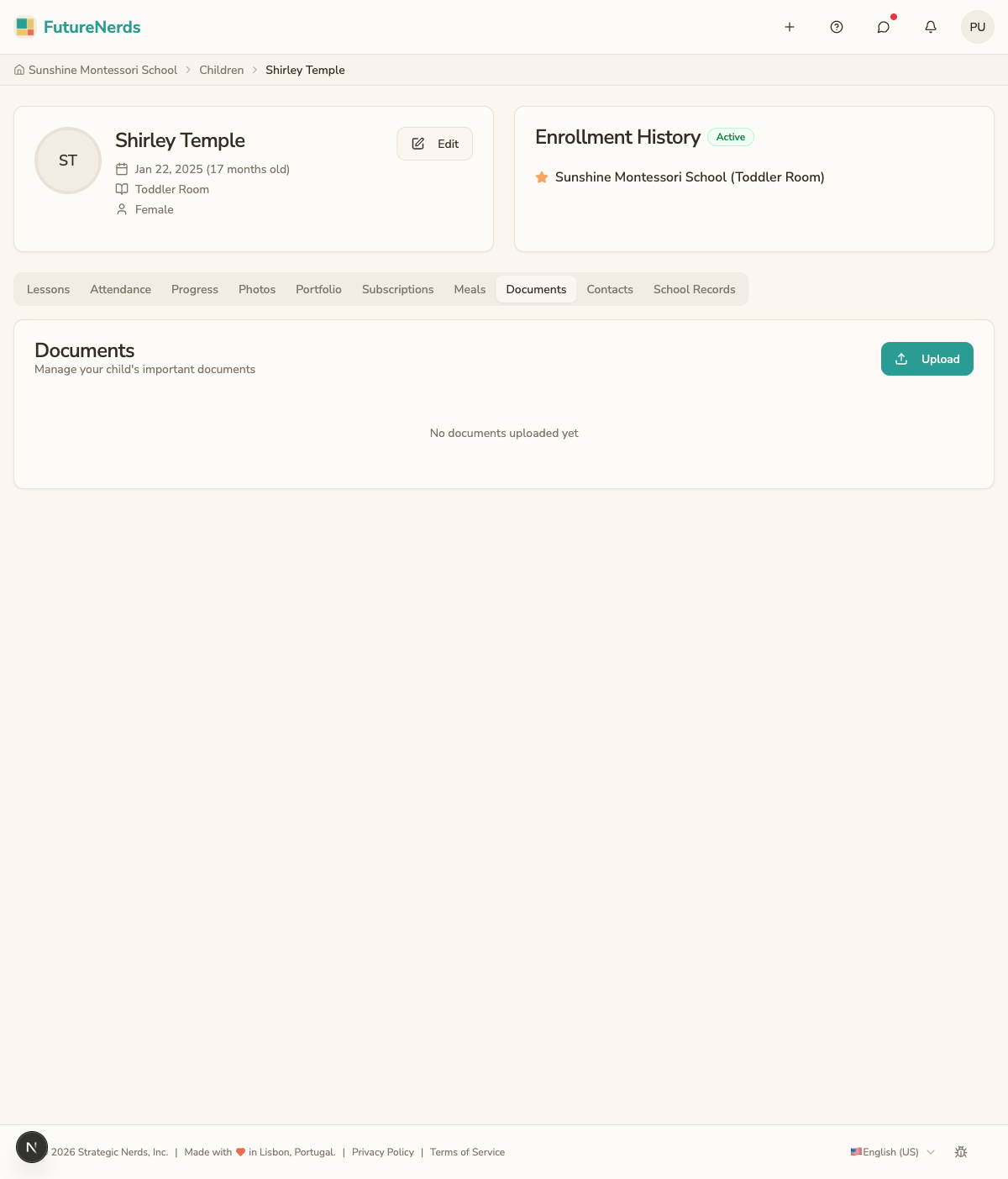
6. Upload important documents
Open your child's profile, then Family, and scroll to Documents to upload files the school asks for, such as vaccination records.
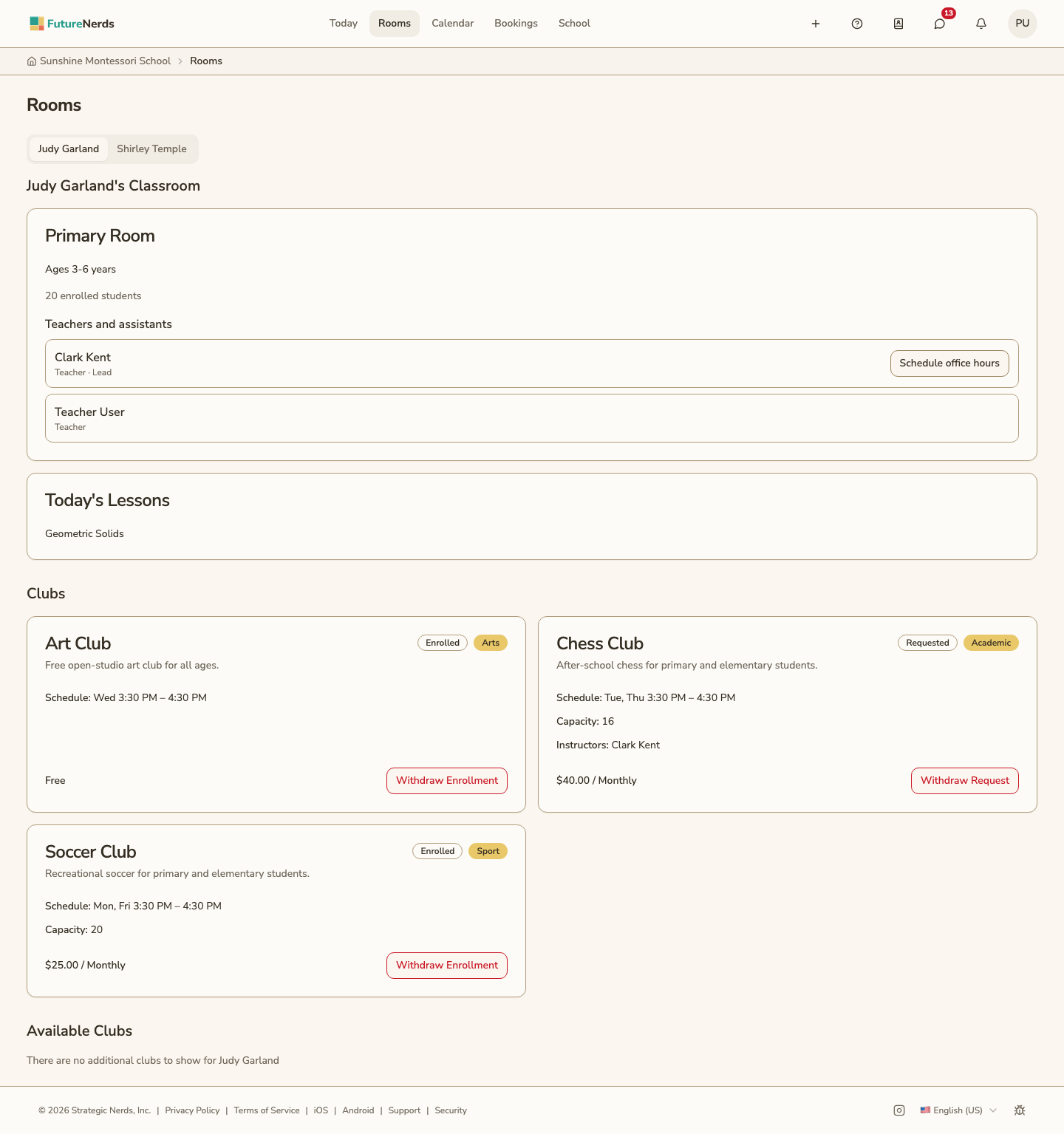
7. See your child's classroom and join clubs
Open Rooms in the top bar. You see your child's classroom, their teachers, today's lessons, and their clubs. Click Sign Up on a club under Available Clubs to join it.
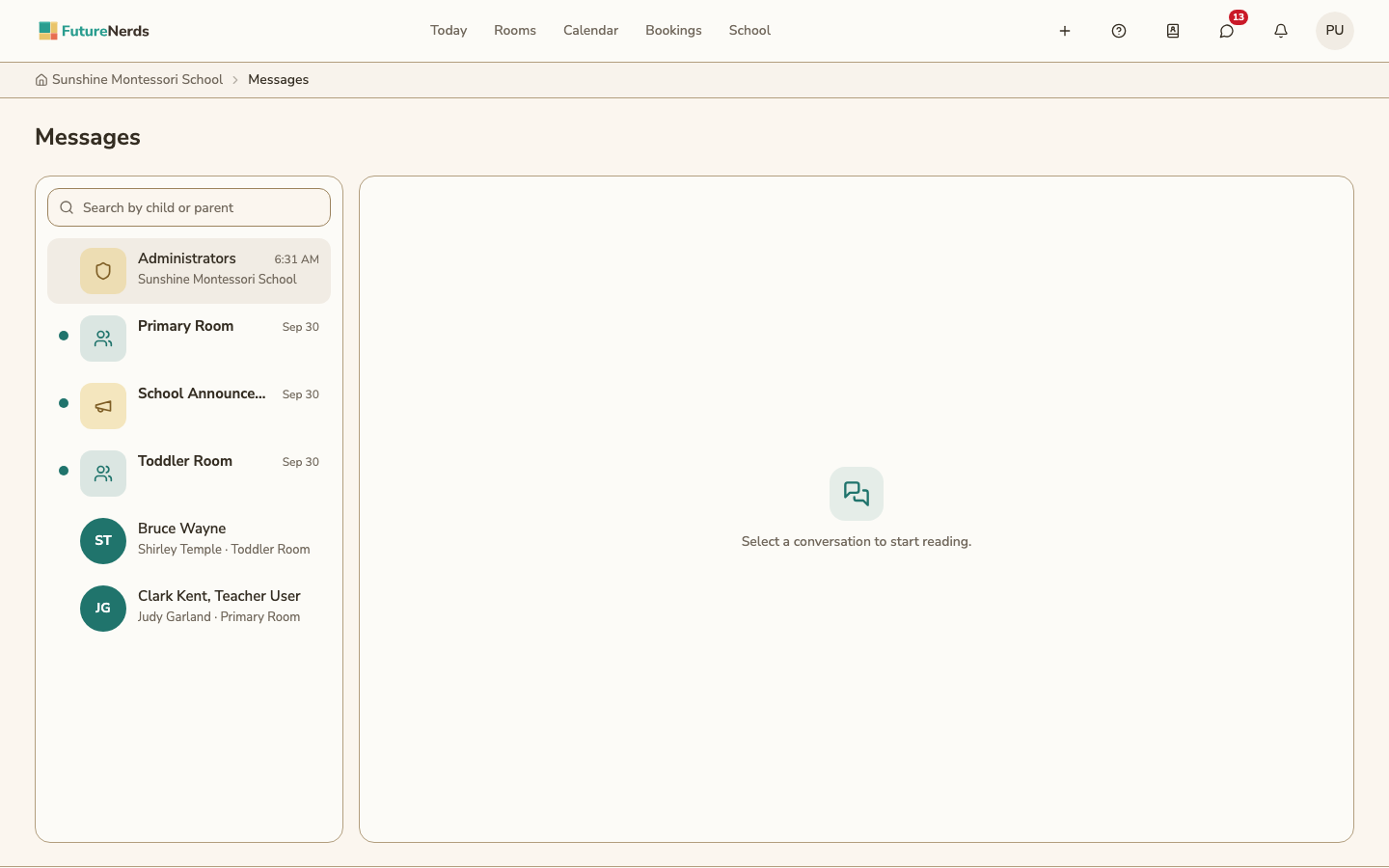
8. Message the school
Click the speech bubble in the top bar to open Messages. Your conversations include the office, your classroom channels, School announcements, and direct threads with teachers.
9. Check the school calendar
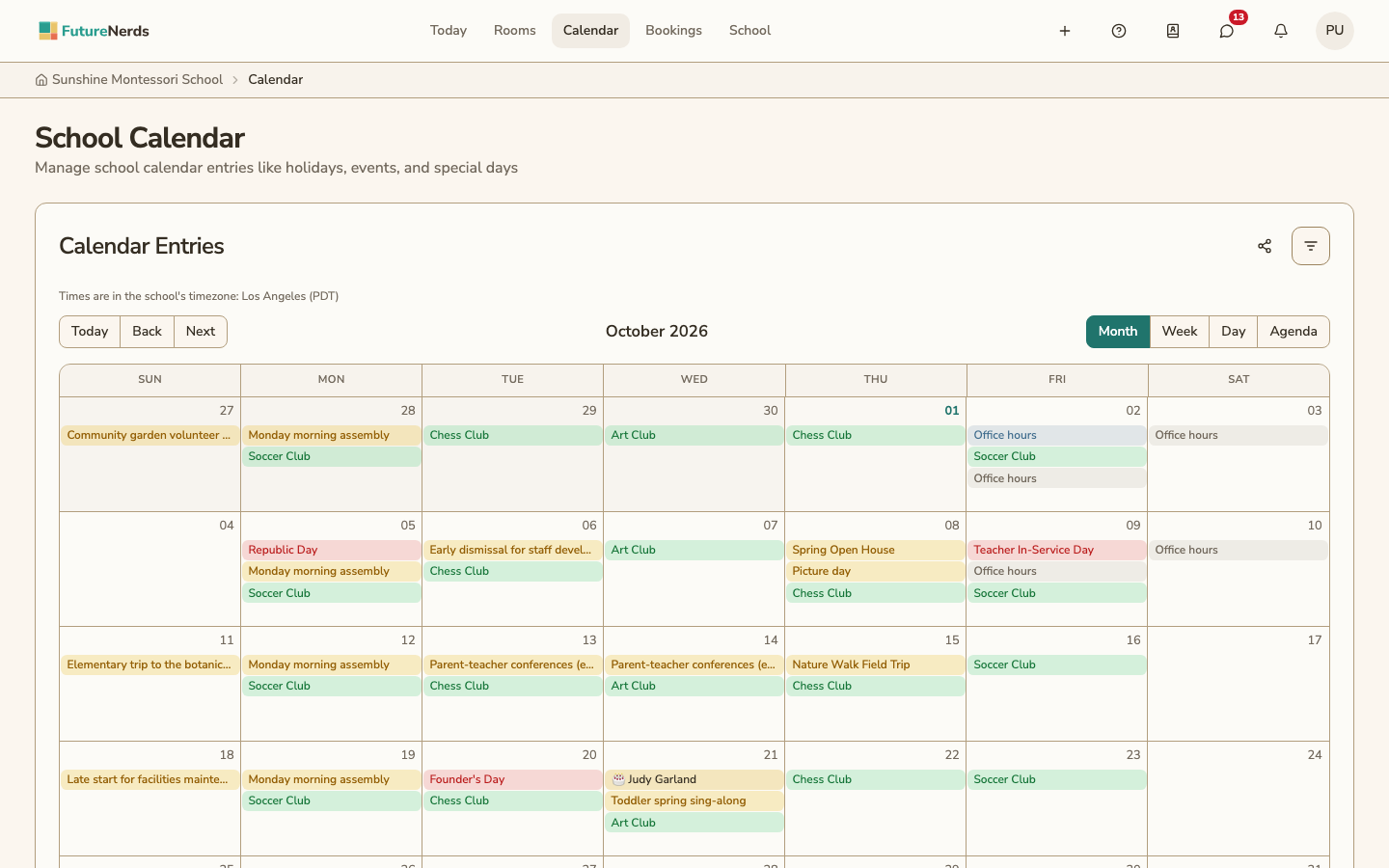
Open Calendar in the top bar for school events, closures, and trips. You see school-wide entries and entries for your child's classroom. Click an entry for details.
10. Sign up for the daily digest
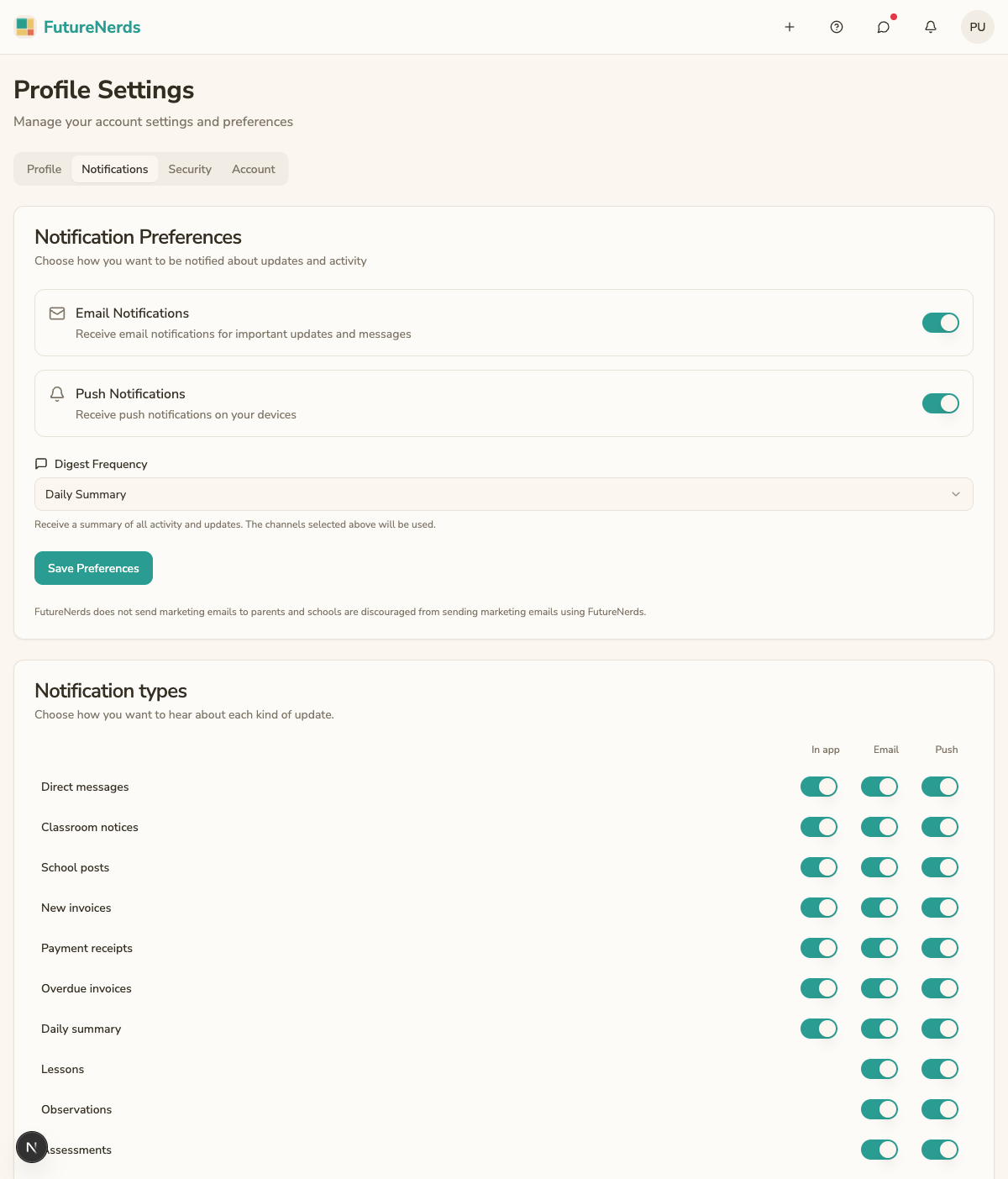
Open your avatar menu, then Profile Settings, then Notifications. Set Digest Frequency to Daily Summary for an end-of-day email.
Was This Helpful?