How to move a school to new software and import families from CSV
This is how to move a school to new software with FutureNerds. Import families from a CSV or Excel file, invite every parent in one step, set up classrooms and curriculum, and connect Stripe for tuition. FutureNerds is free for your first 10 students.
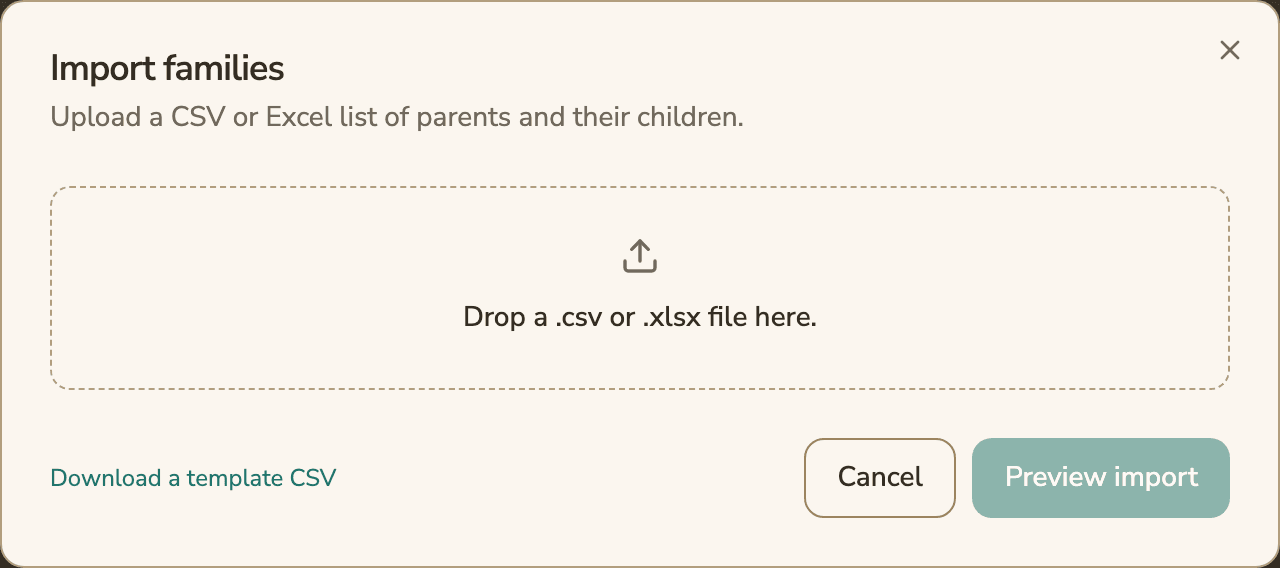
Import families from a CSV or Excel file
Import Families is in Settings and on the Family Roster. It reads .csv, .xlsx and .xls files, one row per child with a parent. Download a template CSV from the dialog to see the layout.
The import fills six fields:
- Parent first name
- Parent last name
- Parent email
- Child first name
- Child last name
- Child birth date
A file that follows the template is read by column position. If your file uses its own headings and an administrator has turned on AI suggestions (optional, off by default), FutureNerds matches your headings to the six fields. Only the headings are sent, so no child's name leaves the school. The preview shows a Your column and Imported as table to check before anything is saved.
The preview says whether birth dates are read as day/month/year or month/day/year.
Rows that need fixing
Before the import runs, the preview marks each row Create or Already imported. Rows already on the roster are skipped. Rows with a problem are held back:
| Held back because | What to fix |
|---|---|
| Child with no parent | Add a parent |
| Parent with no email | Add the email |
| Parent whose email is not valid | Correct it. The preview may suggest the right address |
| Row with no child name | Add the name |
| Child with no birth date | Add the date |
| Child whose birth date could not be read | Rewrite the date |
| Child whose birth date can be read two ways | Pick one of the two readings shown |
Download rows to fix gives you a CSV of only the held rows, with a note on each. Fix them in your spreadsheet and upload that file.
After the import you can assign each child to a classroom, one at a time or in bulk, or skip and do it later.
Invite parents
Tick "Automatically email parents after they are imported" and every new parent gets an invitation when the import finishes. You can also invite later from the Family Roster, which has four actions: Invite a Parent, Invite Several Parents (paste a list or upload a CSV), Import Families and Remind All Parents.
The roster shows where each invitation stands, with 11 statuses: Not Invited, Invited, Delivered, Delayed, Bounced, Blocked, Spam Complaint, Send Failed, Invitation Expired, Signed Up Not Confirmed and Active. Remind This Parent sends one parent a new invitation.
Set up classrooms, curriculum and payments
- Curriculum. A new school's curriculum is seeded from AMS or AMI, or you can build your own. You can rename the four mastery levels and change their colors.
- Classrooms. Each classroom has an age level: Infant/Toddler, Primary, Lower Elementary, Upper Elementary or Adolescent. The level decides which lessons and daily records the room uses.
- Stripe. Select Connect With Stripe to set up a Stripe Express account for card payments from families. The connection shows as Not Connected, Onboarding, Active, Restricted or Disabled. Without Stripe you can still send invoices, and parents can pay by transfer and upload proof.
Moving data out of FutureNerds
- Invoices and payments. Export Invoices (CSV) and Export Payments (CSV) give spreadsheets in a format QuickBooks can import.
- Your data. Download Your Data in Settings gives a JSON file with your profile, your children, enrollments, observations, attendance, consent records and audit trail. It is available on the website.
- Data requests. The Data Requests page in Settings tracks access, erasure, rectification and portability requests, each with a status and a due date.
How to move your school to FutureNerds
- Create your school and pick your curriculum framework: AMS, AMI or your own.
- Add your classrooms and set each one's age level.
- Export a family list from your old system as CSV or Excel.
- Open Settings, choose Import Families, and upload the file.
- Check the column match and the preview, then select Import.
- Select Download rows to fix, correct the held rows, and upload them again.
- Assign children to classrooms, or skip for now.
- Invite parents, then watch the Family Roster statuses and use Remind All Parents for anyone who has not signed in.
- Connect Stripe if you collect tuition through FutureNerds.
What it costs
FutureNerds is free for your first 10 students. After that it costs $0.50 per child per month, with no setup fee. If your school collects payments from families through FutureNerds, standard Stripe fees plus 1% apply. See pricing.
Questions and answers
Can I import families into FutureNerds from a spreadsheet?
Yes. FutureNerds imports families from CSV, XLSX and XLS files, with a template CSV to start from. Each row needs a parent, a parent email, a child name and a birth date.
What happens to rows with mistakes?
FutureNerds holds them back and tells you why. Download rows to fix gives you a CSV of just those rows to correct and upload again.
Will importing the same file twice make duplicates?
No. Rows already on the roster show as Already imported and are skipped.
How do I invite all the parents at once?
Tick "Automatically email parents after they are imported" during the import, or use Invite Several Parents on the Family Roster. Remind All Parents reminds every parent who has not signed in yet.
Can I export my data if I leave FutureNerds?
Yes. You can export invoices and payments as CSV files QuickBooks can import, and Download Your Data gives a JSON file of your records.
Less paperwork. More presence.
Free for your first 10 students. No credit card required.