How to move your school's records from one system to another
To move your school's records from one system to another, list what you keep, export everything from the old system, clean it in a spreadsheet, import families first, invite parents, run both systems for a short overlap, then set a cut-over date. FutureNerds imports families from CSV or Excel.
Pick the date first
Switch at a natural break: the start of a term, the start of a billing month, or the week before the school year. A move in the middle of a billing period means some invoices live in one system and some in the other.
Work back from that date. Plan for about four weeks: one for the inventory and export, one for cleaning and importing, and two for the overlap.
Take an inventory
List every kind of record in the old system, and decide what happens to each one.
| Record | Move it into the new system? | How to keep the old copy |
|---|---|---|
| Families, children and contacts | Yes, by import | Spreadsheet export |
| Current classrooms and enrollments | Yes | Spreadsheet export |
| Open invoices and balances | Yes, as starting balances | Export plus a PDF of each open invoice |
| Paid invoices and payment history | Usually no | Spreadsheet export for your accountant |
| Observations and lesson records | Your choice | Export or PDF per child |
| Past progress reports | Usually no | PDF per child |
| Signed documents and consents | Usually no | PDF per child, filed where staff can find them |
| Photos | Your choice | Download the files |
Records you don't move still need a home. Your licensing body may require you to keep some of them for a set number of years.
Export everything before you cancel
Ask the old vendor for a full export before you give notice. Ask which formats they offer, how long the export takes, and how long you keep access after the contract ends. Check your contract for the notice period.
Save the export in two places and open each file to check it's complete.
Clean the data in a spreadsheet
Exports are rarely ready to import. Before you import, fix these in a spreadsheet:
- one row per child, with each guardian's name, email and phone in their own columns
- the same spelling of each child's name everywhere, including hyphens and accents
- one date format for every date of birth
- current email addresses for every guardian, since invitations go to them
- children who have left, removed or marked inactive
- one classroom name per child, matching the classroom names in the new system
Ask each guide to check their own class list for missing siblings and old emails.
Import families first, then the rest
Import in this order: classrooms, then families and children, then starting balances, then anything else.
After the import, open five or six families at random and compare them with the old system, including one with siblings and one with two households.
Invite parents
Send invitations a week or so before the overlap starts, with a short note: why you're switching, what families need to do, and the date the old system stops. Track who has accepted, and remind the rest twice before the cut-over.
Run both systems for a short overlap
Plan for about two weeks of overlap. Decide in advance which system is the source of truth for each record during that time, and tell staff. For example: attendance and messages in the new system from day one, invoices in the old system until the end of the billing month.
Cut over
On the cut-over date, stop using the old system for anything new, and tell families and staff. Keep a read-only login or your export for as long as your record-keeping rules require, then cancel.
How to switch school software
- Pick a cut-over date at a term or billing break.
- List every record in the old system and decide whether to move it or archive it.
- Ask the old vendor for a full export, and save it in two places.
- Clean the export in a spreadsheet: one row per child, current emails, one date format.
- Set up classrooms in the new system, then import families and children.
- Check a sample of imported families against the old system.
- Invite parents with a note that names the cut-over date.
- Run both systems for about two weeks, with one source of truth per record.
- Stop using the old system on the cut-over date, and keep the archive.
Doing this in FutureNerds
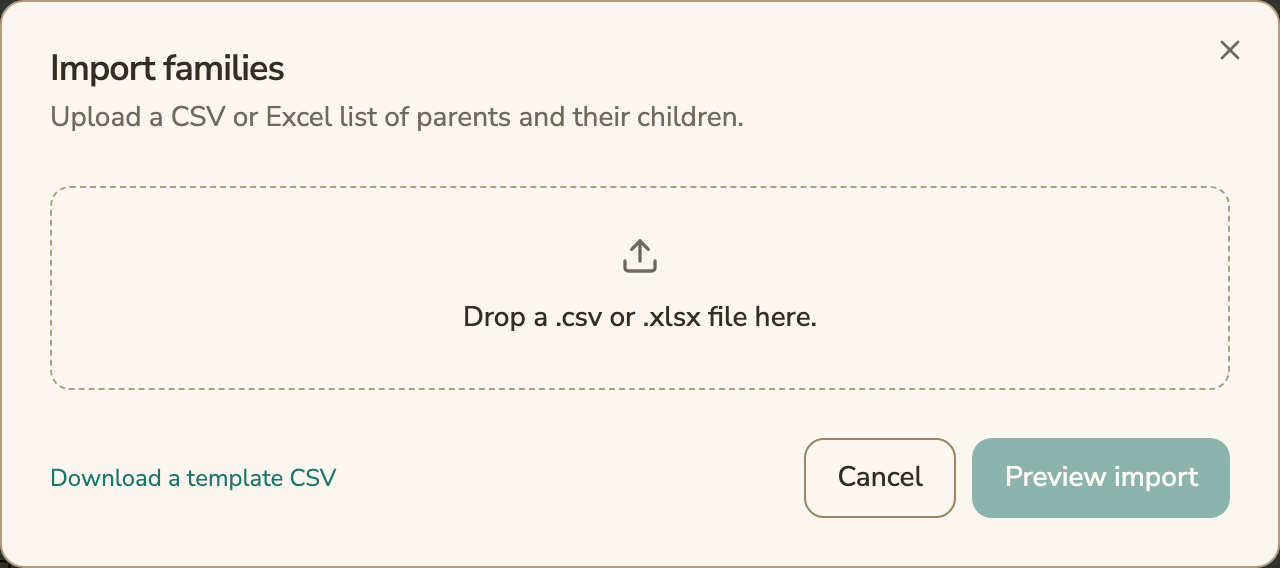
In FutureNerds, Import Families is under Settings > Families.
- Files. Upload a CSV, XLSX or XLS file of parents and their children. Download the template CSV to see the columns.
- Preview and fix. Preview the import before it runs. Rows that can't be imported are held back, and you can download them as a "rows to fix" CSV, correct them and upload them again.
- Invitations. Invite one parent, several at once by pasting or uploading a CSV, or send a reminder to every parent who hasn't joined.
- Tracking. The Family Roster shows each invitation's status, from Not Invited through Invited, Delivered, Bounced and Invitation Expired to Active, 11 statuses in all.
- Your data out. Export invoices and payments as a QuickBooks-format CSV. On the website, each user can also download a JSON file of the data FutureNerds keeps about them.
FutureNerds is free for your first 10 students, then $0.50 per child per month with no setup fee, and standard Stripe fees plus 1% apply if you collect family payments through it (pricing). See switching from another system.
Questions and answers
How long should we run both systems?
About two weeks. Decide which system is the source of truth for each record during the overlap, and tell staff.
Can I import families into FutureNerds from a spreadsheet?
Yes. FutureNerds imports CSV, XLSX and XLS files, has a template CSV to download, and gives you a "rows to fix" file for any rows it couldn't import.
How do I know which parents have joined?
The Family Roster in FutureNerds shows each family's invitation status, from Not Invited to Active. You can send a reminder to every parent who hasn't joined.
Can I get my data out of FutureNerds later?
You can export invoices and payments from FutureNerds as a QuickBooks-format CSV. Each user can also download a JSON file of their own profile, children, enrollments, observations, attendance and consent records from the website.
Less paperwork. More presence.
Free for your first 10 students. No credit card required.