Montessori progress report and report card software
FutureNerds is Montessori progress report and report card software. Guides write narrative assessments for each child by term, start from a draft filled from the observations already shared with parents, and publish when ready. Parents read published assessments in the app and can open an attached PDF.
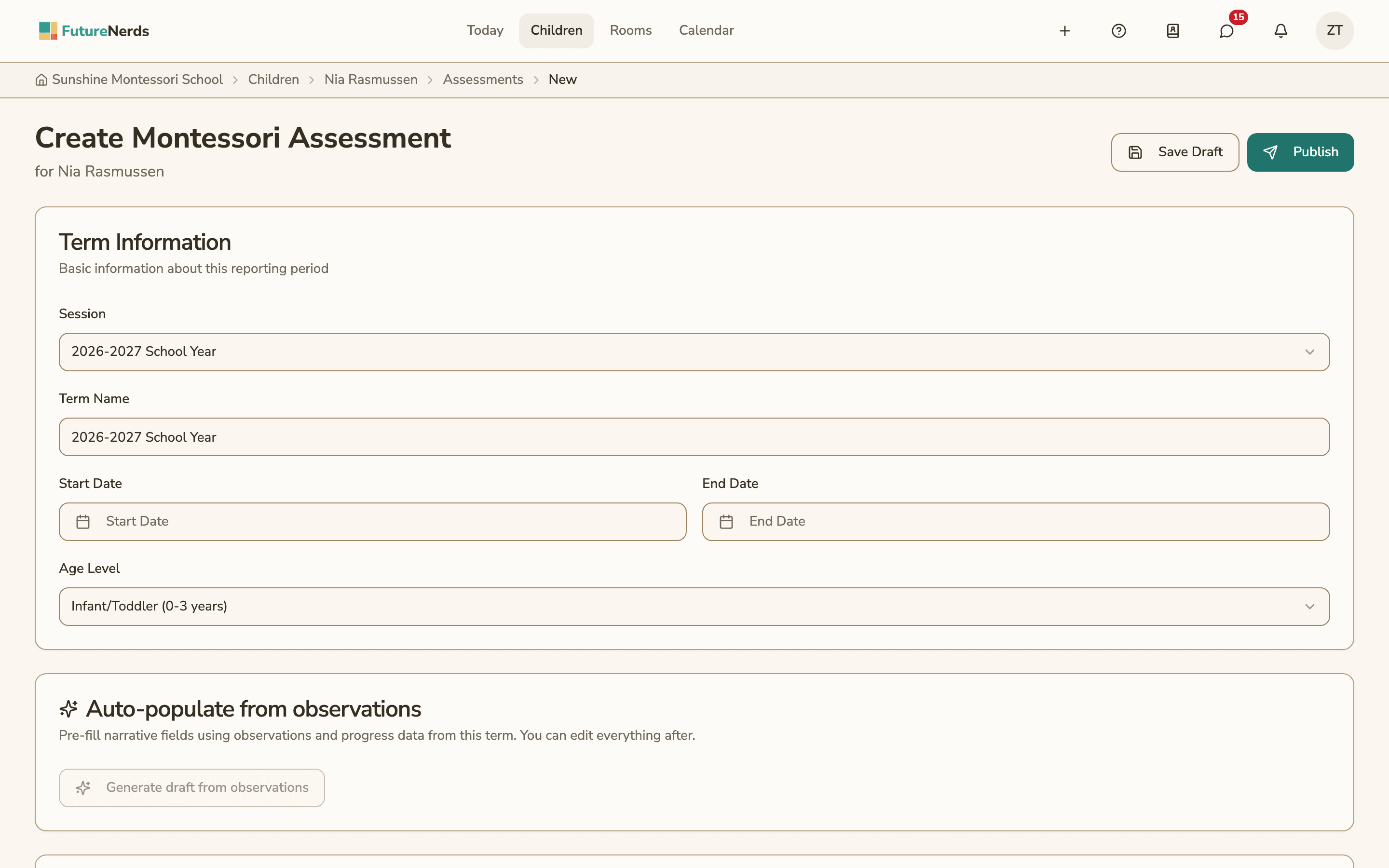
What a Montessori assessment holds
In FutureNerds a report card is called a Montessori Assessment. It is written in sentences, with a mastery level for each competency, and it has these parts:
| Section | What goes in it |
|---|---|
| Term Information | Term Name (for example "Fall 2025"), Session, Start Date and End Date |
| Age Level | The program the child is in, which decides the curriculum areas shown |
| Overall Summary | A general assessment of progress this term |
| Curriculum areas | For each area, the competencies with their level and Observation Notes |
| Work Habits | Independence, concentration, care of the environment and responsibility |
| Social-Emotional Development | Grace and courtesy, conflict resolution and community participation |
| Physical Development | Gross and fine motor skills, coordination and body awareness |
| Teacher Comments | Anything else the guide wants the family to read |
| Attendance summary | The child's attendance for the term |
| An optional file attached to the assessment |
Each competency is marked Not Yet Presented, Presented, Practicing or Mastered, the same four levels guides use for daily progress. A guide can hide a competency that does not belong in this report or add one that does.
Age levels
The Age Level sets which curriculum areas and competencies appear.
| Age level | Ages |
|---|---|
| Infant/Toddler | 0 to 3 years |
| Primary/Casa | 3 to 6 years |
| Lower Elementary | 6 to 9 years |
| Elementary | 6 to 12 years |
| Upper Elementary | 9 to 12 years |
| Adolescent | 12 years and up |
Each assessment belongs to one of the school's academic sessions.
Drafts filled from your observations
Generate draft from observations fills the narrative fields from the observations and progress records between the term's start and end dates. It uses only observations that were shared with parents. The draft is built from a template, and the guide can edit every field before saving.
Set the term's start and end dates before you generate a draft.
Draft, publish and unpublish
An assessment starts as a draft that only staff can see. The buttons are Save Draft, Publish and Unpublish.
- Save Draft keeps the work in progress.
- Publish sends the assessment to the child's parents. A published assessment is locked.
- Unpublish takes it back from parents so it can be changed.
Every change is written to an audit log with who made it and when. The log records four actions: created, modified, published and unpublished.
Parents see published assessments only. They read them on the child's page on the web, iPhone or Android, and open the PDF with View PDF when one is attached.
How to write a progress report in FutureNerds
- Open the child's page and start a new Montessori Assessment.
- Under Term Information, enter the Term Name, choose the Session and set the Start Date and End Date.
- Choose the Age Level.
- Select Generate draft from observations to fill the narrative fields.
- Read each section. Edit the Overall Summary, the area notes, Work Habits, Social-Emotional Development, Physical Development and Teacher Comments.
- Check the level for each competency and hide any that do not belong in this report.
- Attach a PDF if you have one, then select Save Draft.
- When the report is ready for the family, select Publish.
What it costs
FutureNerds is free for your first 10 students. After that it costs $0.50 per child per month, with no setup fee. If your school collects payments from families through FutureNerds, standard Stripe fees plus 1% apply. See pricing.
Questions and answers
Does FutureNerds use letter grades?
No. FutureNerds assessments are written narratives with a mastery level for each competency: Not Yet Presented, Presented, Practicing or Mastered.
Does AI write the report cards?
No. Generate draft from observations fills the fields from a template, using observations the guide already shared with parents. The guide edits the draft before publishing it.
Can parents see a report before it is published?
No. Parents see an assessment only after a guide publishes it. Unpublishing takes it back from them.
Can I see who changed a published report?
Yes. FutureNerds keeps an audit log for each assessment that records when it was created, modified, published and unpublished, and by whom.
Can parents download the report as a PDF?
Yes, when the school attaches a PDF. Parents open it with View PDF on the web or in the app.
Does FutureNerds work for elementary and adolescent programs?
Yes. Assessments cover age levels from Infant/Toddler (0 to 3) to Adolescent (12 and up), and the curriculum areas follow the level you choose.
Less paperwork. More presence.
Free for your first 10 students. No credit card required.